Add AGIOne as a Model Provider in Cherry Studio
Install Cherry Studio
Visit the official Cherry Studio website to download and install the version suitable for your operating system.
Configure Model Provider (AGIOne)
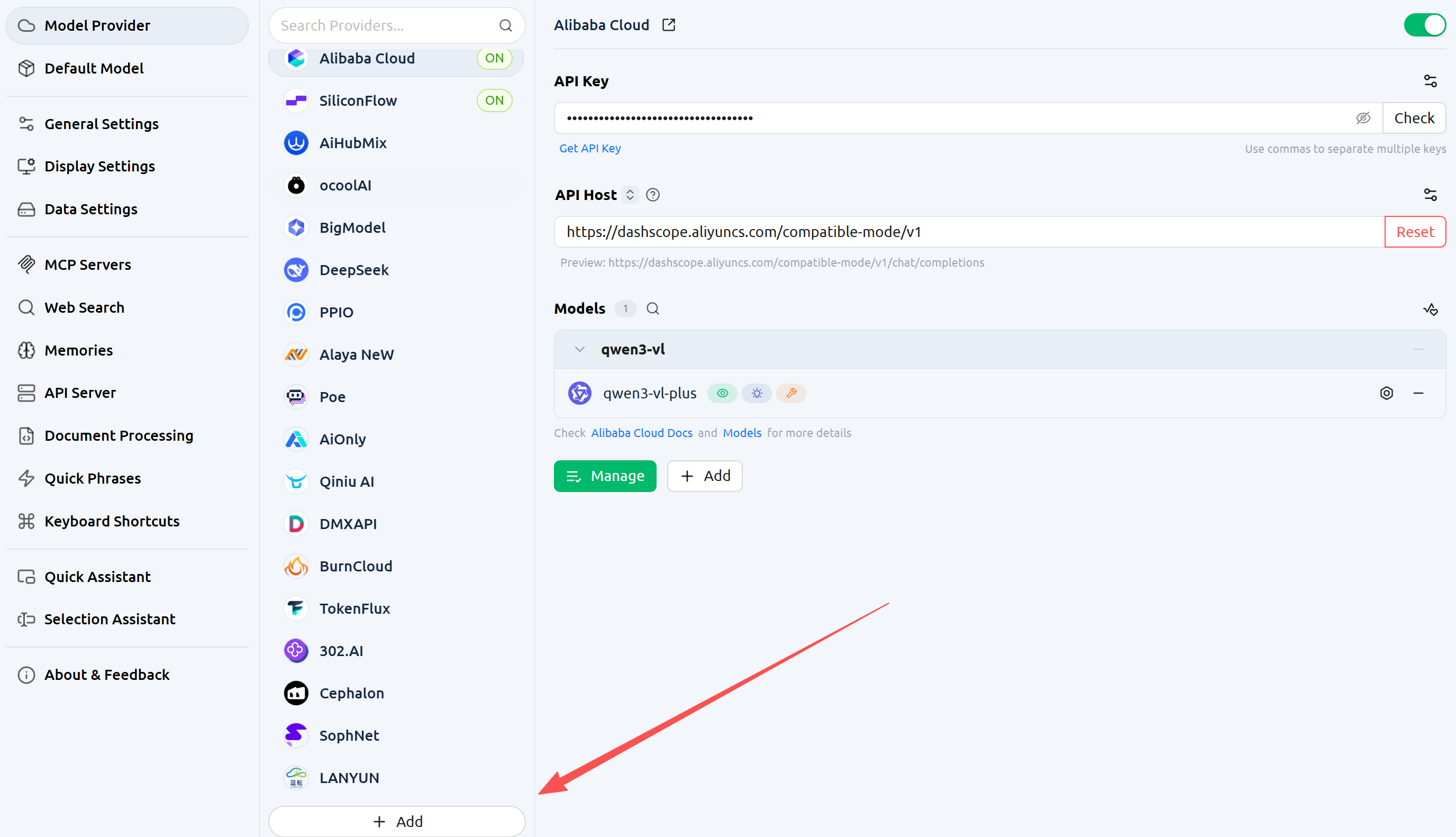
- Open the client, click Settings in the bottom right corner, find Model Provider, scroll down the page and click the Add button.
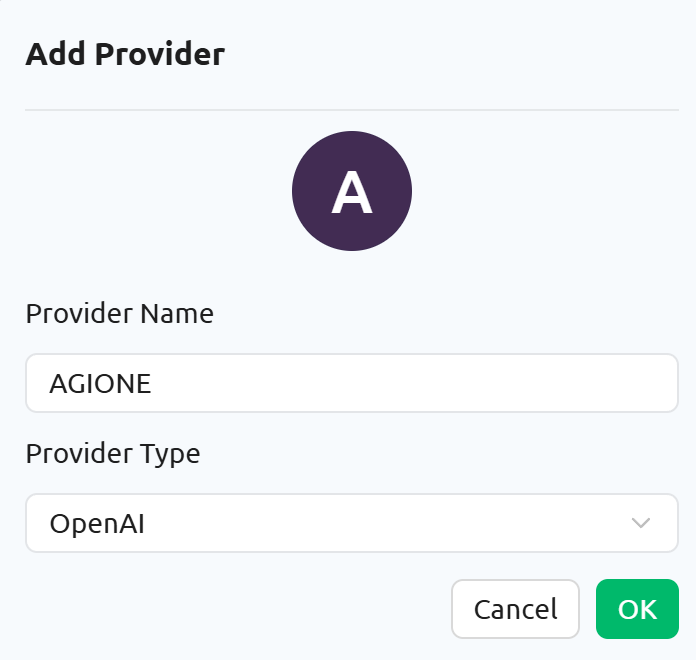
- Add a provider - Provider Name: Enter a custom name - Provider Type: Select OpenAI
- Configure API Key and API Address
- API Key: Obtain the
Certified TOKENfrom the AGIOne platform model API call page - API Address:https://agione.pro/hyperone/xapi/api- Note: CherryStudio will append/chat/completionsto the end of the URL by default. However, AGIONE request routing is not compatible with this format on the CherryStudio platform. Therefore, users need to enter#at the end of the URL to indicate that the appending operation will not be performed.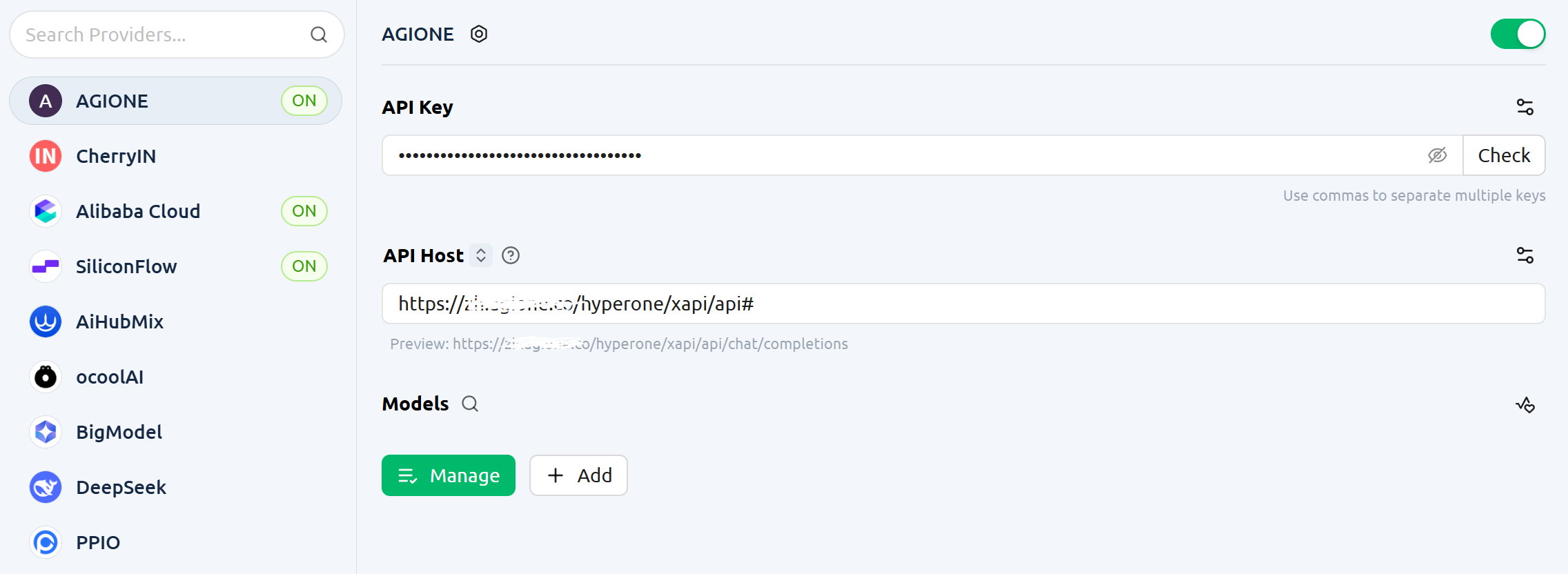
- API Key: Obtain the
- Retrieve the Model List
After configuration, go to Model → Manage to retrieve the model list (most model providers predefine available models), then select your desired model.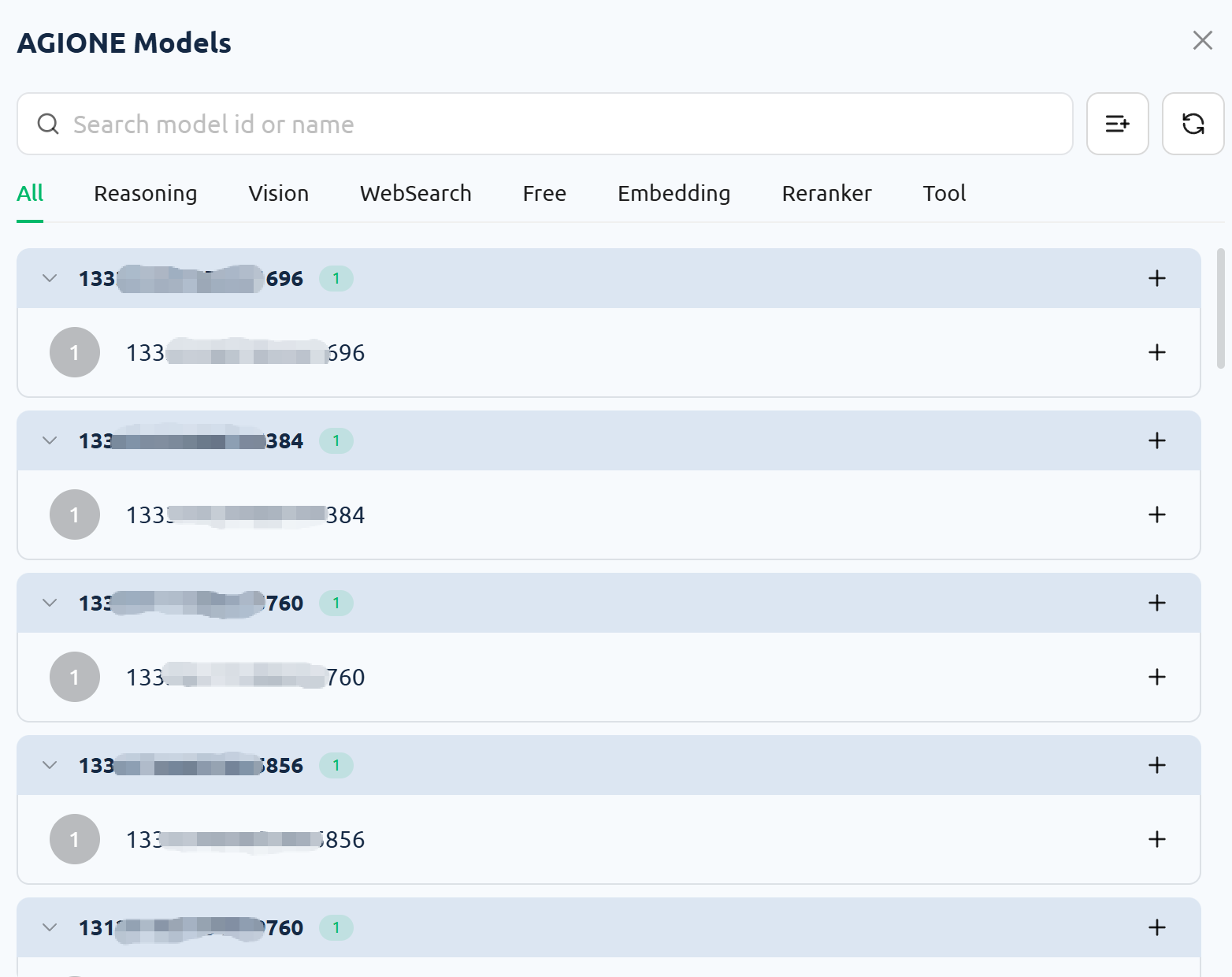
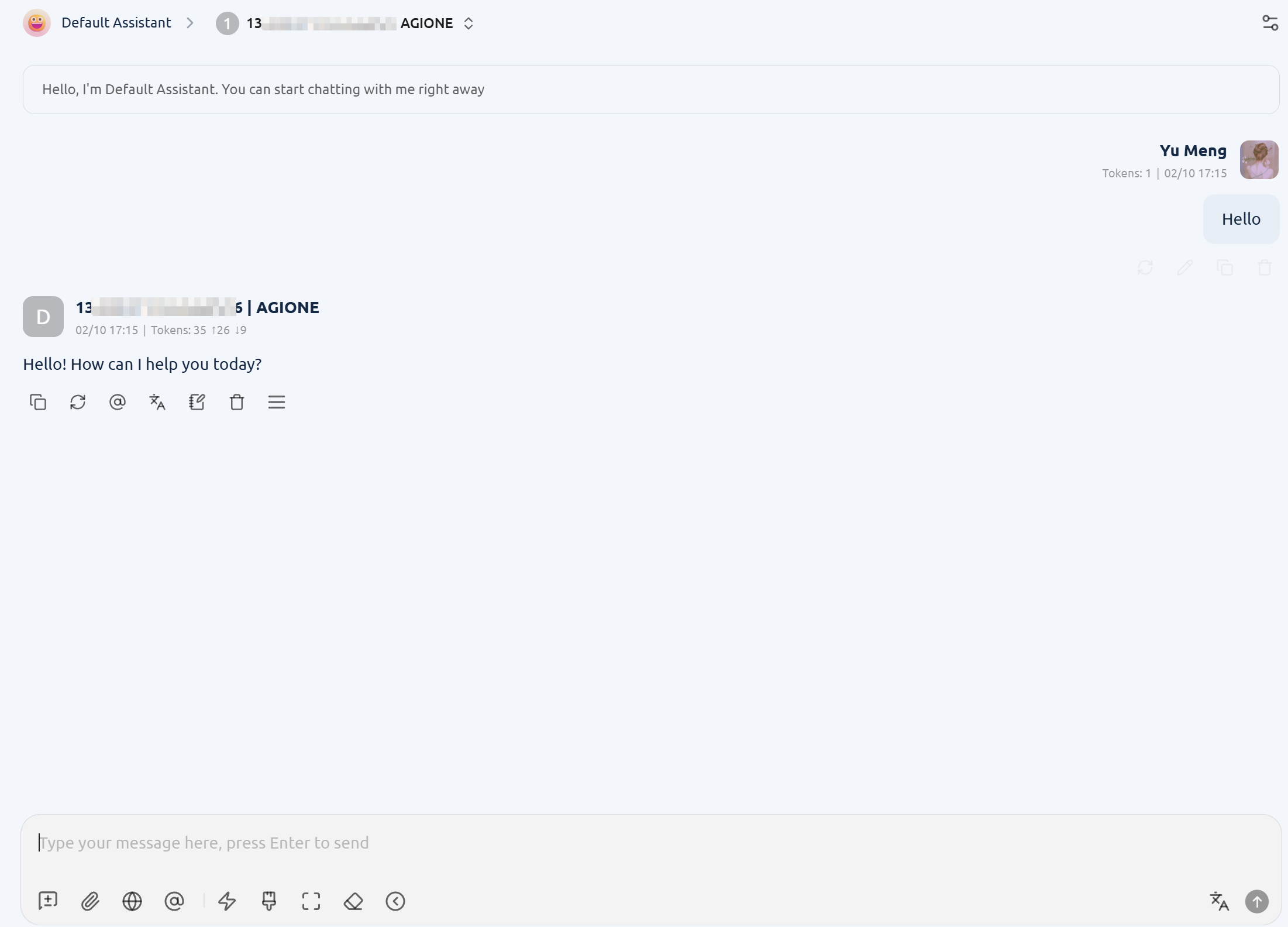
Use the Model
Select the model you just configured, enter the test text in the dialog box, and if there is a normal response, the configuration is successful.