Install Open Code and use AGIOne as the model provider
Install Open Code
- Ensure Node.js (v20.x.x or later) is installed.
- Install the OpenCode command.
npm install -g opencode-ai- Verify installation results.
opencode --version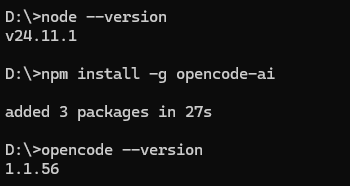
Model Configuration
- Visit AGIOne and register an account.
- Go to the model marketplace, select a model, enter the API Usage page, and obtain the API key and model id.
Configuration instructions(Using AGIOne as the model provider)
Create an opencode.json file in the project directory and configure the provider and model information.
- name:Provider Name(User-defined, an example being agione)
- baseURL:
https://agione.pro/hyperone/xapi/api - Authorization:Obtain the API Key from the
Certified TOKENsection of the AGIOne platform's model API call page provider.models: Obtain theModel Idfrom the request parameters of the AGIOne platform model API call pagemodel-id.name: Custom model name
json
{
  "$schema": "https://opencode.ai/config.json",
  "provider": {
    "myprovider": {
      "npm": "@ai-sdk/openai-compatible",
      "name": "agione",
      "options": {
        "baseURL": "https://agione.pro/hyperone/xapi/api",
        "headers": {
          "Authorization": "Bearer your_agione_key"
        }
      },
      "models": {
        "model-id": {
          "name": "model-name"
        }
      }
    }
  }
}
Return to cmd and type opencode to open the text user interface. 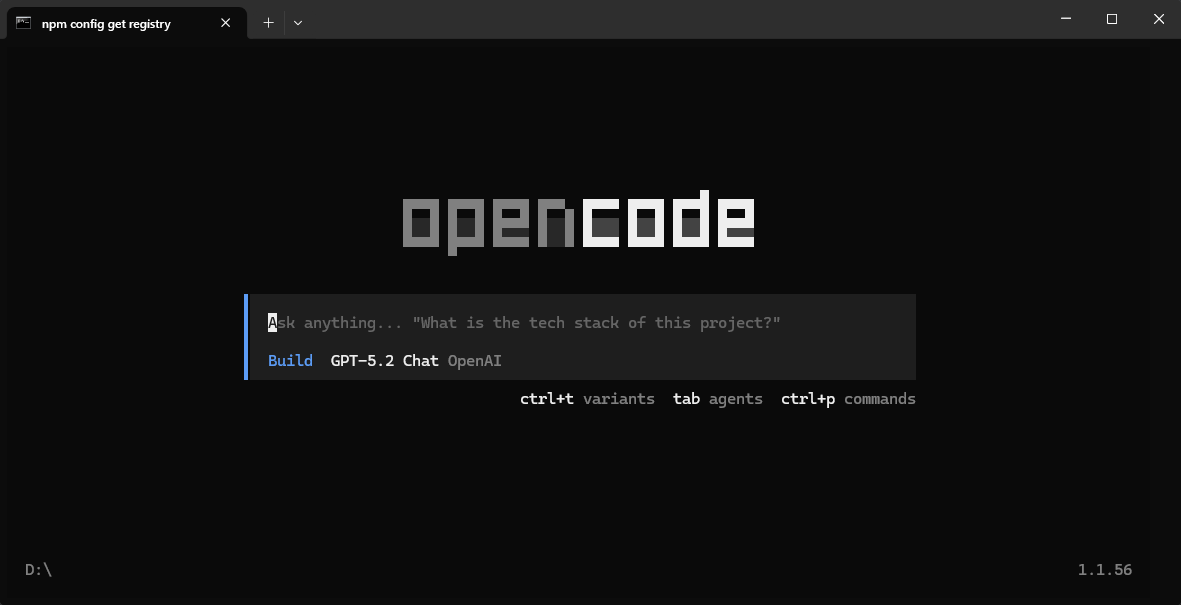 Use the
 /connect command to connect to the provider, entering the provider name set in the JSON file. 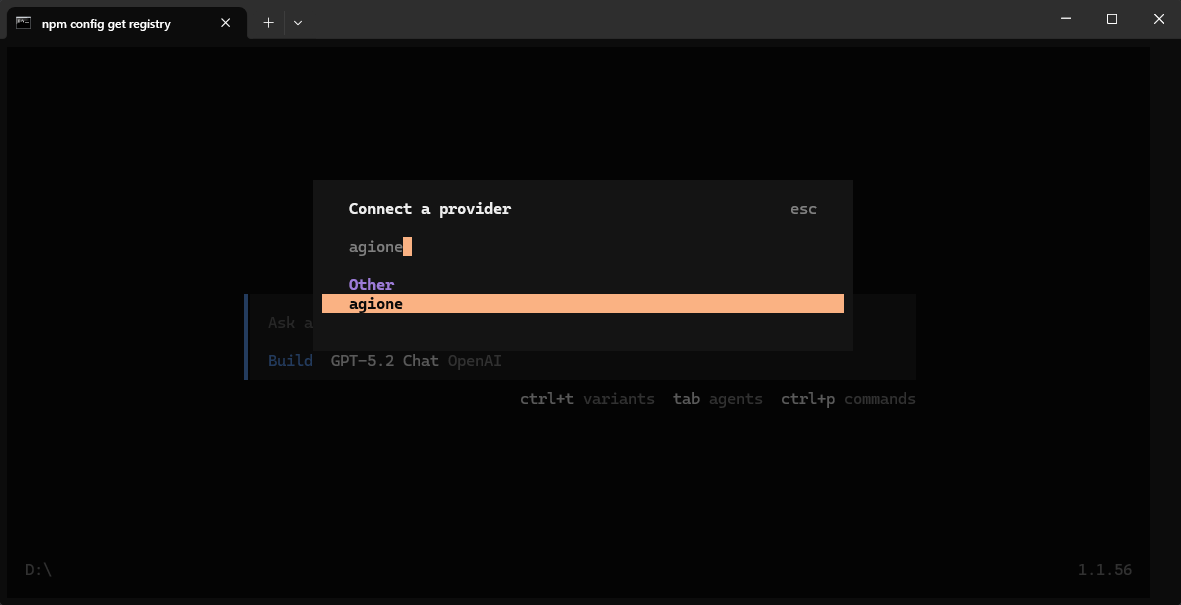 Then enter the model's API Key and press Enter to select the model you want to add.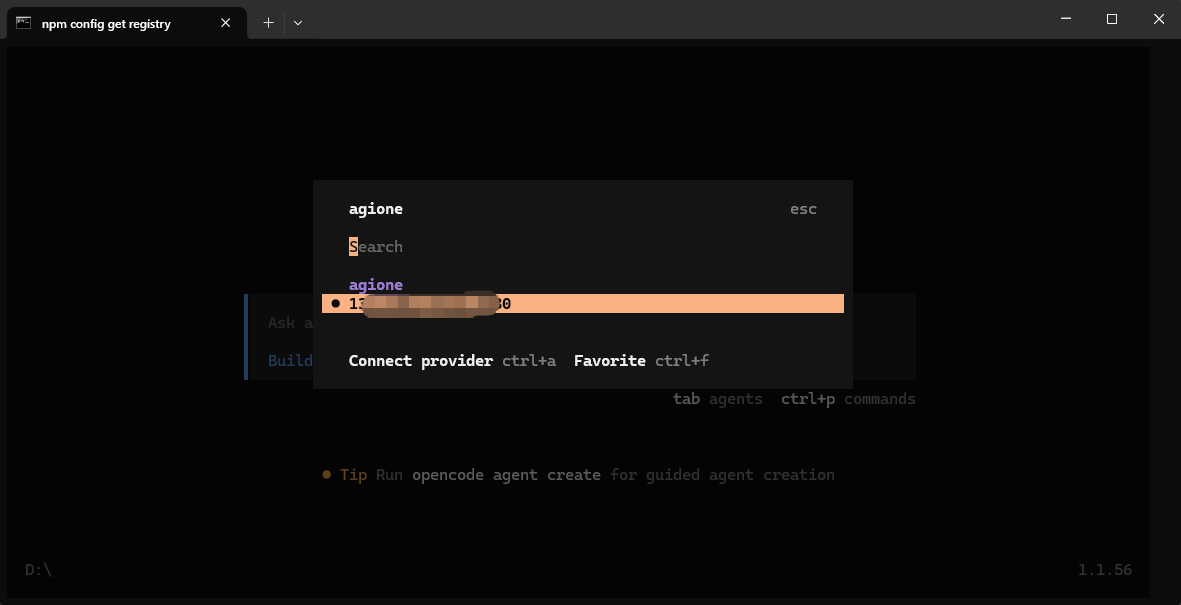
Test Response
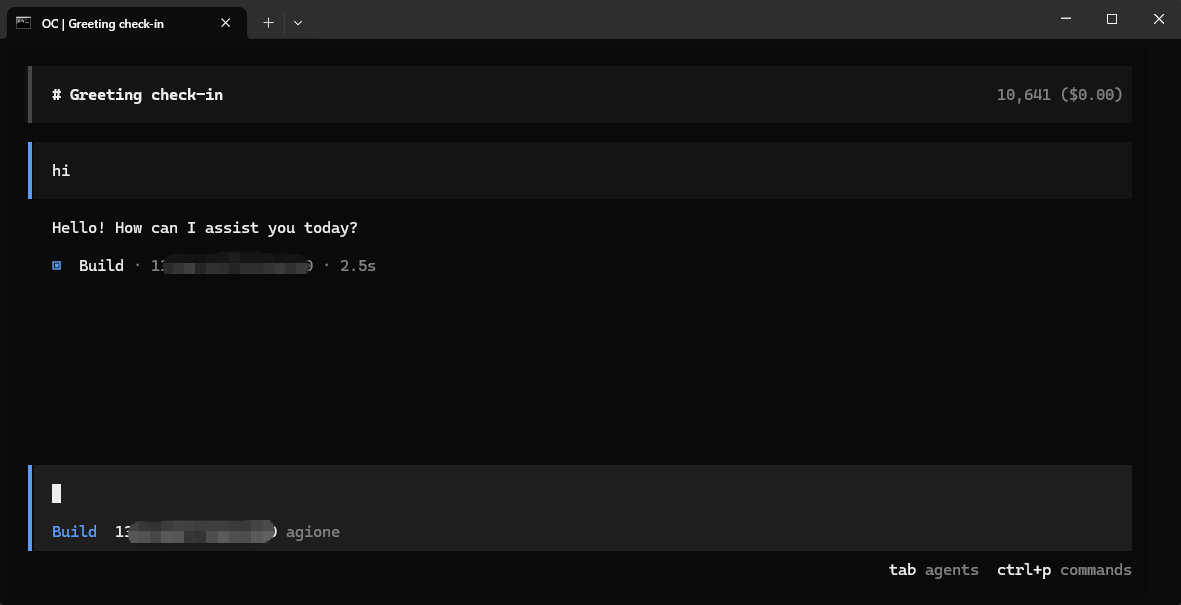
Enter the test text "hi" in the dialog box. If a normal response is received, the configuration is successful.