Using Kilo Code to integrate AGIOne models in VSCode
Install Kilo Code
- Install and open VS Code.
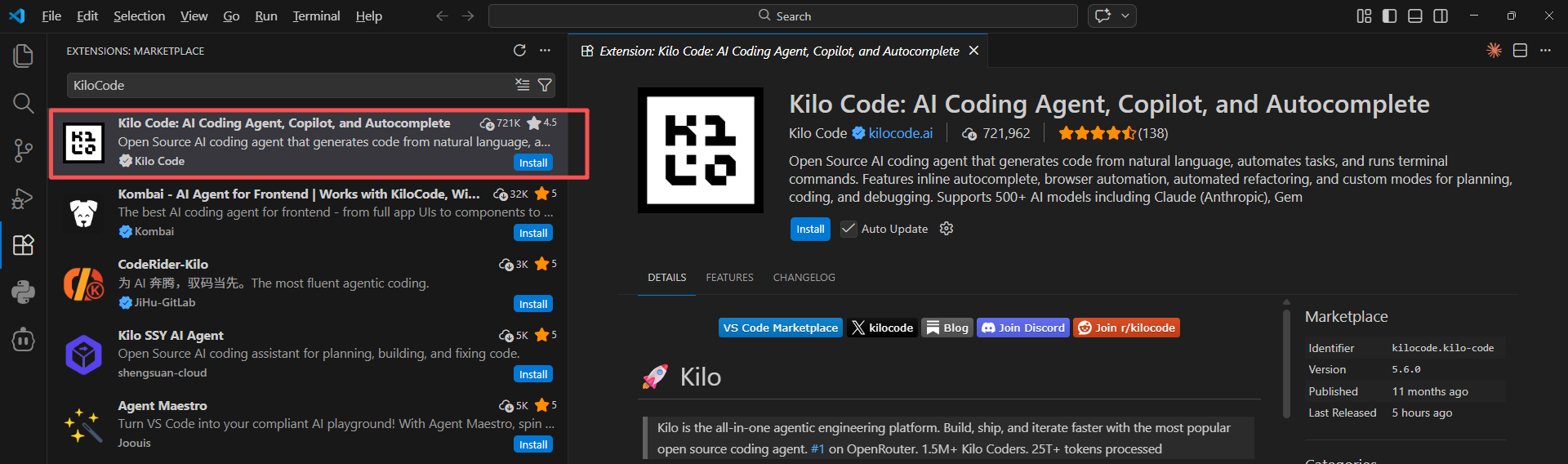
- In VS Code, go to the Extensions Store and search for Kilo Code, then click Install.
Model Configuration
- Visit AGIOne and register an account.
- Go to the model marketplace, select a model, enter the API Usage page, and obtain the API key and model id.
Configuration instructions
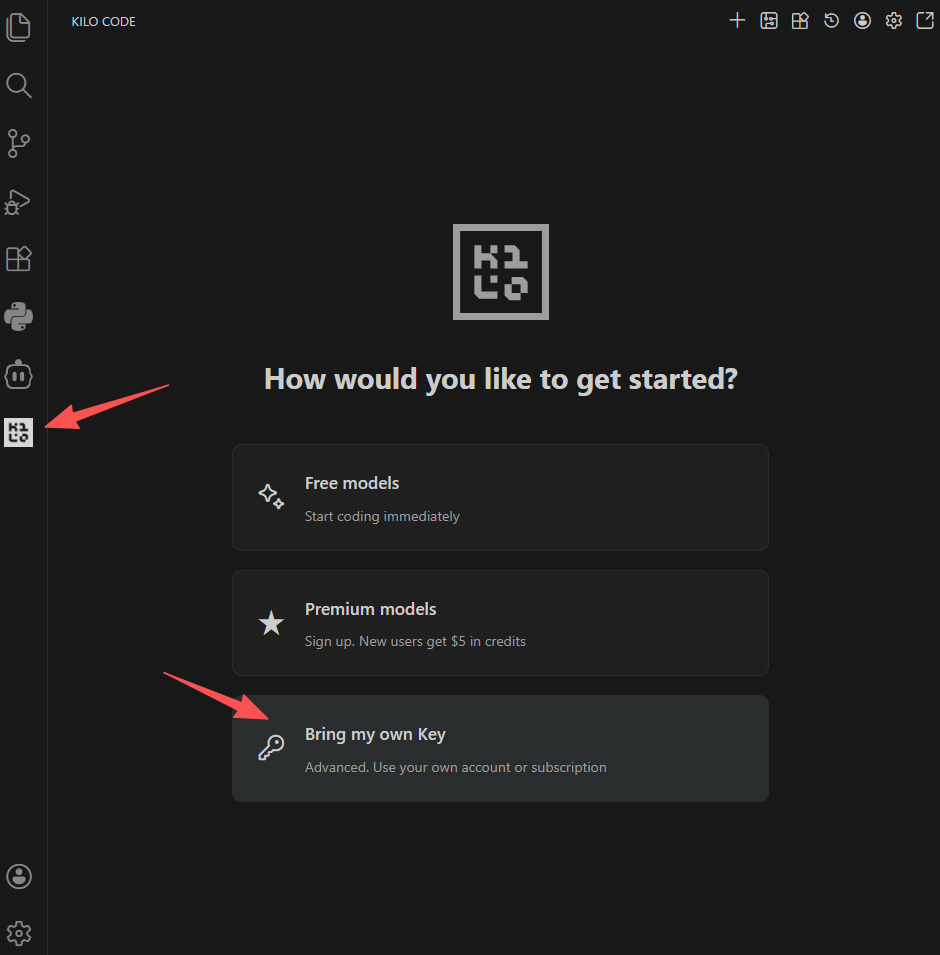
- After installation, you will see the Kilo Code icon in the left sidebar of VS Code. Click the icon to open the settings interface.
- Click Bring my own key.
- Configure Provider Information, After filling in the information, click the Save button.
- API Provider: Select
OpenAI Compatible - Base URL:
https://agione.pro/hyperone/xapi/api - API Key: Obtain the
Certified TOKENfrom the AGIOne platform model API call page - Model: Obtain the
Model Idfrom the request parameters of the AGIOne platform model API call page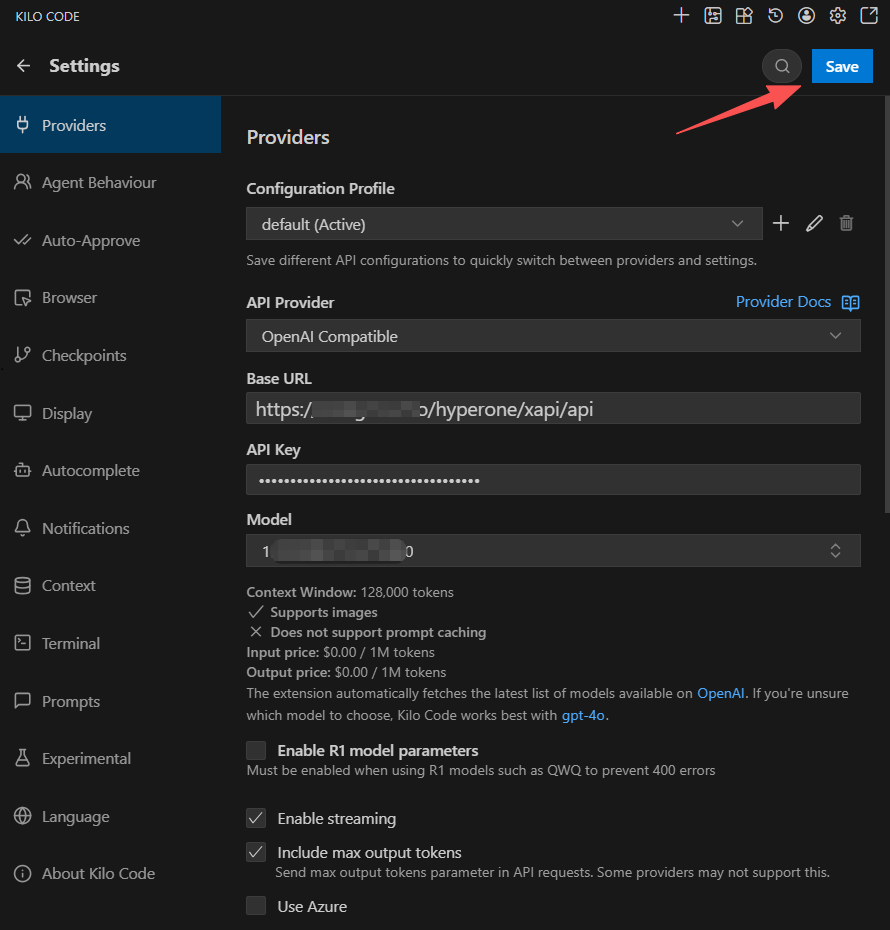
- API Provider: Select
Test Response
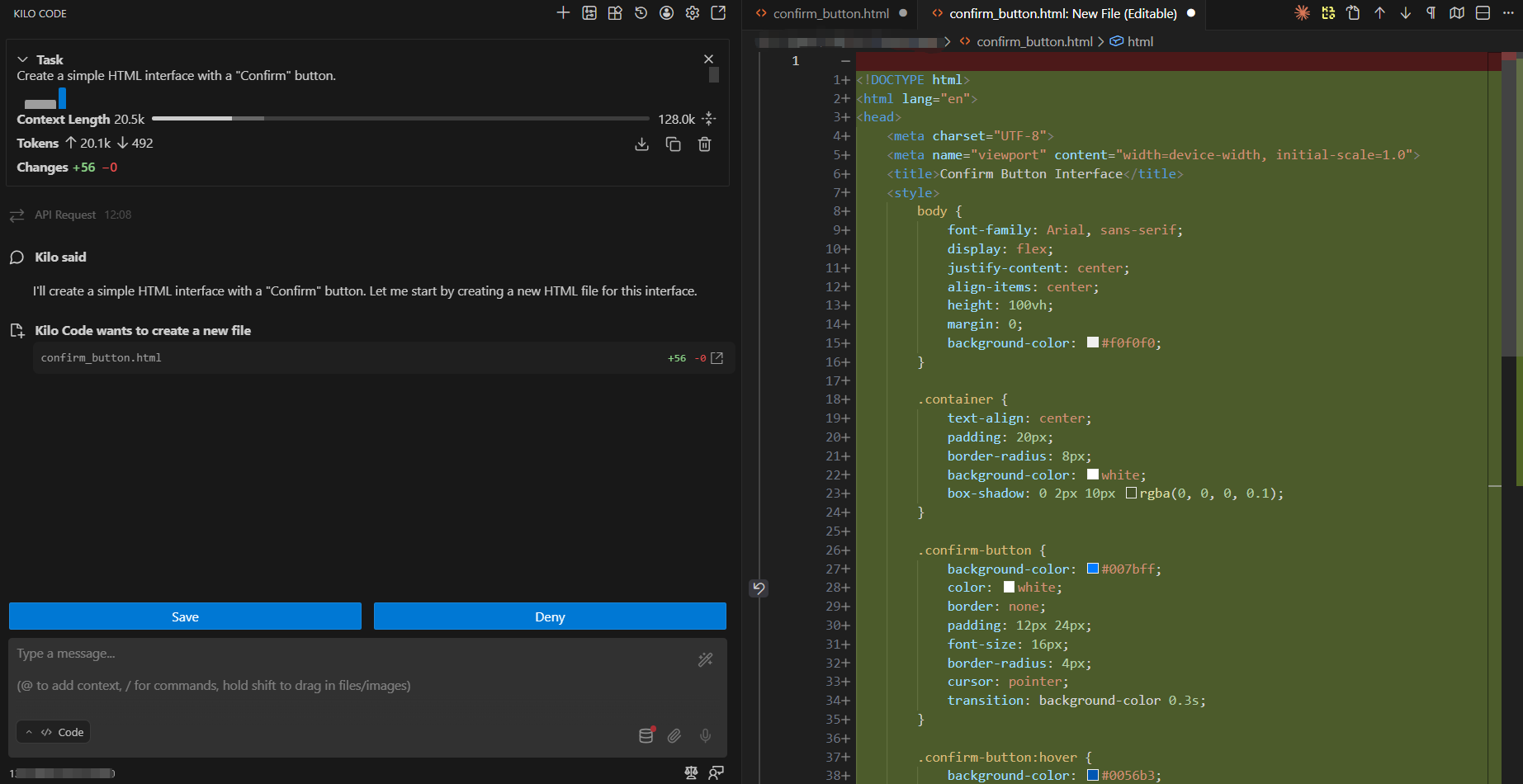
Click the "+" button in the upper right corner to open a new dialog box. Enter your requirements, such as "Create a simple HTML interface with a "Confirm" button." Kilo Code will respond normally.