Review and Maintain the License Lifecycle
Use this task to confirm Platform License and Managed Objects states independently, prepare a valid License batch, and establish subscription, validity, quota, and import-record checks.
Applicable Roles
- Platform Operators, License administrators, and resource operators
Before You Start
- Confirm the current environment, deployment, registration code, and target authorization area.
- Record Platform License status and authorized versions, then record Managed Objects validity, total, used, and remaining quota.
- Confirm whether the change uses the Platform License batch editor or the Managed Objects activation dialog, and prepare the required approval.
- Keep registration codes, activation codes, and payment credentials out of documents, screenshots, and tickets.
Procedure
1. Review Current License State
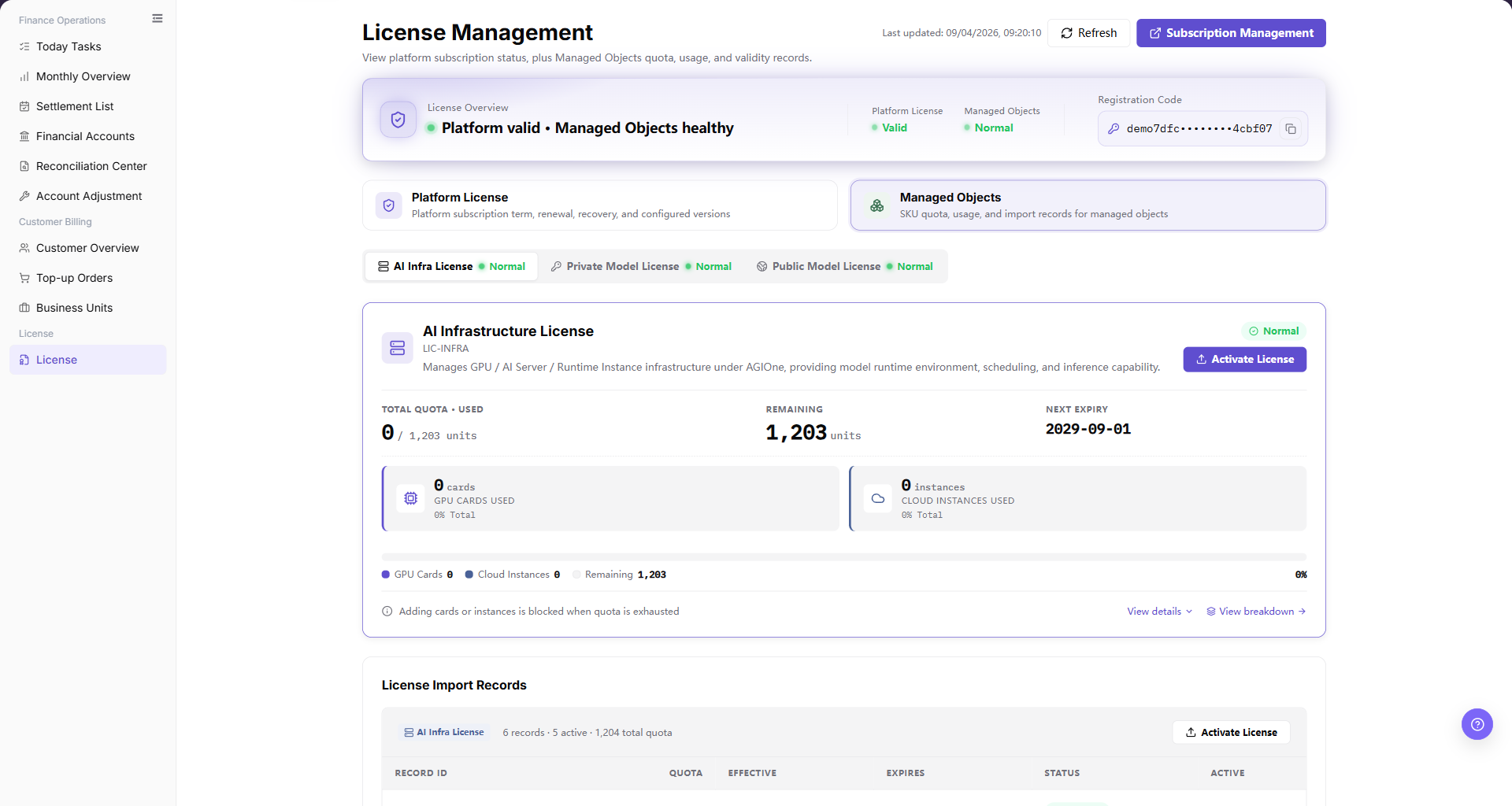
Open License Management from Billing > License > License and review the overview banner. Check Platform License and Managed Objects separately, and first confirm that the page and registration code belong to the target environment and deployment.
2. Select the Area and Prepare the License
- For Platform License, paste one License per non-empty logical line or import a
.lic,.license, or.txtfile. UseAuto wraporNo wraponly to inspect the content. - For Managed Objects, select the target SKU and open
Get & Activate License. UseI have an activation code; the purchase entry is outside read-only verification. - Keep a batch within 100 items, 64 KiB per item, and 1 MiB per file. The entire batch is validated, and one invalid item blocks all items.
Before submission, confirm the environment, deployment, registration code, target area, and License source again. Stop before Submit and activate or Activate unless the change is explicitly approved.
3. Review Details and Authorization Composition
After activation, refresh License Management. For Platform License, confirm subscription status and authorized versions. For Managed Objects, review import records, details, authorization composition, effective time, expiry time, total quota, and resource usage by category.
4. Establish Validity and Quota Checks
Periodically review remaining validity, remaining quota, and managed-object changes. Set an internal alert lead time based on resource expansion plans. When capacity may be insufficient, prepare renewal or expansion early and assess impact on existing instances and new workloads.
Completion Checklist
Purpose: These checks confirm that the License is not only activated, but provides explainable and sustainable capacity in the correct environment.
| Check | Pass Criteria |
|---|---|
| Deployment match | Environment, deployment, registration code, target area, and activation material match. |
| Valid state | Platform License and Managed Objects states are checked independently. |
| Valid batch | File type, item count, item size, file size, and atomic validation meet the page rules. |
| Clear authorization | Authorized versions, validity, quota, import records, and authorization composition can be explained. |
| Object consistency | Managed objects match actual resources and business plans. |
| Follow-up plan | Owners and dates for expiry, expansion, and insufficient quota are clear. |
Troubleshooting
| Symptom | Check First |
|---|---|
| Activation entry or registration code is missing | Account permission, authorization area, page load, and instance state |
| Activation code is invalid | Match to current registration code, authorization type, validity, and complete copy |
| Batch cannot be submitted | Unsupported file type, more than 100 items, item over 64 KiB, file over 1 MiB, or any invalid item |
| State does not update after activation | Page cache, synchronization delay, and current authorization area |
| Remaining quota is unexpected | Managed objects, authorization composition, historical usage, and resource synchronization |
| License is expiring or insufficient | Business expansion plan, renewal lead time, affected instances, and approval progress |