New Model Template Preparation and Deployment Guide
Environment and Parameter Notes
This guide uses the current environment's page labels and status values. Model IDs, provider instance IDs, ports, and available publication options vary by environment; use the values shown on the current page.
Depending on your requirements, choose between the following two procedures:
- Scenario A: Deploy and Call with an Existing Template (Model Provider): When the operator has already prepared the compute template, the model provider can directly use the template to create a model instance, publish it, test dialogue in Playground, and verify API access.
- Scenario B: Prepare a New Template End-to-End (Operator + Provider): When introducing a new open-source model, the operator downloads the model weights from ModelScope, configures the Ascend 910B inference template, and then the provider deploys and verifies the instance.
Scenario A: Deploy and Call with an Existing Template
1. Create a Model Instance with a Template (Provider)
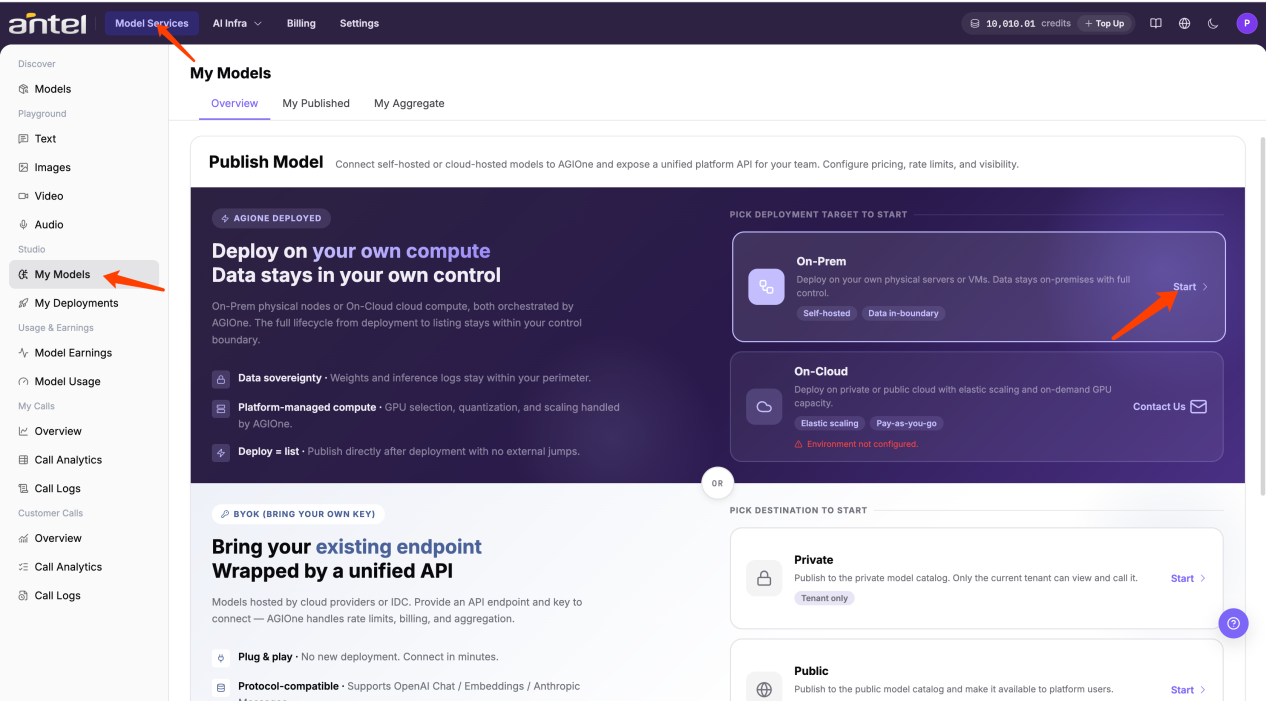
Log in with a provider account, navigate to Model Services > Studio > My Models, and click Start on the target model card to create an instance using a template.
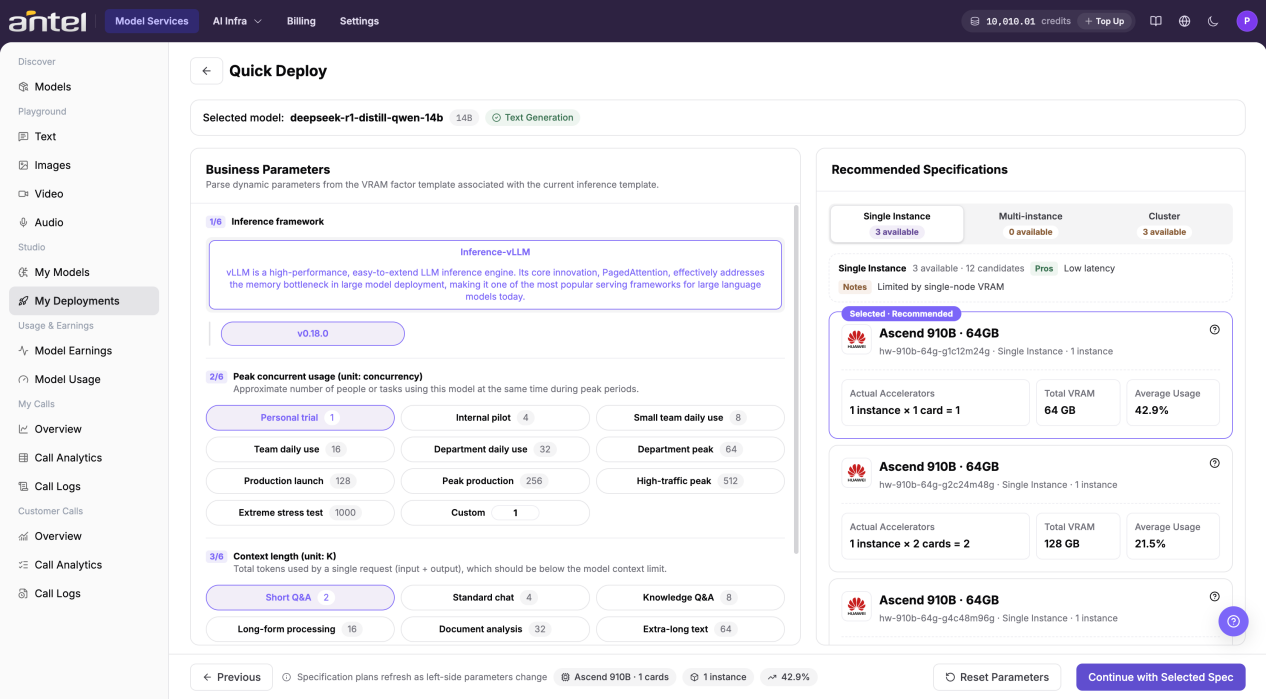
Search for the model you want to deploy to open its configuration page. Set concurrency and context length for this instance; the right-hand panel automatically recalculates supported flavors. Select the recommended flavor.
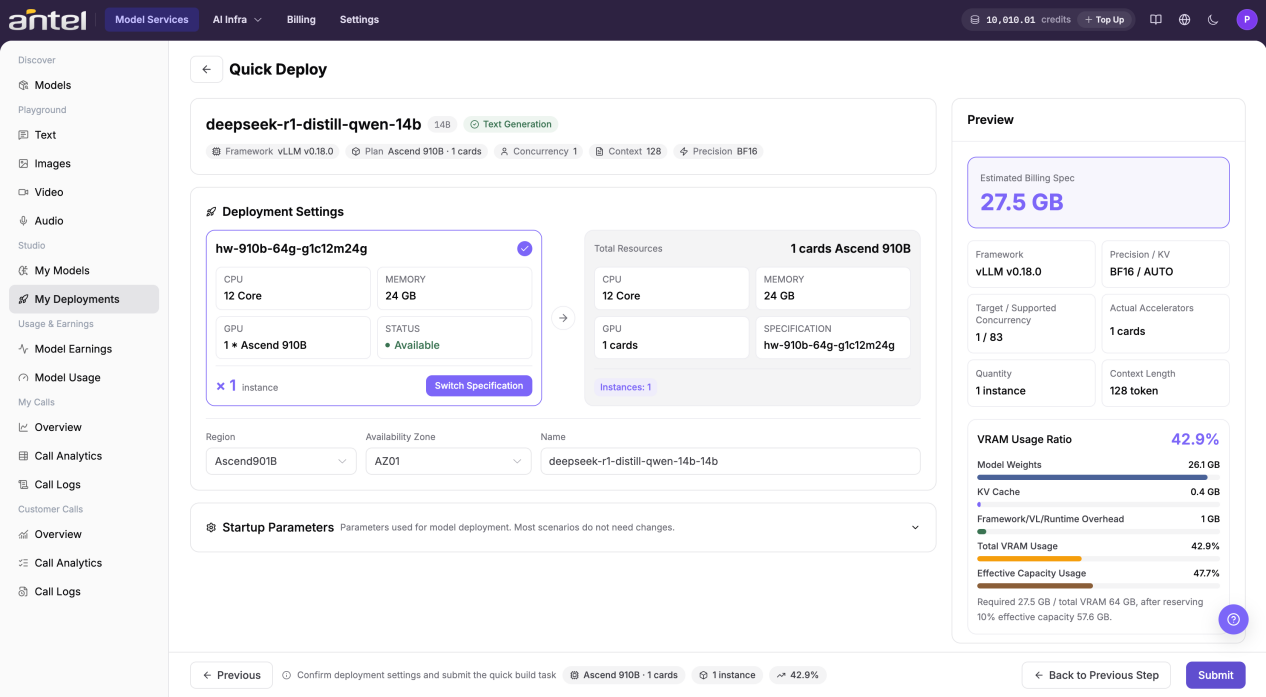
Review the configuration and click Submit.
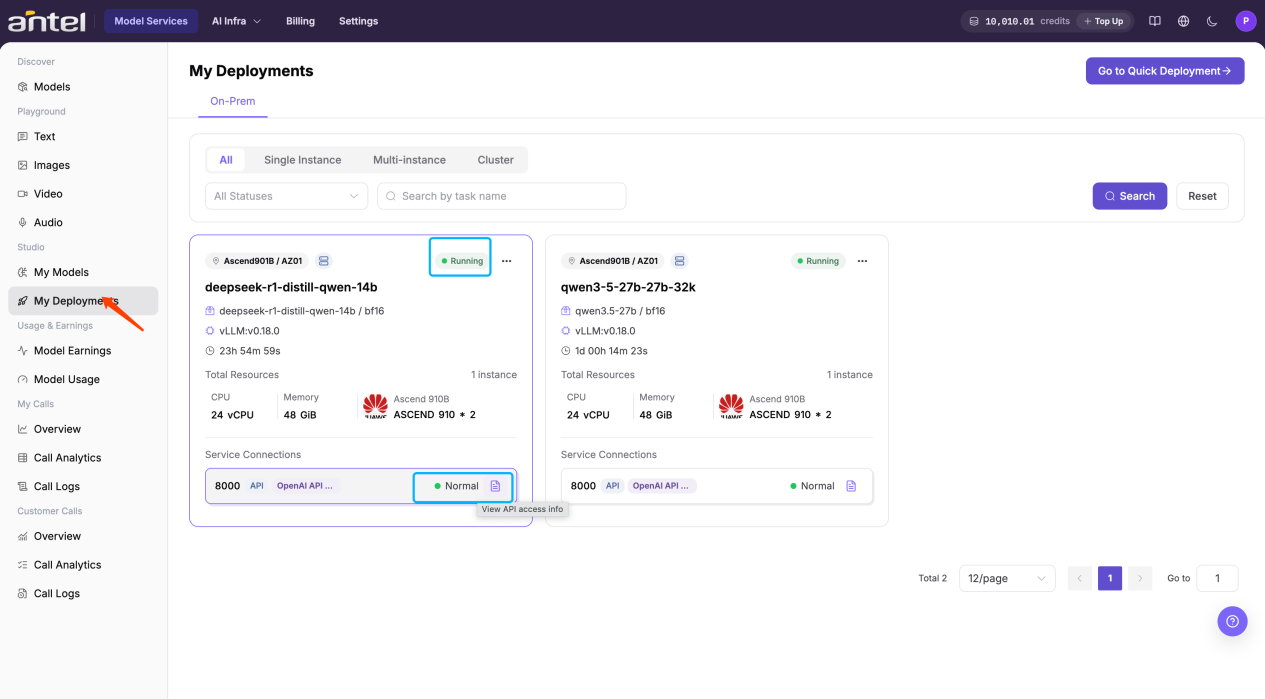
The model instance enters initialization. Click Search to refresh instance status. Wait until the instance reaches Running status and the service port becomes available. This may take several minutes.
2. Publish the Model with the Created Instance (Provider)
Once the model instance is available, click Publish to start model release.
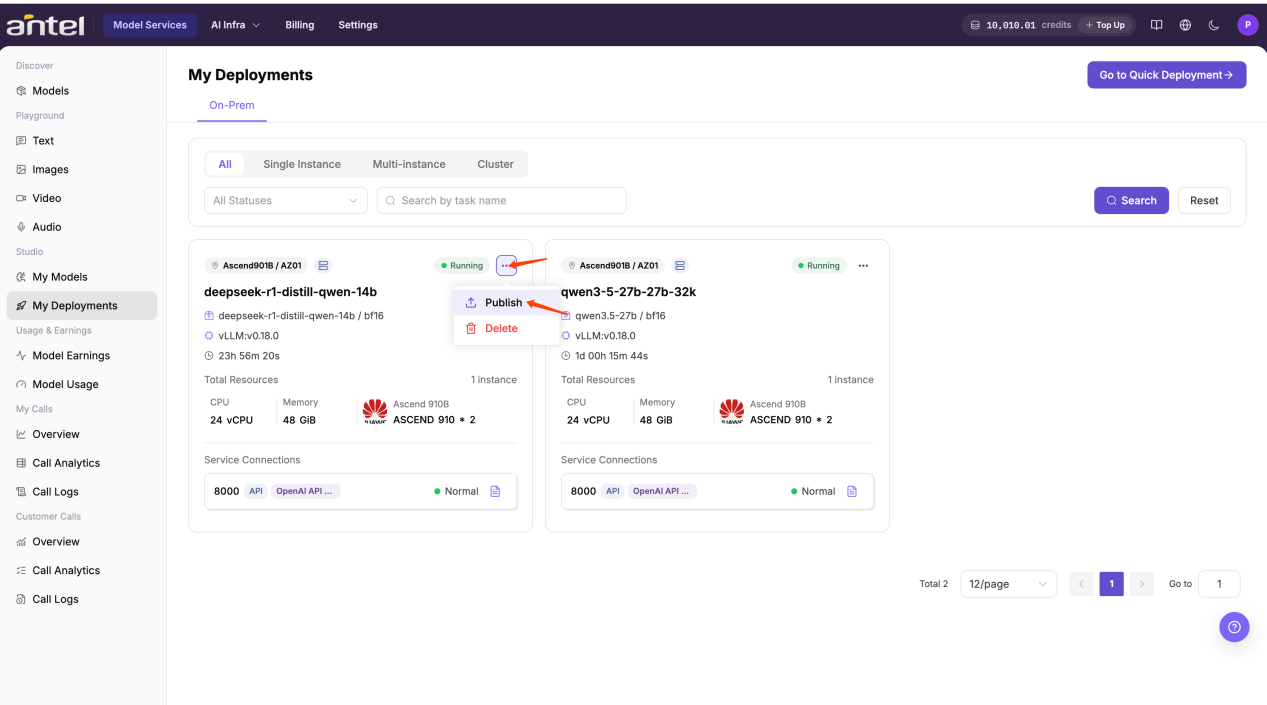
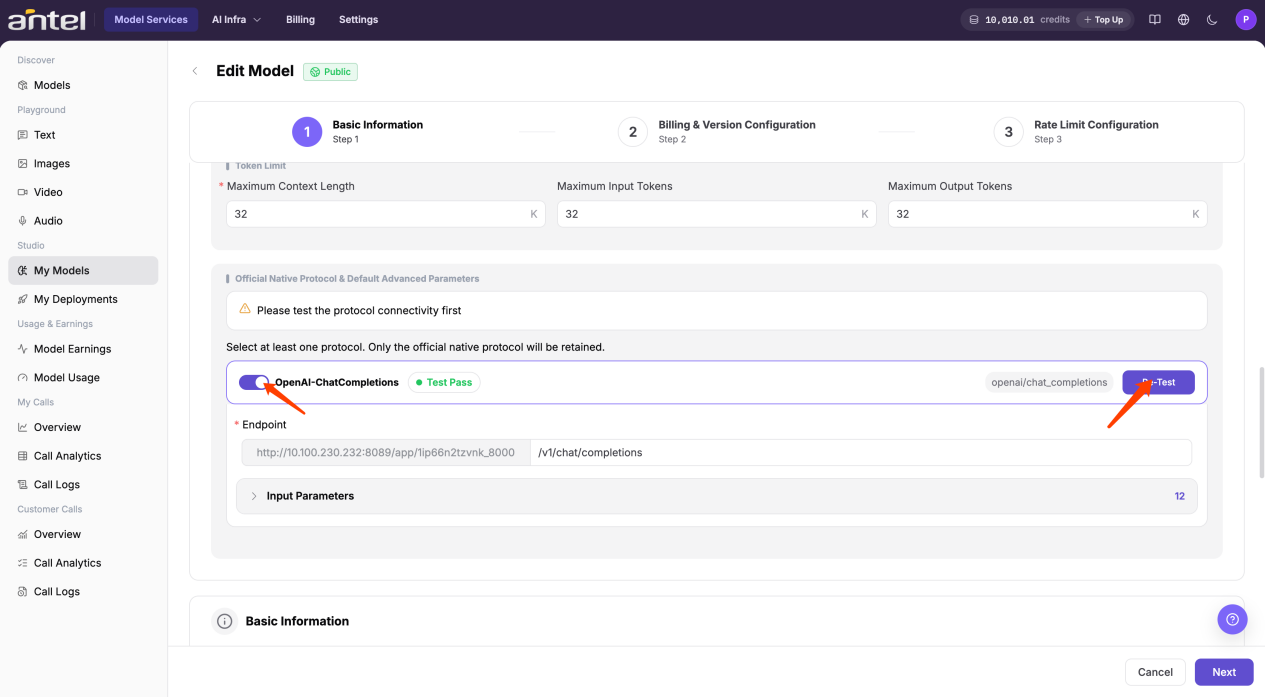
Select the approved Public or Private publication scope. Enable at least one API protocol (such as OpenAI-ChatCompletions), then click Test to verify model connectivity.
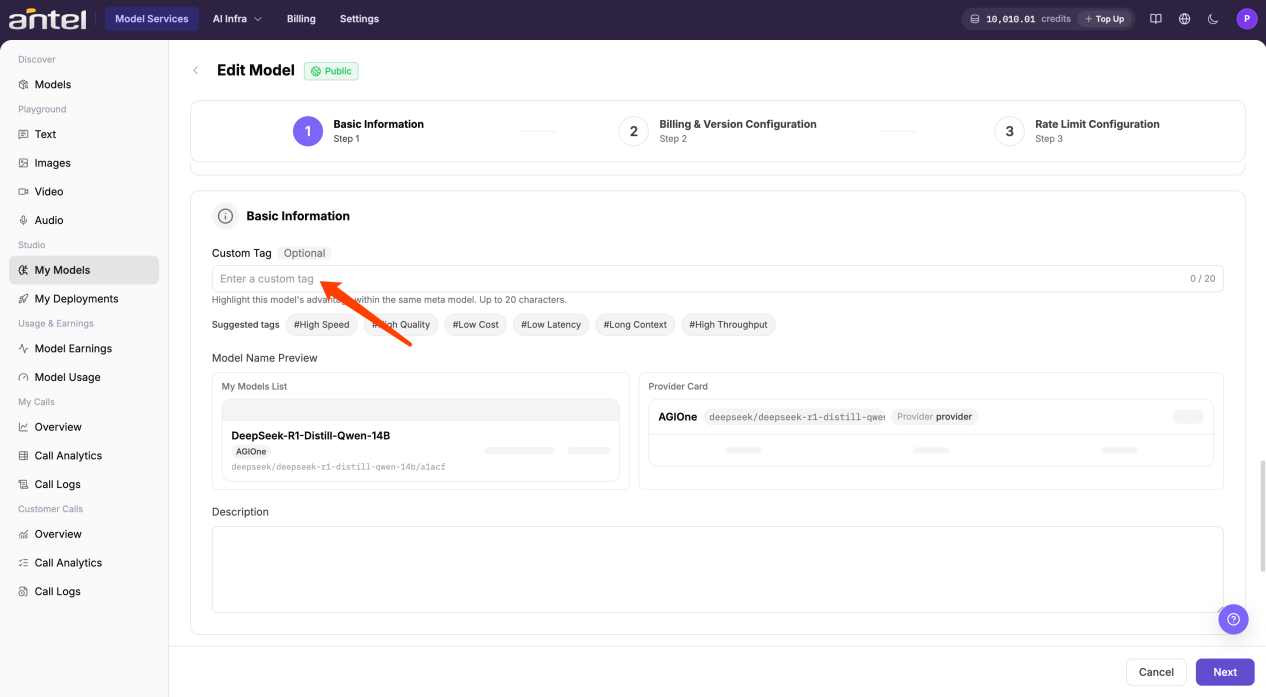
You can also set Custom Tag to a testing tag (such as testing).
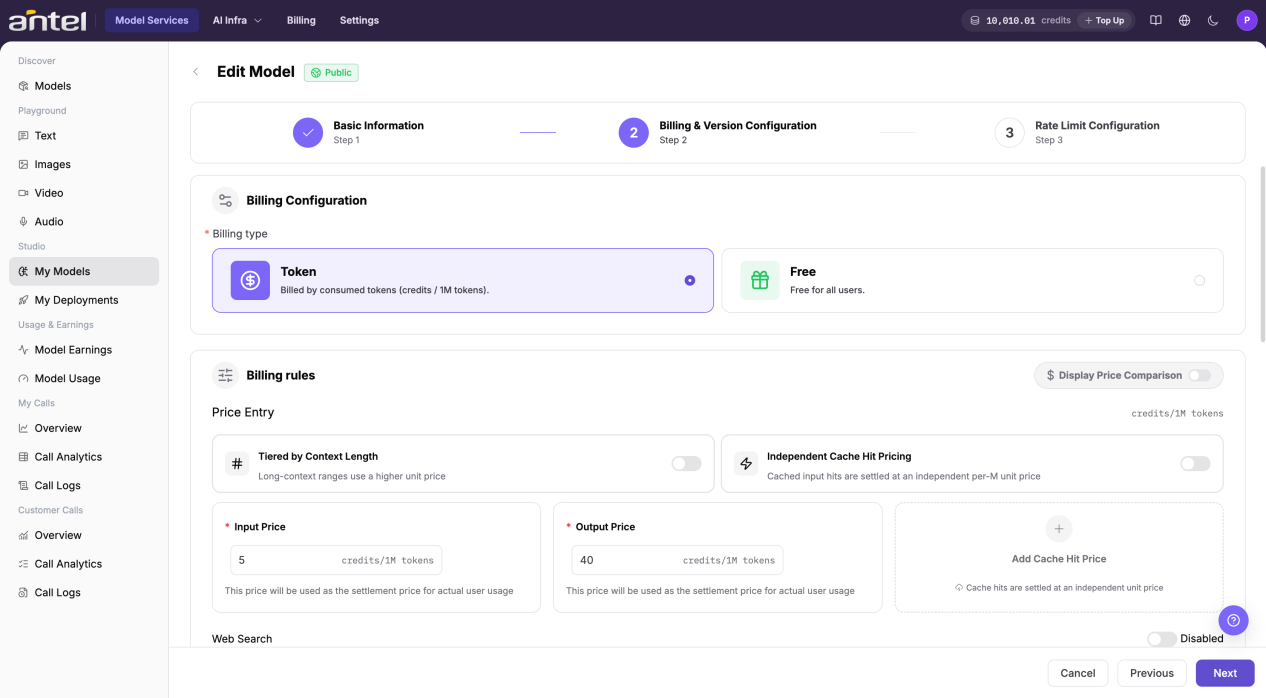
Configure billing options. For controlled testing, select Free.
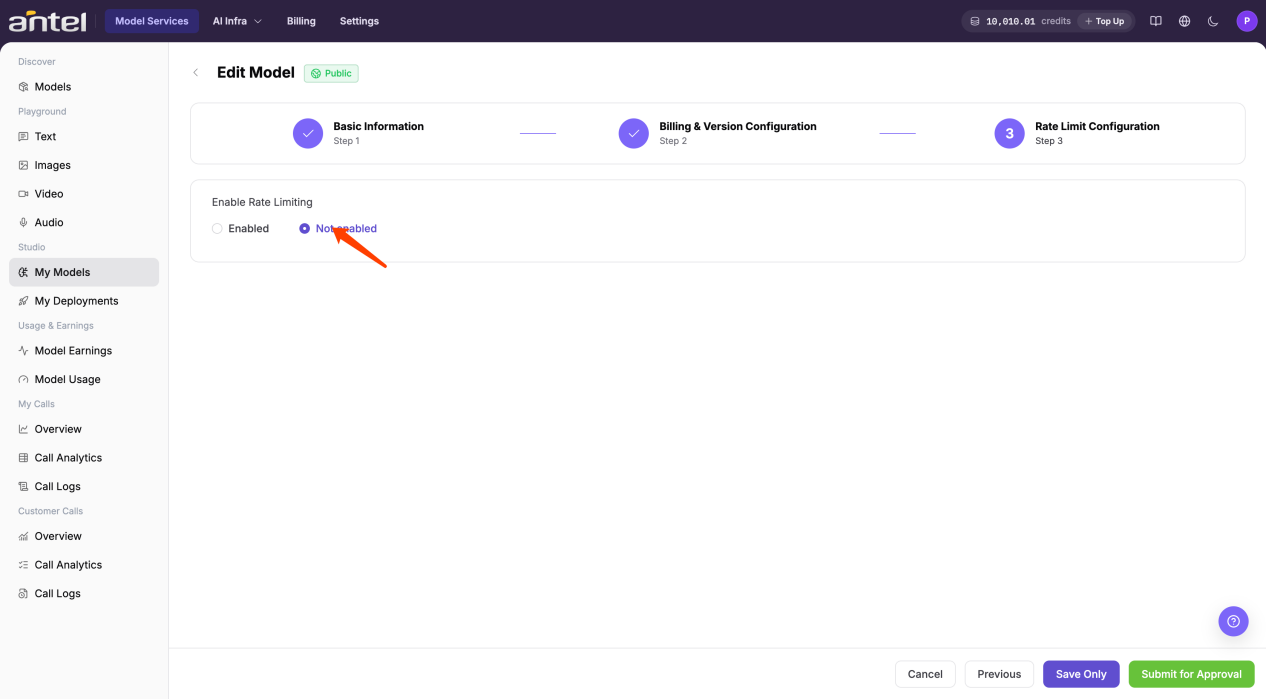
Proceed to the Rate Limit page. Disable rate limiting only if permitted by your environment's governance policy. Submit for approval if required; otherwise verify the published status directly.
3. Call the Model for Verification (Provider)
Navigate to Model Services > Discover > Models and search for the published model.
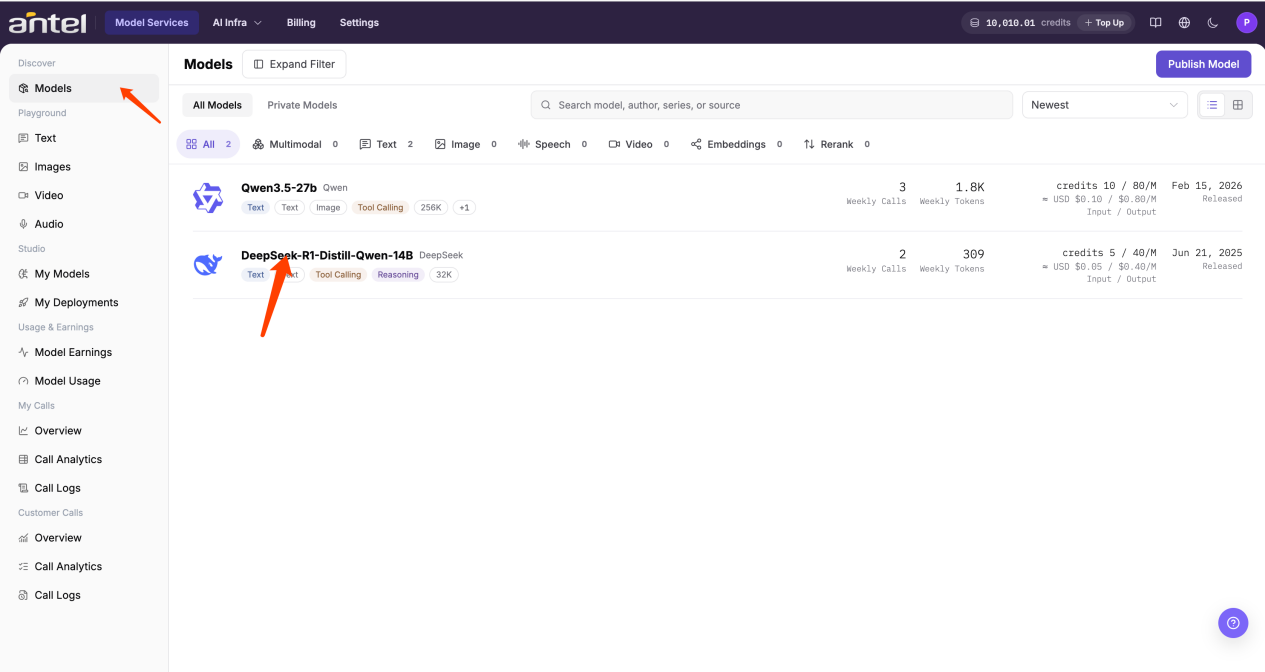
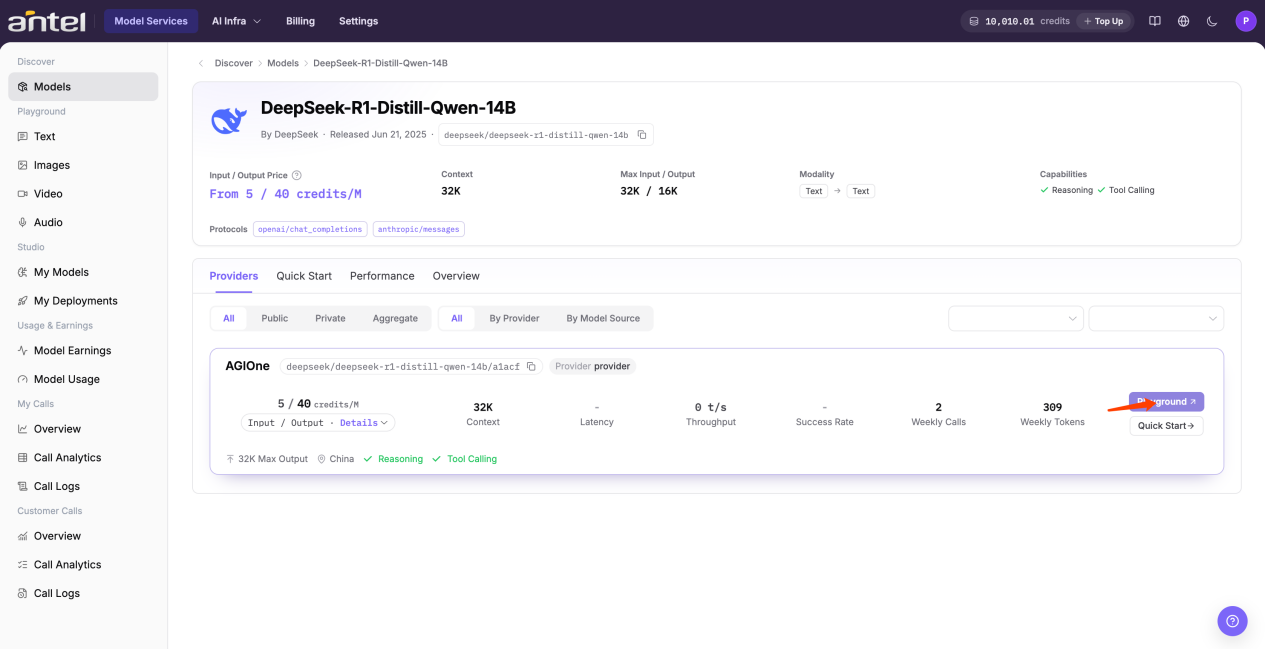
Locate the model published by your provider account and click Playground to open the chat interface in a new browser tab.
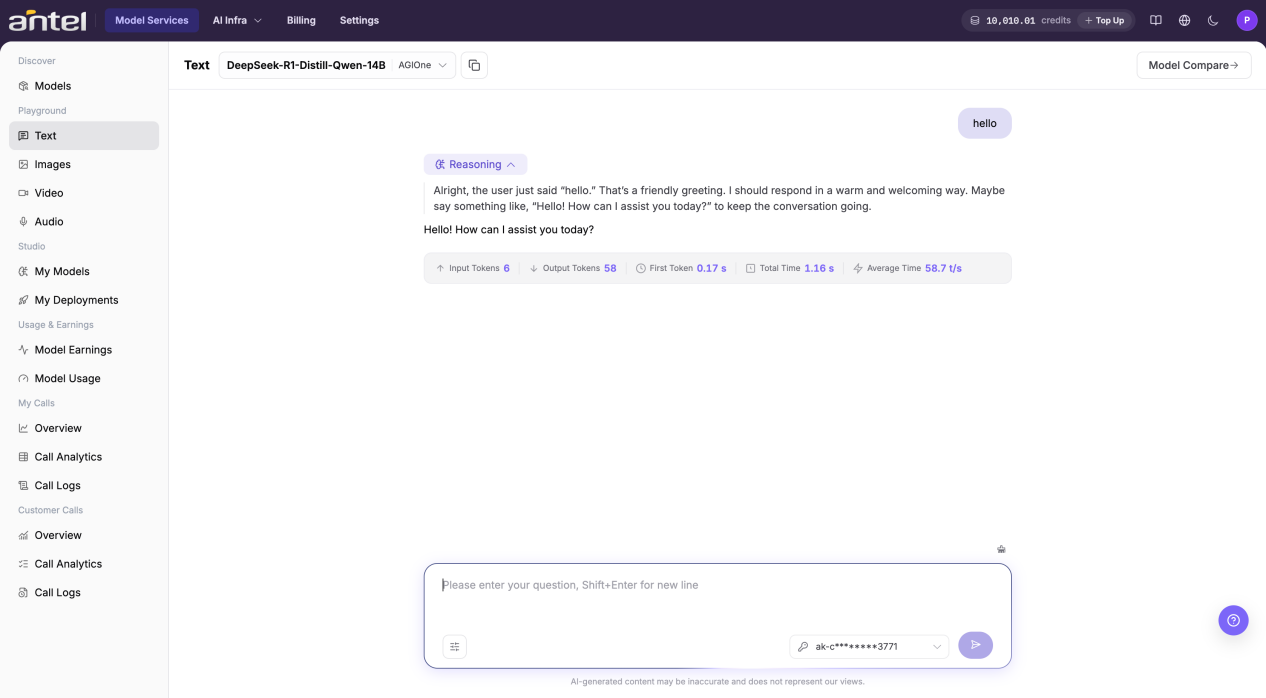
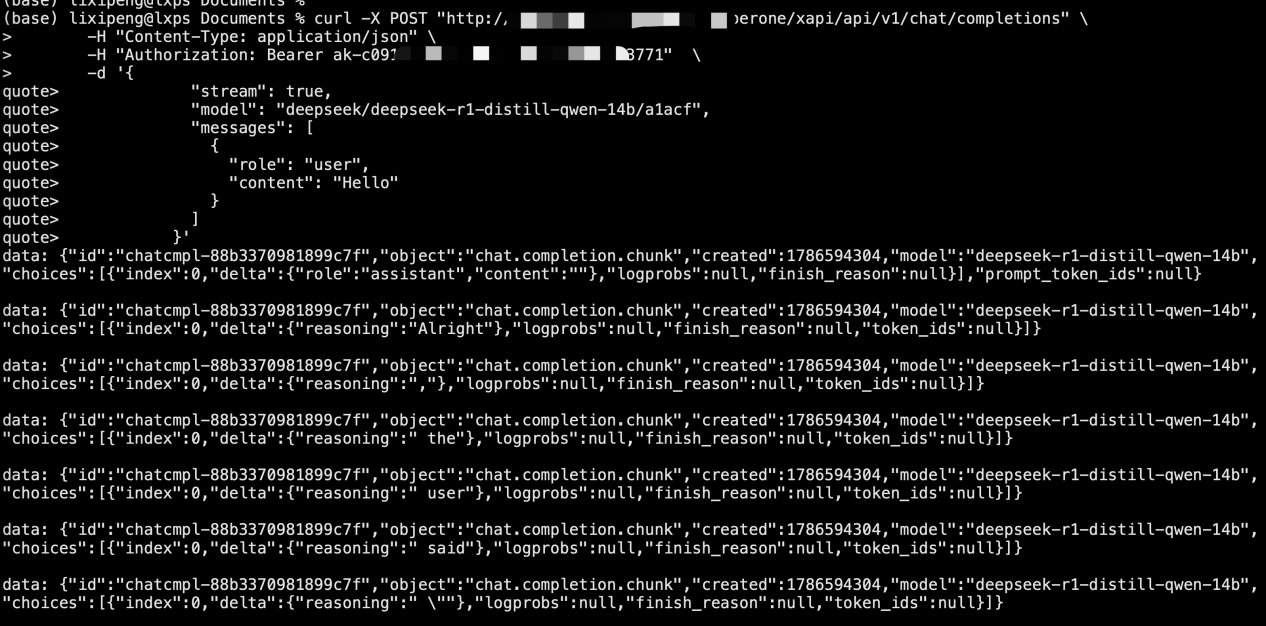
Enter prompts in the dialog box and verify that the model returns streaming outputs.
You can also test with cURL. Click Quick start to view API connection details.
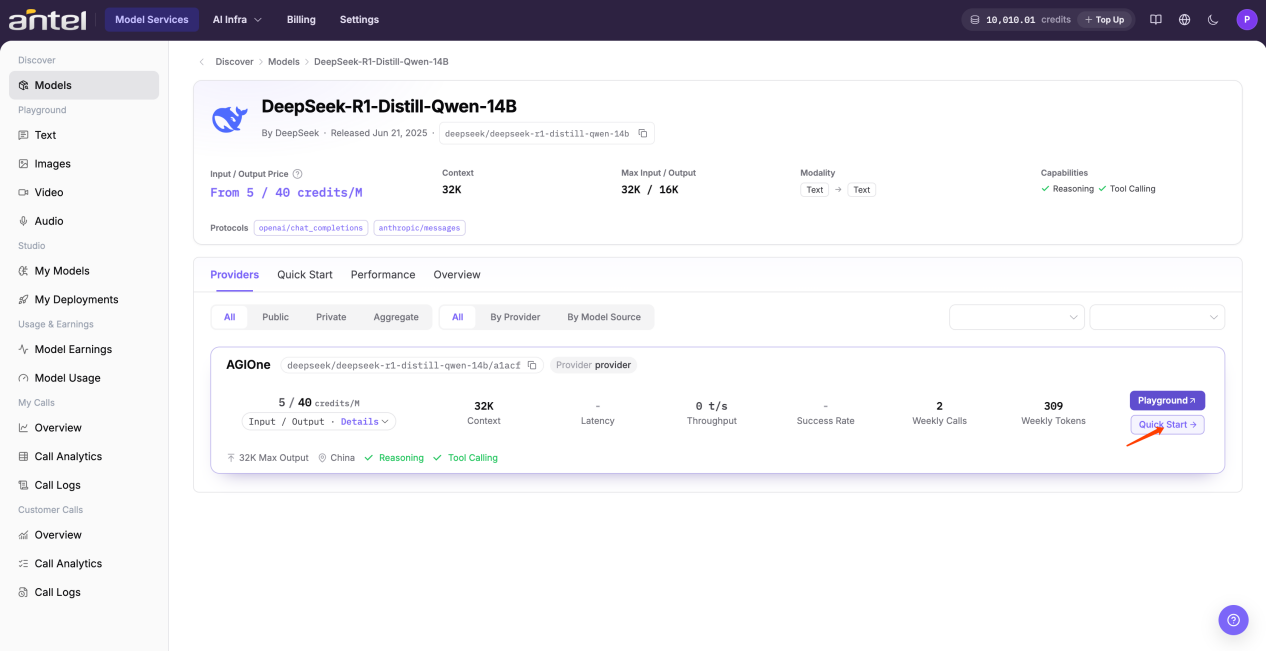
Copy the pre-generated cURL command.
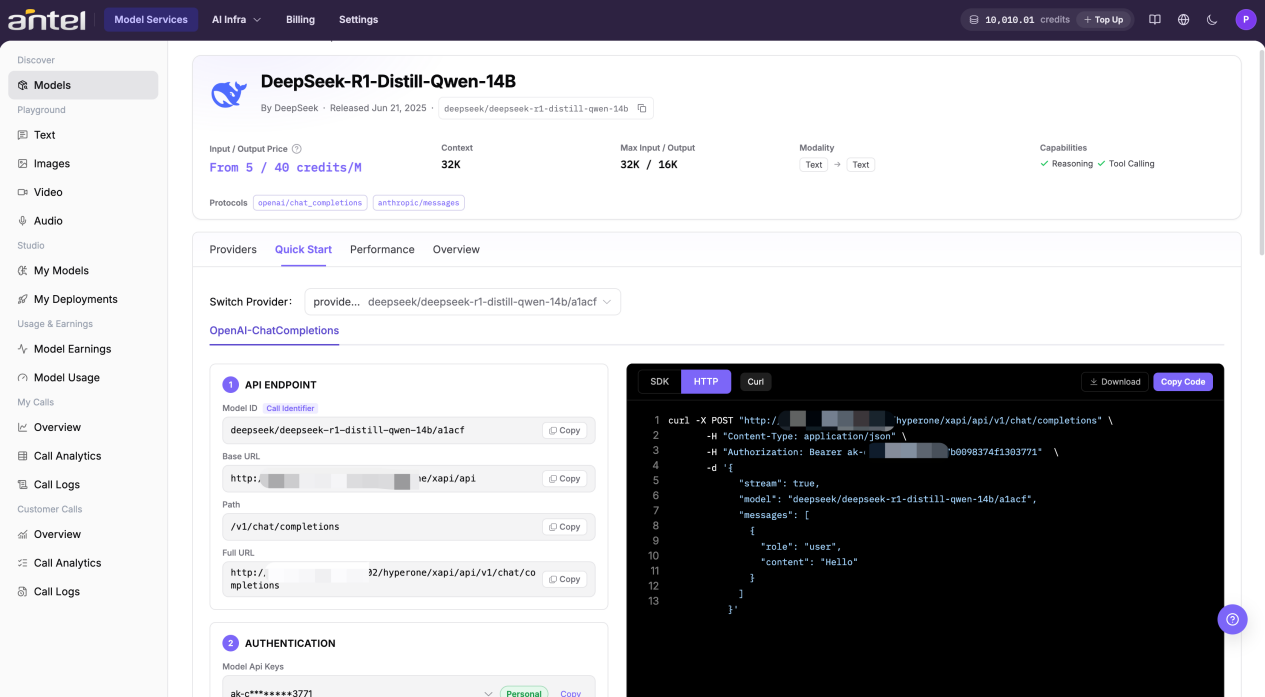
Paste the command into your shell environment and run it to verify inference output.
Scenario B: Prepare a New Model Template (Operator)
1. Ensure the Model is Downloaded (Operator)
Log in with an operator account and go to AI-Infra > On-prem > Templates > Models. Search for the target model (for example, DeepSeek-R1-Distill-Qwen-7B). If the model is not listed, click Add Model to create it first.
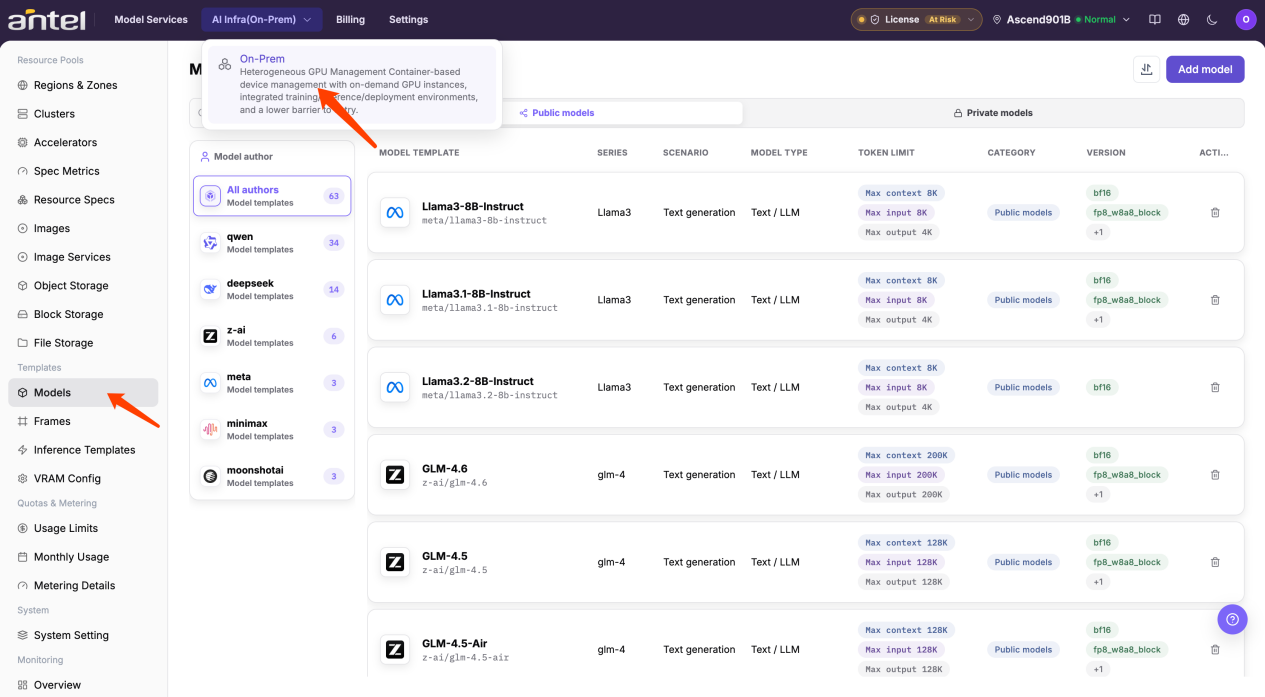
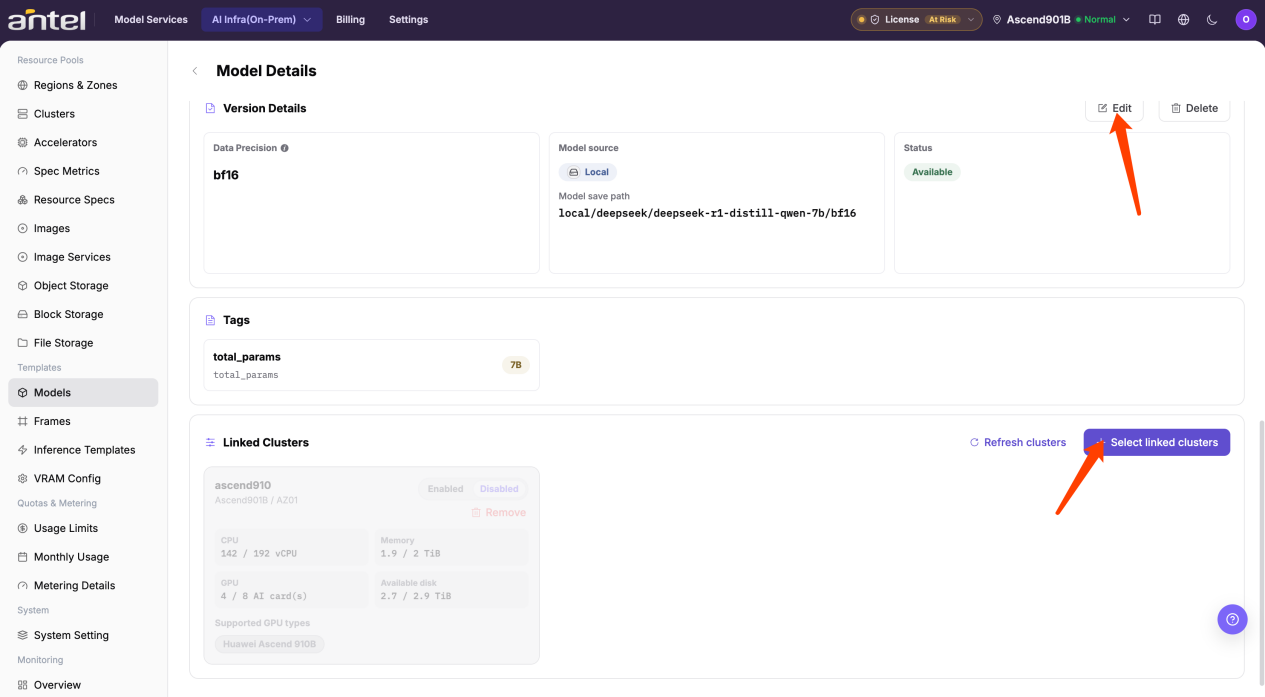
Click the model to open details, then scroll down to Select linked clusters. Click Edit for the target version.
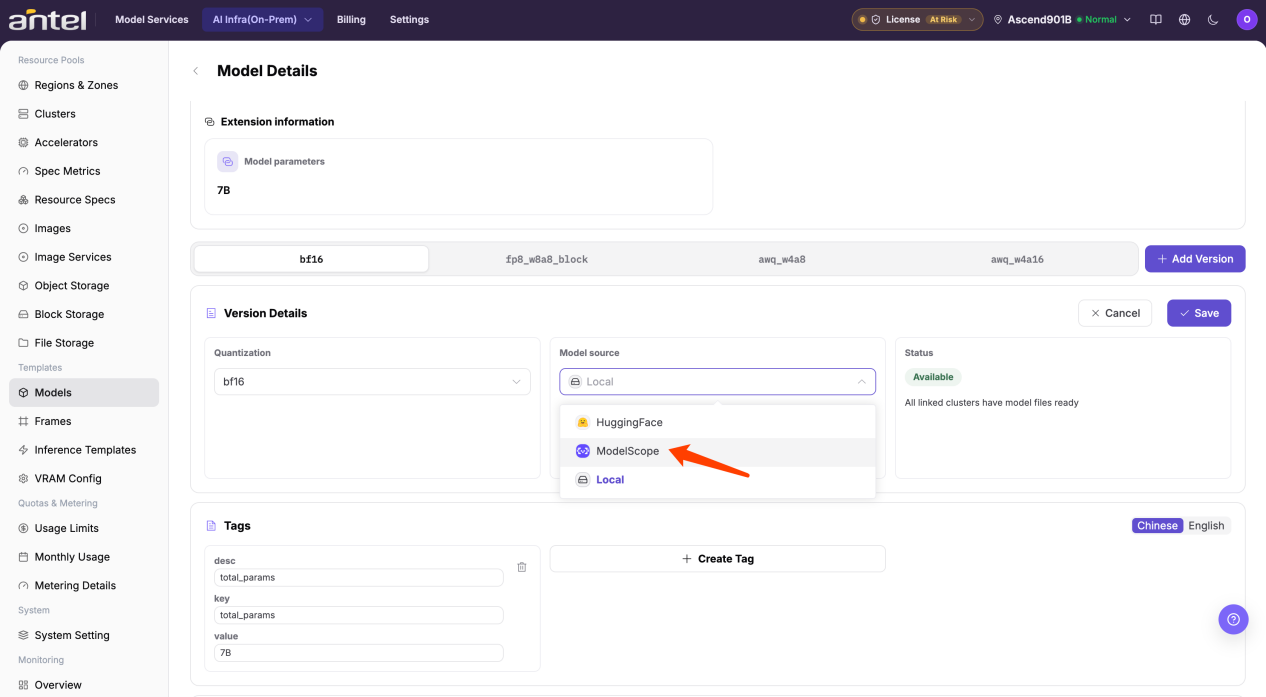
Change the model source from Local to ModelScope or HuggingFace (ModelScope is recommended in environments with external network restrictions). Enter the Model ID required to download model weights.
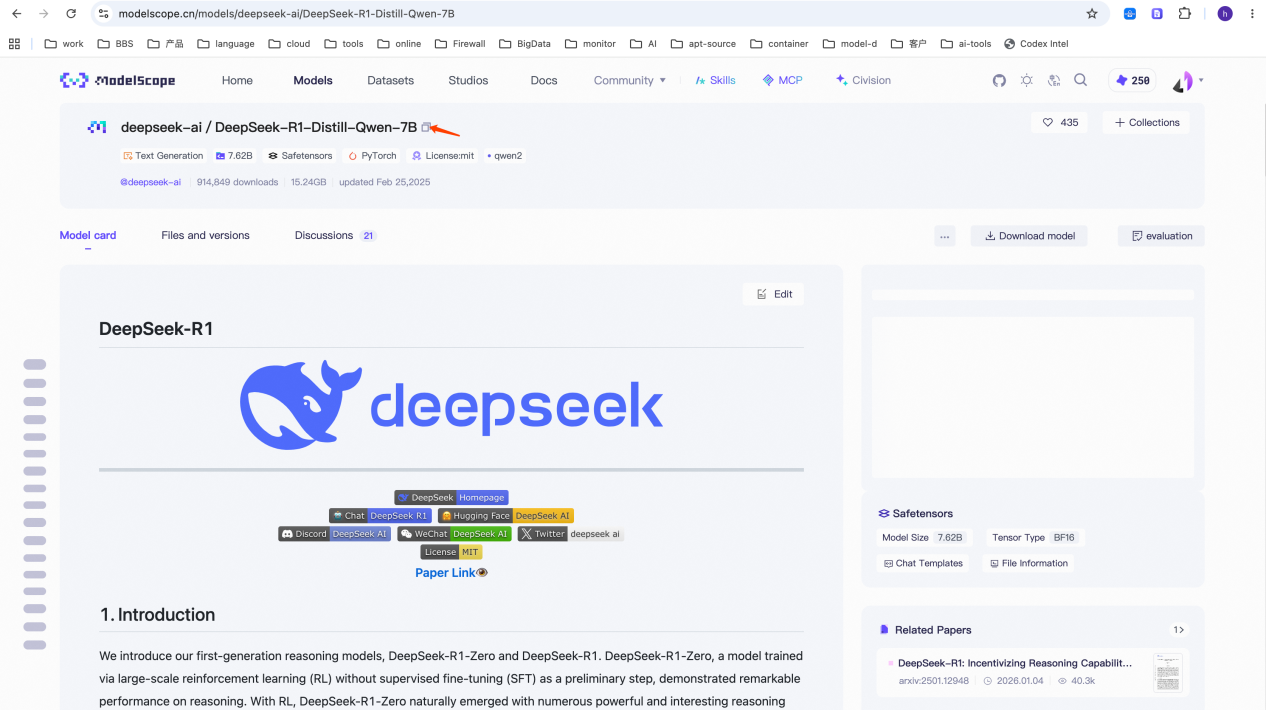
Open the ModelScope community website, locate the model, copy its Model ID, and paste it into the platform.
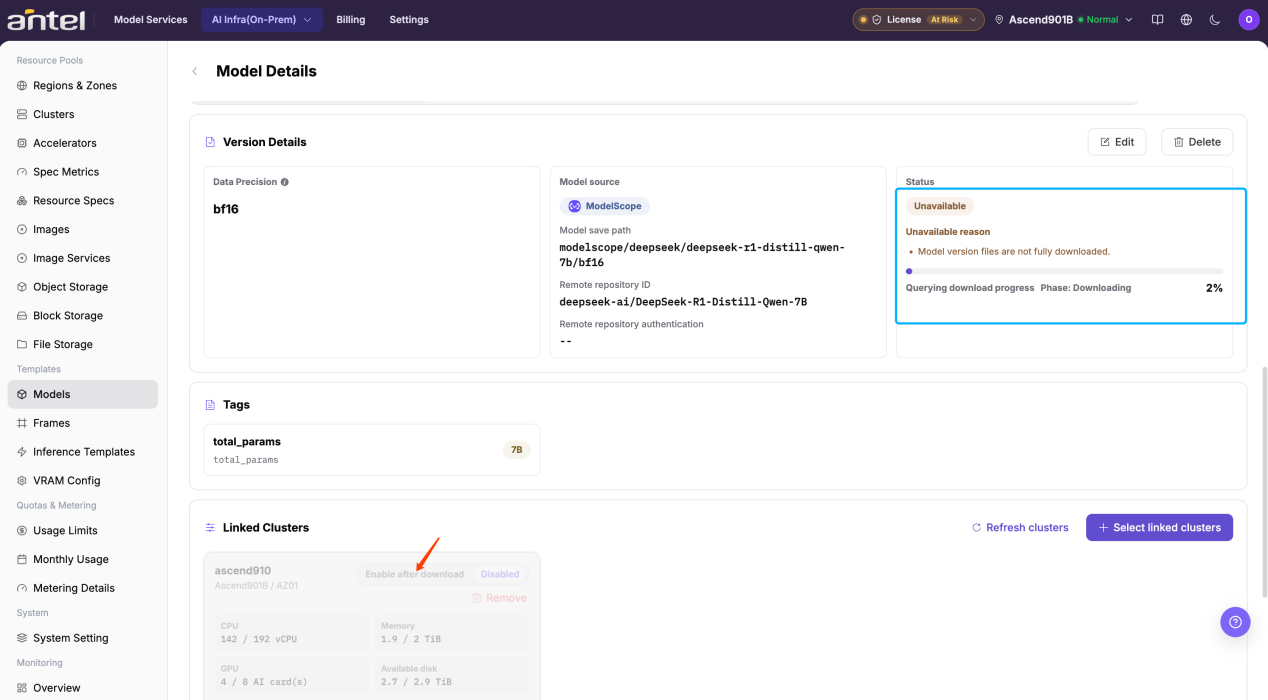
Click Save to start automatic download. You can also click Enable after download so the model activates automatically once downloaded.
2. Create an Inference Template (Operator)
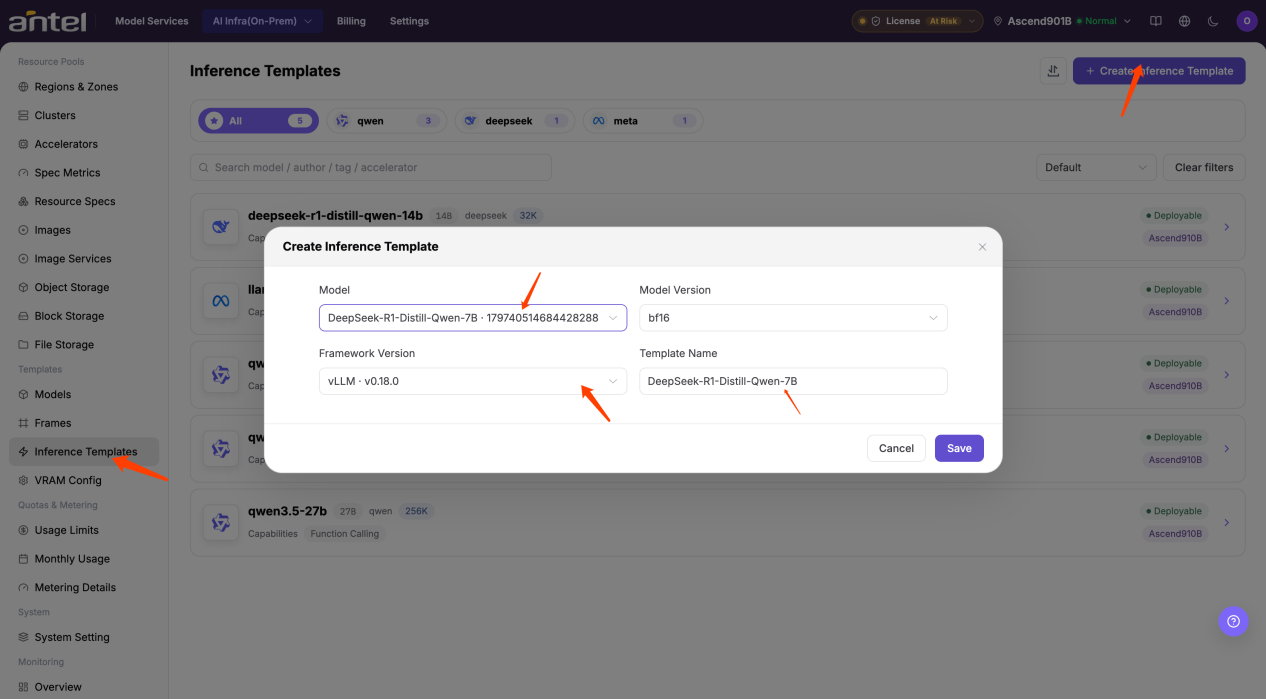
Go to AI-Infra > On-prem > Templates > Inference Templates and click New Inference Template. Select the model and version, specify the framework, and enter a template name.
In the Linked VRAM Factor section, click Edit and select the VRAM calculation table that matches the model architecture (such as Common Model Inference VRAM param table for vLLM).
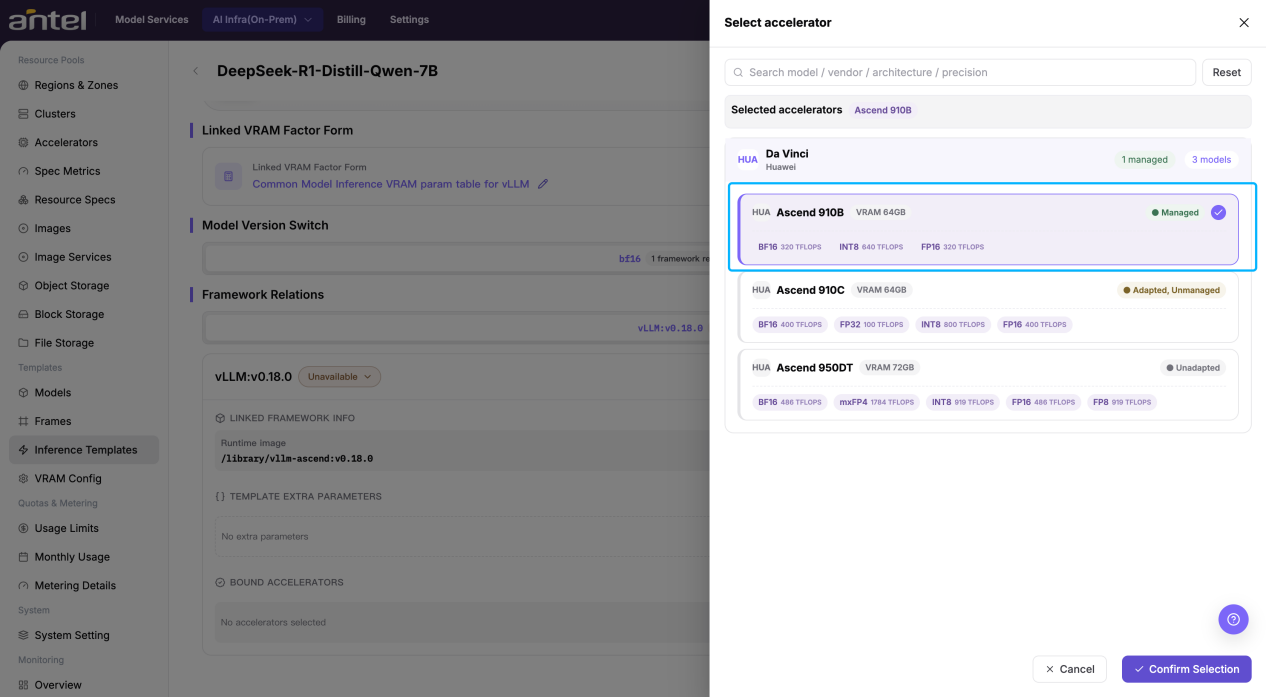
Scroll down to Framework Relations, click Edit, select the target accelerator card specification (such as Ascend 910B), and save.
Configure Extra parameters if specialized performance tuning is needed; keep defaults for standard validation. Change the template status to Available.
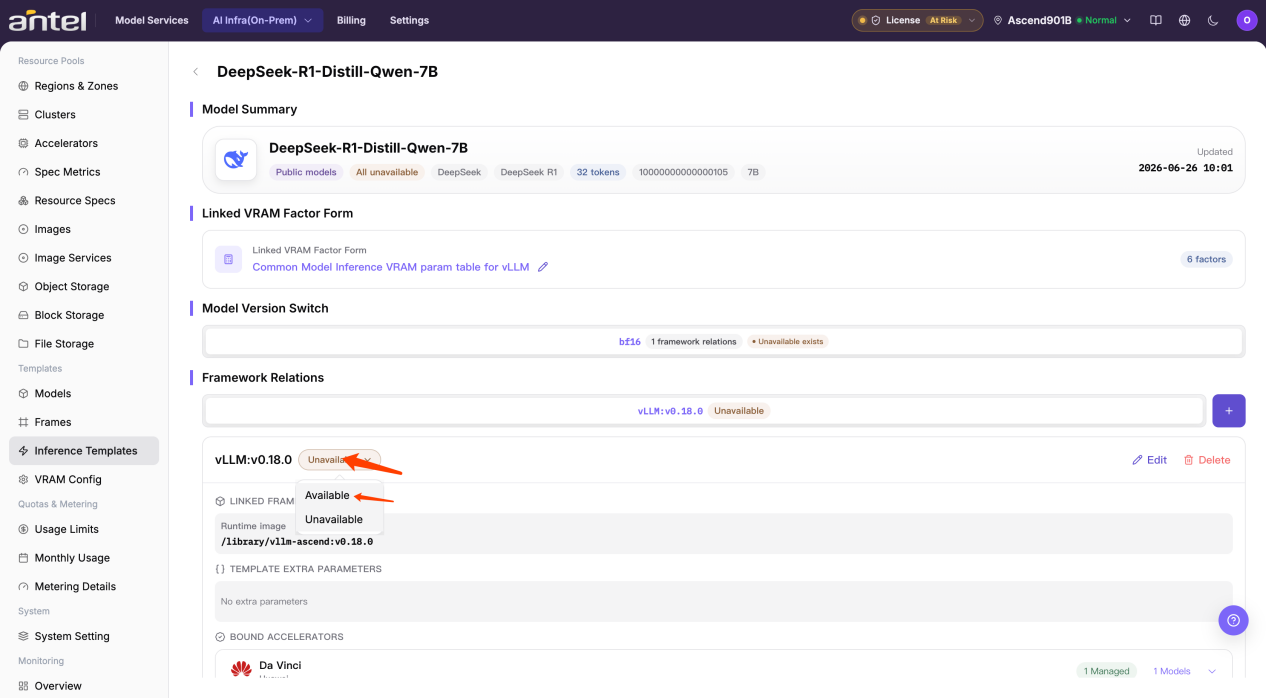
Once the template is Available, the model provider can proceed with instance creation and publishing as described in Scenario A.
Completion Check
After completing the steps above, verify that the end-to-end workflow is in a ready state:
- Template Ready: In the Inference Templates list, the new template displays an Available status with the correct model version and accelerator associations.
- Instance Running: In My Deployments, the model instance created from the template shows a Running status with an active service port.
- API and Invocation Verified: The published model responds successfully to chat prompts in Playground or returns expected inference outputs via
cURL.
Troubleshooting
| Symptom | Check First | Manual Reference |
|---|---|---|
| ModelScope weight download fails or times out | Cluster outbound network connectivity, Model ID spelling, cluster storage capacity, and download logs | On-Prem Models |
| Inference template cannot be set to Available | Linked VRAM factor table, framework compatibility, accelerator specification association | Inference Templates |
| Model instance launch fails or stays in CrashLoop | Node NPU memory availability, concurrency/context configuration, driver and image version | My Deployments |
| Protocol test (Test) fails during publishing | Instance health status, service port exposure, protocol path, and model compatibility | Model Reviews |
| No response from cURL or Playground | API Key validity, account balance/quota, rate limit settings, and network firewall policies | Model Market |