Create Regions and Availability Zones
Scenario Goal
Create the region and availability zone for a local cluster so that clusters, specifications, images, storage, and workloads use the same resource boundary.
Applicable Roles
- Platform operator
Before You Start
- Map the data center, site, or resource group to the intended region and availability zone.
- Prepare unique identifiers and localized display names that do not duplicate existing records.
- Confirm the availability zone, network boundary, and storage boundary for the target cluster.
Feature Entry
- Role: Operator
- Menu: AI Infrastructure > On-Prem > Resource Pools > Regions & Zones
- Page route:
/powerone/resourcepool/region
Procedure
- Open Regions & Zones and review existing regions, availability zones, and states before creating records.
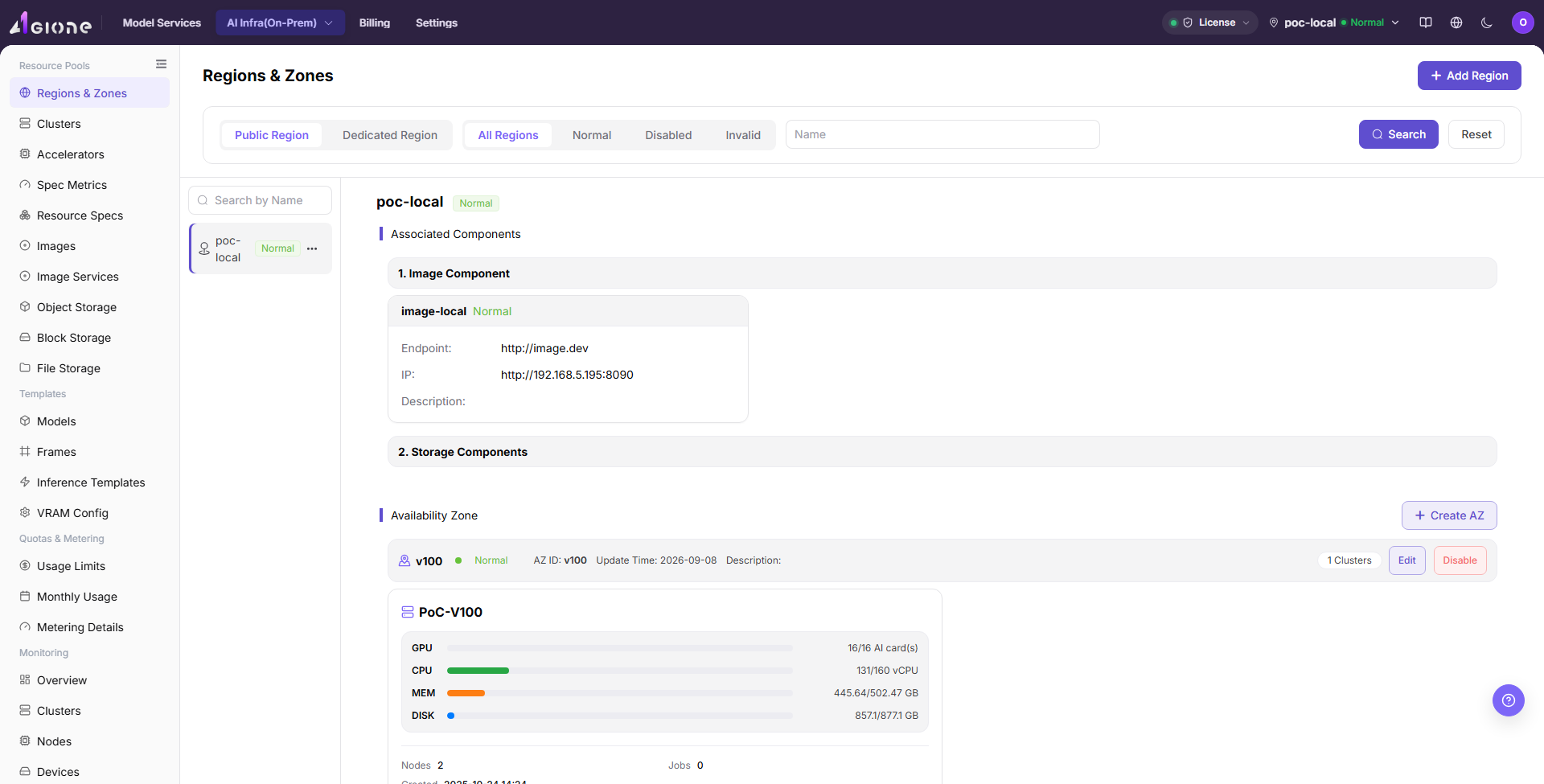
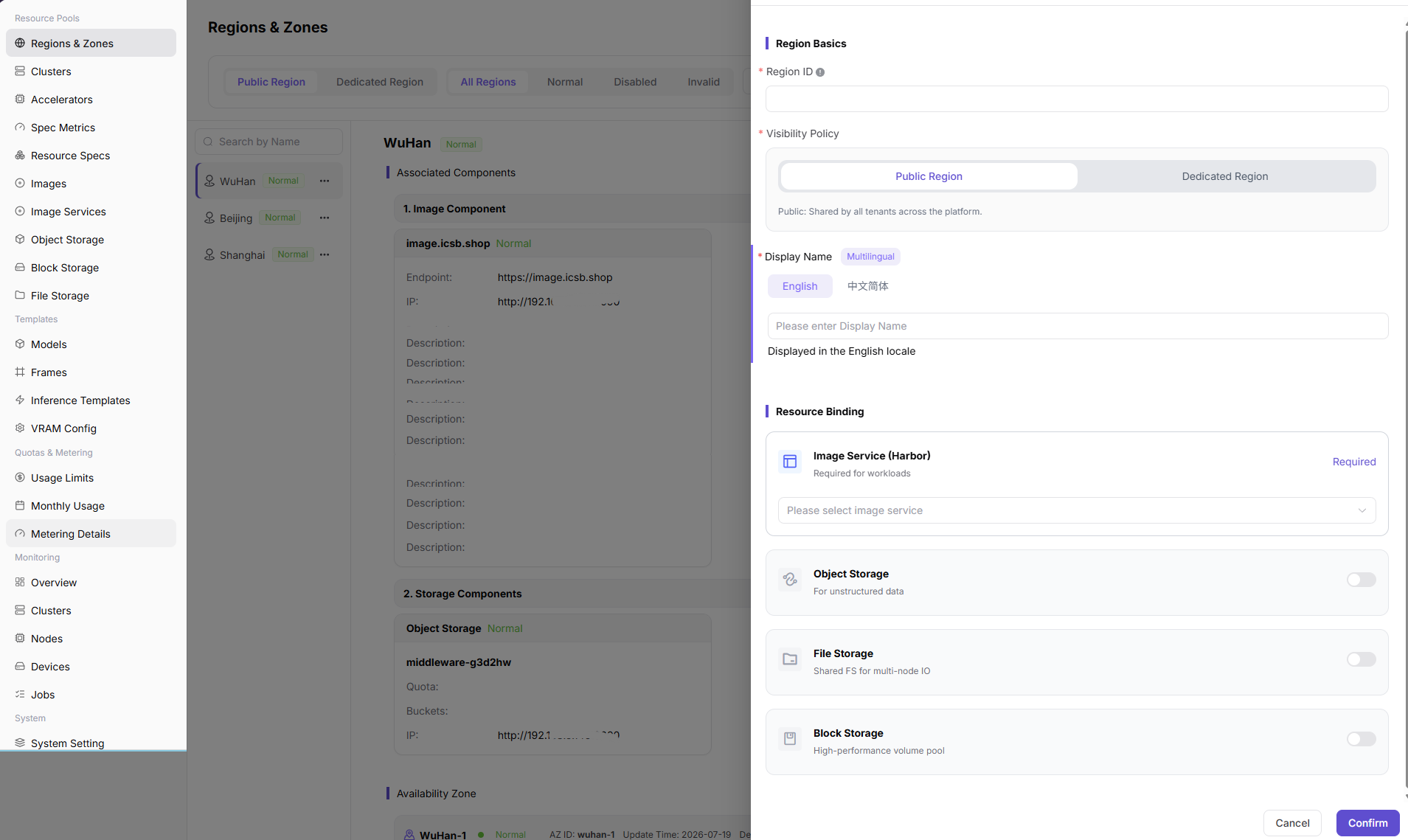
- Add a region, enter its name, unique identifier, and localized display names, and make it available for downstream resource onboarding.
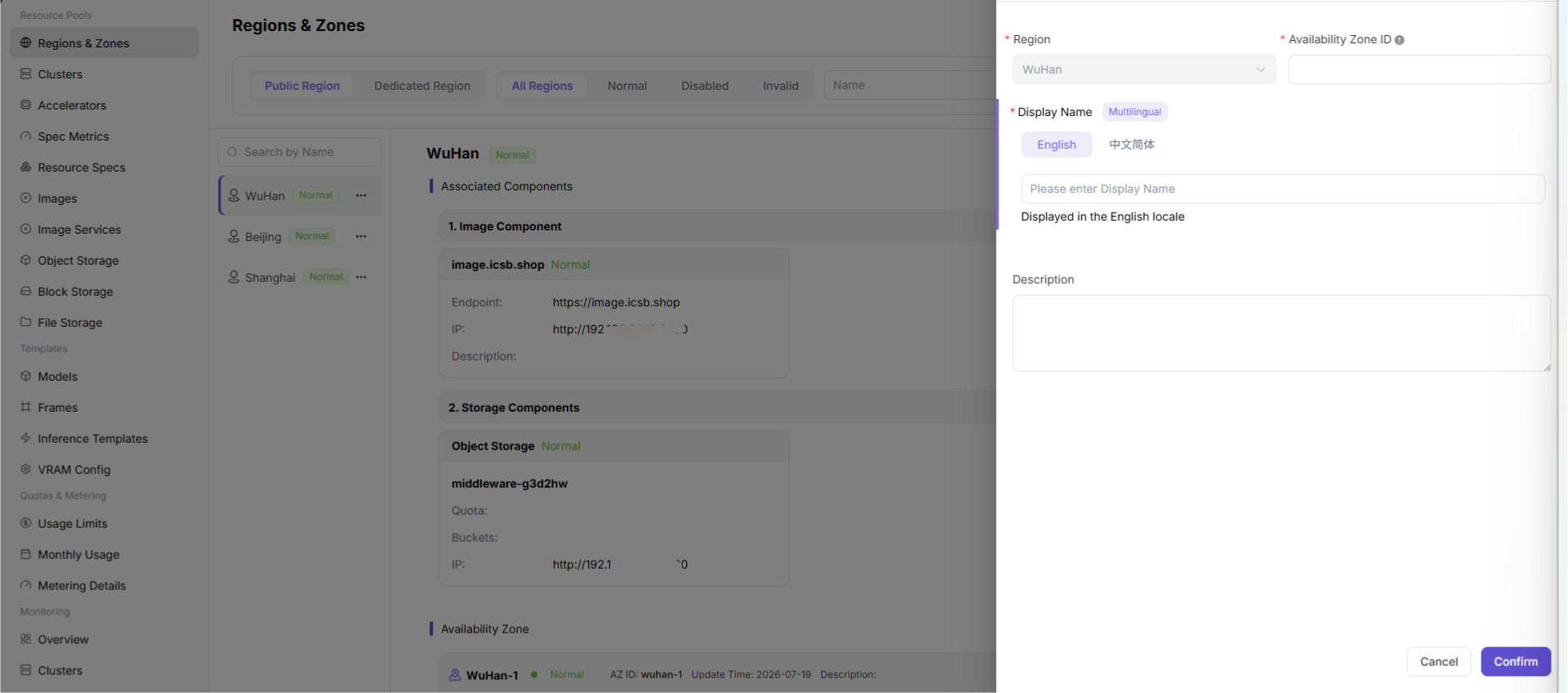
- Add an availability zone under the target region, enter its name and unique identifier, and verify the region assignment.
Return to the list, confirm that both records are visible and available, and record the availability zone to select during cluster registration.
To temporarily stop new use of a region, open its
...menu and select Disable. Filter forDisabledrecords when the region is not shown in the normal list.To restore use, open the disabled region's
...menu and select Enable. Repeat the same operation in the availability-zone section when an individual zone must be restored.Refresh the list and confirm the changed state before continuing to cluster registration or workload scheduling. Existing resources are not deleted by a disable operation, but new registration, creation, or scheduling may be restricted.
Completion Checklist
Purpose: Use these checks to confirm that the resource boundary is ready for cluster onboarding. Do not register the cluster while any check fails.
| Check Item | Success Criteria |
|---|---|
| Region | The region name, unique identifier, and state are correct. |
| Availability zone | The zone belongs to the correct region and has a unique name and identifier. |
| Downstream selection | The target region and availability zone are selectable during cluster registration. |
Troubleshooting
| Symptom | Check First |
|---|---|
| A region or zone cannot be created | Account permissions, required fields, unique identifiers, and duplicate records |
| The zone is unavailable during cluster registration | Region and zone state, assignment, and current tenant scope |
| Resources appear in the wrong location | Region choices for the cluster, specifications, images, and storage |
| The Enable action is not visible | Filter by Disabled, verify the selected object state, confirm Operator permission and the parent region, and refresh the page |
| A disabled region or zone cannot be enabled | Check parent-region state, downstream cluster or workload dependencies, and whether the account can operate on that resource scope |
User Manual
Review the complete fields and maintenance guidance for Regions & Zones