Tenant-Cloud Auth
Feature Overview
| Item | Content |
|---|---|
| Applicable Roles | Operators |
| Navigation Path | AI Infra(On-Cloud) > Authorization Management > Tenant-Cloud Auth |
| Page Route | /infrahub/op/auth/platform-auth |
| Managed Objects | Usage authorization between tenants and cloud platforms |
Beginner Explanation
Tenant-Cloud Auth grants a tenant access to a cloud platform. Authorized tenants can become eligible to see platform resources; removing authorization withdraws that scope.
Terminology
| Term | Description |
|---|---|
| Single-Tenant Authorization | Grants the selected cloud platform to one tenant. |
| Authorize All Tenants | Grants the selected cloud platform to all tenants. |
| Authorization Relationship | A saved availability relationship between a tenant and a cloud platform. |
Recommended Operation Order
Review existing relationships, add authorization, edit when scope changes, and check tenant deployments and business dependencies before deletion.
Beginner Checklist
| Scenario | Do First | Do Not Do Directly |
|---|---|---|
| First visit | Review existing objects, states, and available actions | Change an unknown object |
| Before a change | Verify upstream dependencies, impact scope, and target object | Skip dependency and impact checks |
| After completion | Validate the current and downstream pages with Result Validation | Rely only on a success message |
| Page error | Record the redacted object, time, and page message | Submit repeatedly or record real credentials |
Prerequisites
- The current account has the permission required for Tenant-Cloud Auth.
- The target cloud platform and tenant exist, and the authorization boundary is approved.
- Before changing authorization, confirm tenant deployments, business visibility, and revocation arrangements.
Page Description
The page shows tenant names, authorized cloud platforms, and add, edit, and delete actions.
Page screenshots:
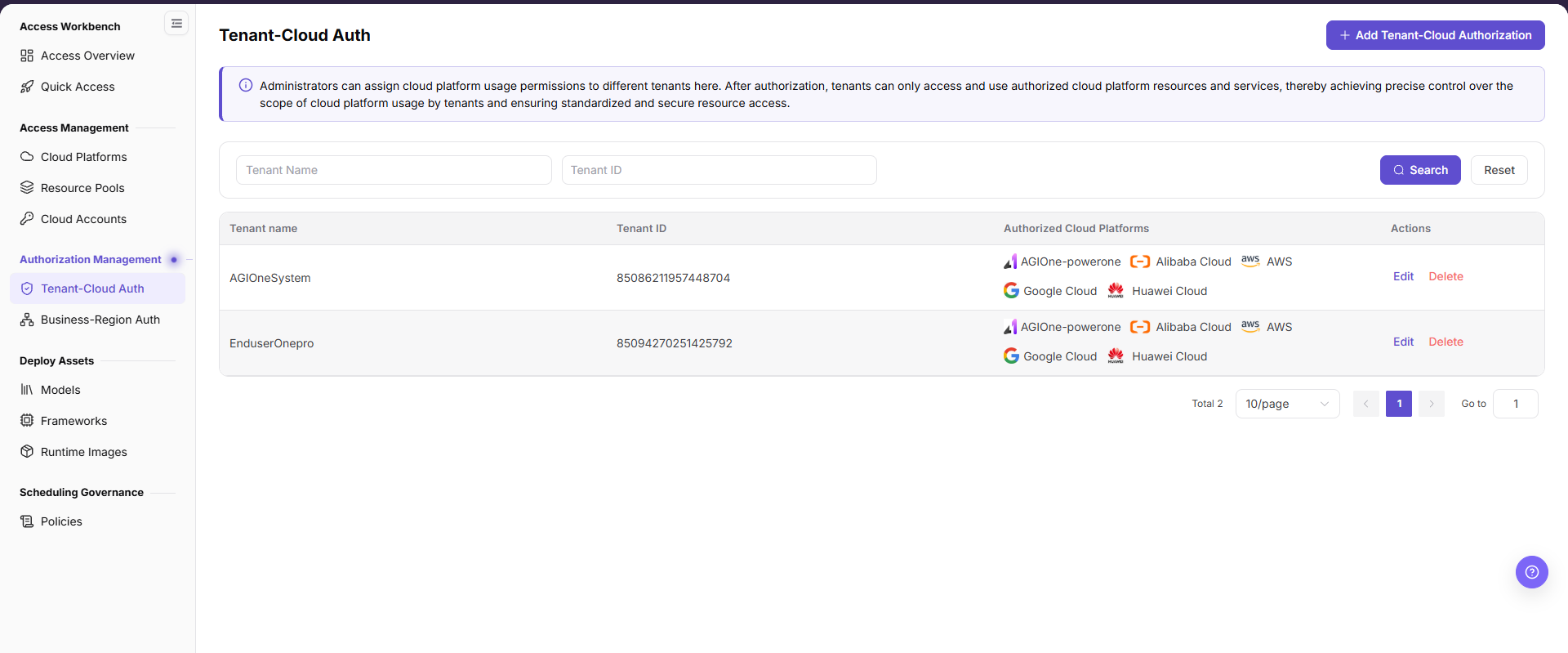
The image shows the Tenant-Cloud Authorization list page, listing tenant names, tenant IDs, authorized cloud platforms, with tenant search, add authorization, and row-level edit/delete actions.
Main Operations
Add Tenant-Cloud Authorization
- Click "Add Tenant-Cloud Auth".
- Select a cloud platform.
- Select
Single-Tenant AuthorizationorAuthorize All Tenants; select the target tenant for single-tenant mode. - Verify the scope and click "Confirm".
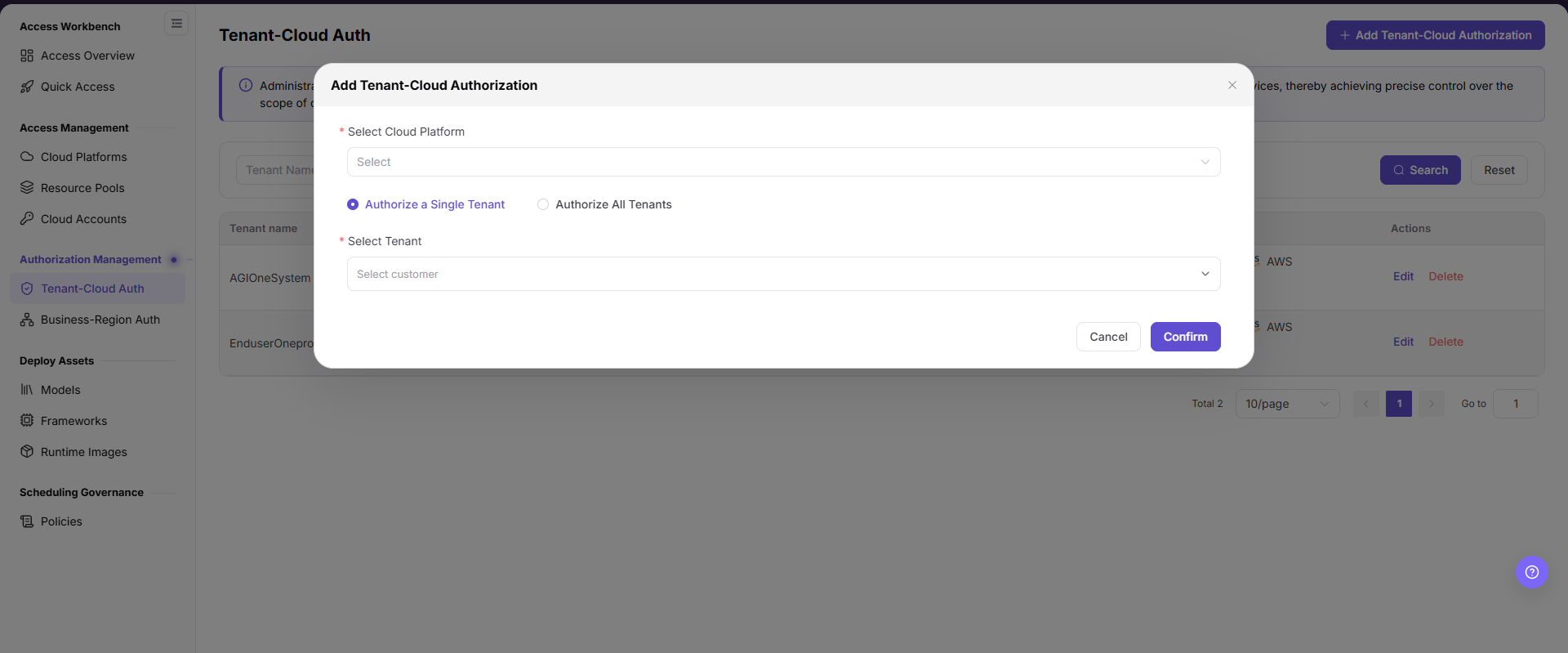
The image shows the Add Tenant-Cloud Authorization dialog, where you select the cloud platform, authorization mode (single tenant or all tenants), and pick the target tenant.
Edit Tenant-Cloud Authorization
- Click "Edit" on the target record.
- Verify the cloud platform, authorization mode, and tenant scope.
- Save and verify the updated relationship in the list.
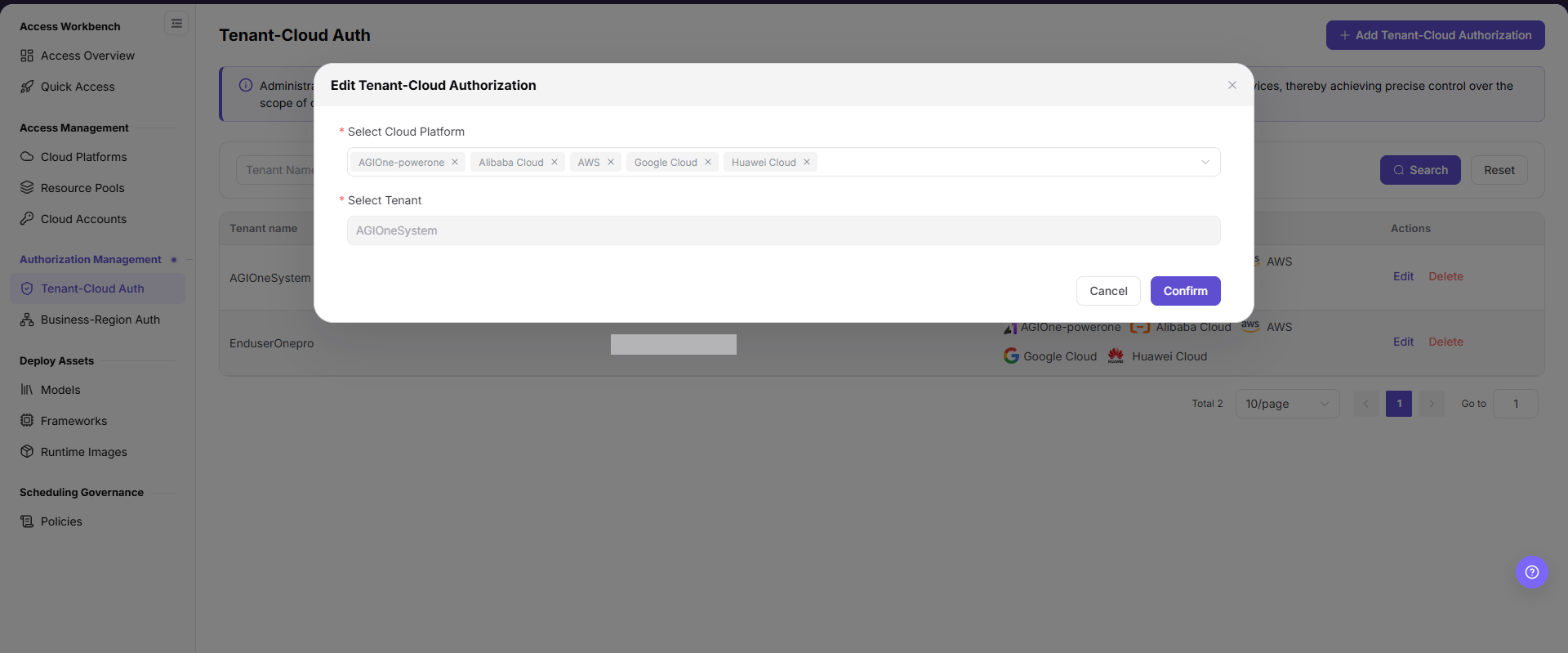
The image shows the Edit Tenant-Cloud Authorization dialog, where you can verify or adjust the cloud platform authorization scope for the selected tenant.
Delete Tenant-Cloud Authorization
- Confirm that the tenant no longer depends on the cloud platform.
- Click "Delete" and verify the target record.
- After confirmation, check the list and tenant-side visibility.
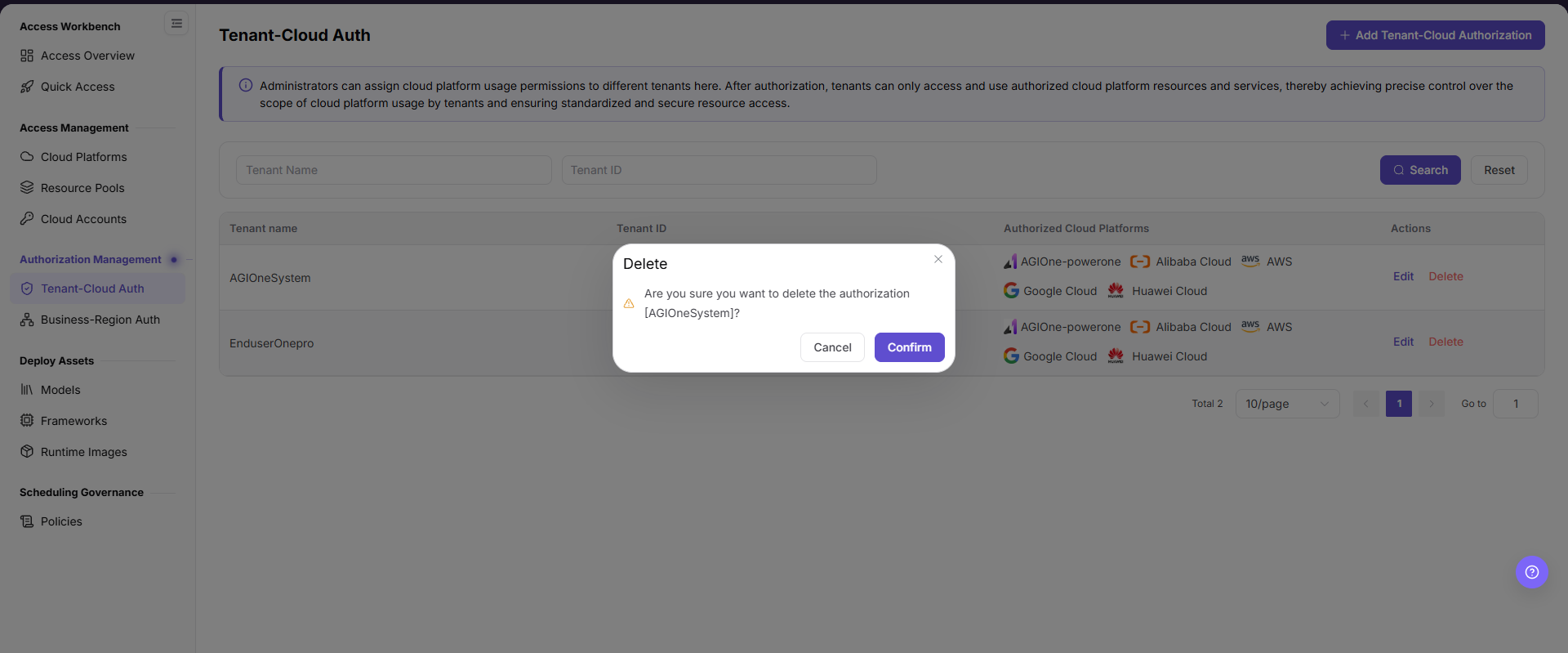
The image shows the secondary confirmation dialog for deleting a tenant-cloud authorization, which revokes the tenant's access permissions to the specified cloud platform.
Parameter Reference
| Field Name | Required | Field Type | Example | Description |
|---|---|---|---|---|
| Tenant Name | No | Text | Sample Tenant | Filters authorization records by tenant name. Do not enter a real customer name in examples. |
| Tenant ID | No | Text/Number | 1000000000000000 | Filters authorization records by tenant identifier. The example value is for documentation only. |
| Authorized Cloud Platforms | Yes | List/Multiple values | Alibaba Cloud | Displays or selects the cloud platform scope available to the tenant. |
| Select Cloud Platform | Yes | Dropdown | Alibaba Cloud | Selects the cloud platform to authorize when adding authorization. |
| Authorization Mode | Yes | Radio | Authorize a Single Tenant | Selects whether to authorize one tenant or all tenants. |
| Select Tenant | Conditionally required | Dropdown | Sample Tenant | Required when Authorize a Single Tenant is selected. |
| Search | No | Button | Search | Queries authorization records with the current filters. |
| Reset | No | Button | Reset | Clears filters and restores the list display. |
| Pagination | No | Page control | 10/page | Opens additional list pages without modifying authorization records. |
| Edit | No | Action entry | Edit | Modifies an existing authorization. Confirm the impact scope before editing. |
| Delete | No | Action entry | Delete | Deletes authorization and may affect tenant resource availability. Use with caution. |
| Cancel | No | Button | Cancel | Closes the dialog without saving the current configuration. |
| Confirm | Yes | Button | Confirm | Submits the authorization configuration. Review carefully before clicking. |
Pitfalls
- Do not skip the upstream dependency check: The target cloud platform and tenant exist, and the authorization boundary is approved.
- Confirm impact before a configuration change: Before changing authorization, confirm tenant deployments, business visibility, and revocation arrangements.
- A success message does not prove downstream synchronization. Use Result Validation afterward.
- Use only
<API_KEY>,<PERSONAL_KEY>,<ACCESS_KEY_ID>,<ACCESS_KEY_SECRET>,<BASE_URL>, and<ENDPOINT_PATH>for credential and endpoint examples.
Result Validation
| Check Item | Success Signal | If Abnormal |
|---|---|---|
| Page is accessible | Title, navigation, and main content display correctly | Check role permission and navigation path |
| Managed objects are visible | Usage authorization between tenants and cloud platforms display as expected | Clear filters and verify upstream dependencies |
| Operation result is saved | The expected state or new record appears | Review page messages, required fields, and dependencies |
| Downstream result is consistent | Associated pages show the change | Wait for synchronization, refresh, and return to the responsible object |
FAQ
Target Object Is Missing in Tenant-Cloud Auth
Symptom:
The expected object is missing from the list or selector.
Possible Causes:
- Active query criteria filter out the target object.
- An upstream object is disabled, or the current role lacks visibility.
Resolution:
- Clear filters and refresh the page.
- Verify the prerequisite object: The target cloud platform and tenant exist, and the authorization boundary is approved.
- Confirm the current role and data scope, then locate the object again.
Tenant-Cloud Auth Action Is Unavailable
Symptom:
An expected button, menu, or state switch is unavailable.
Possible Causes:
- The current account lacks the required action permission.
- Object state, references, or prerequisites block the action.
Resolution:
- Verify the permission for the action and the current object state.
- Check references and prerequisites identified by the page message.
- Remove the blocker, refresh the page, and perform the action once.
Tenant-Cloud Auth Change Does Not Reach Downstream
Symptom:
The page reports success, but a downstream page still shows the old state.
Possible Causes:
- An associated page has stale cache or synchronization delay.
- The current and downstream pages use different roles, tenants, or data scopes.
Resolution:
- Wait for synchronization and refresh both pages.
- Confirm that both pages use the same role, tenant, and object scope.
- If they still differ, return to the responsible object and verify the saved result.
Tenant-Cloud Auth Data Differs from Another Page
Symptom:
Counts or states differ from an associated page.
Possible Causes:
- The pages use different filters, aggregation rules, or update times.
- The change is still synchronizing, or role-based data scopes differ.
Resolution:
- Align filters and aggregation rules on both pages.
- Check update times and wait for synchronization.
- Compare object details instead of summary counts only.
How to Troubleshoot a Tenant-Cloud Auth Failure
Symptom:
Submission fails or the state does not change for an extended period.
Possible Causes:
- Required fields, field combinations, or object state do not meet submission rules.
- An upstream dependency is invalid, the request failed, or the same action is already processing.
Resolution:
- Record the redacted object, time, and complete page message.
- Verify required fields, object state, and upstream dependencies.
- Confirm that no identical job is processing before one retry.
Notes
- Before changing authorization, confirm tenant deployments, business visibility, and revocation arrangements.
- Do not put real accounts, credentials, internal locations, or customer data in documentation, screenshots, tickets, or chat records.
- Authorization, deployment, deletion, publication, state, or billing changes require an auditable record and recovery plan.
Next Steps
- Continue confirming tenant-available regions on the business-region authorization page.
- Check the model deployment or resource selection page from the tenant perspective.
- Regularly review configurations such as
Authorize All Tenantsto avoid overly broad authorization.