Object Storage
Feature Overview
| Item | Content |
|---|---|
| Applicable Role | Model Provider |
| Navigation Path | AI Infra(On-Prem) > Storage > Object Storage |
| Page Route | /powerone/storage-service/object |
| Managed Object | Configuration, status, and relationships on Object Storage |
Beginner Explanation
Object storage is like cloud drive for models and data. It stores files, datasets, model packages, and output results with buckets and objects. It is suitable for uploading, downloading, and sharing files by path, but it is not the same as a directly mountable POSIX shared directory.
Terms
| Term | Description |
|---|---|
| Bucket | Top-level container in object storage. |
| Object | A single file or data item in a bucket. |
| Object Path | File path inside a bucket, used to locate data in jobs. |
Recommended Operation Order
Confirm prerequisites for Object storage buckets, object files, object paths, and object storage capability within a region, follow Main Operations, run Result Validation, and continue to the next page.
First-Time User Notes
Confirm that the task involves Configuration, status, and relationships on Object Storage, and then follow the recommended order. If fields or state differ from expectations, check prerequisites before continuing downstream.
Prerequisites
- Object storage capability has been opened by the operator in the target region.
- The current account has permissions to view, create buckets, and manage objects.
- Bucket name, object path, and data retention policy have been planned.
- If used by jobs, the job region should be able to access this object storage.
Page Description
Use this page to manage object-storage buckets, objects, paths, and regional object-storage capability.
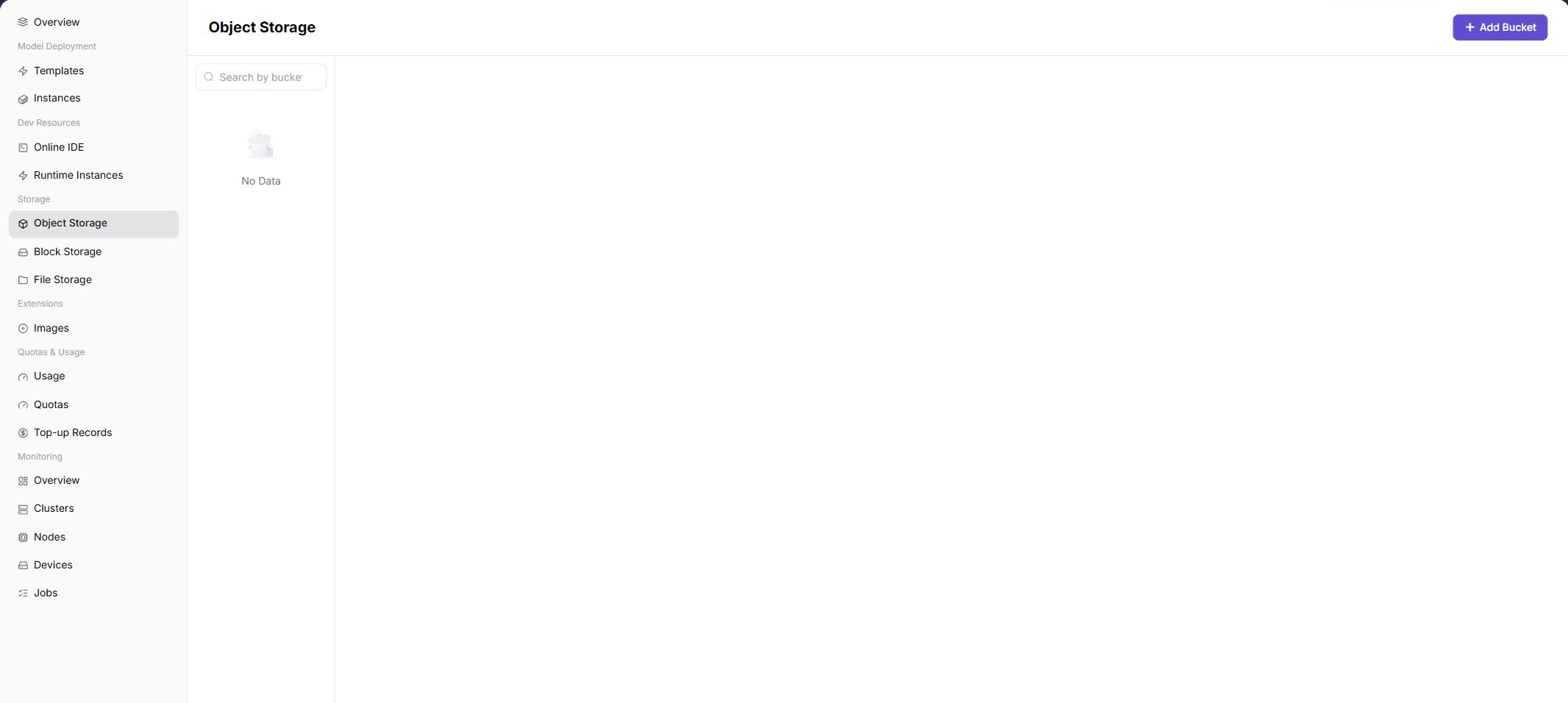
The left side provides bucket search and bucket list, and the upper-right corner provides the add bucket entrypoint. After entering a bucket, you can upload, download, or delete objects through object list entrypoints provided by the page.
Main Operations
View Storage Resources
- Open the corresponding storage-service page and filter by name, project, status, capacity, or update time.
- Open details and check capacity, used space, access method, mount or connection status, and creation time.
- If no record is returned, reset filters and check project and region. Do not share internal addresses or access credentials.
- For capacity or status anomalies, inspect quota, events, and associated instances before creating another resource.
Manage Capacity, Mounts, or Access
- Open the target action menu and identify the impact of expansion, mount, unmount, permission, or deletion entries.
- Record current capacity, associated instances, and data-protection status before changes.
- Before expansion, unmount, or deletion, confirm tasks and backups. Before the final action, confirm the resource, data, and impact, and execute it only after approval.
- After an approved change, check capacity, connection status, and events. If abnormal, stop subsequent actions and follow the recovery process.
Add Bucket
Procedure
- Go to
AI Infrastructure > On-Prem > Storage Services > Object Storage. - Confirm the region in the upper-right corner.
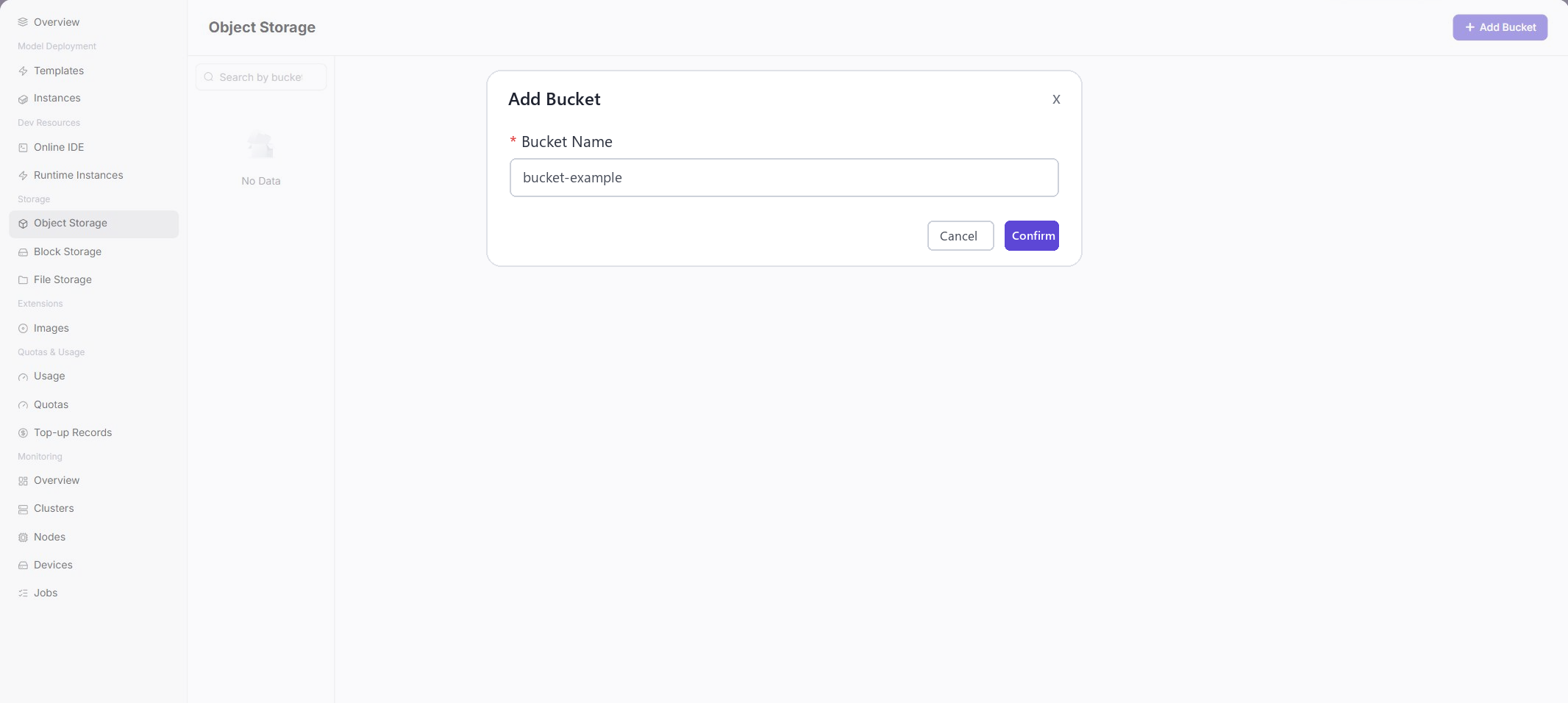
- Click "Add Bucket".
- Fill in Bucket Name.
- Click "Confirm" to submit.
The following screenshot shows the Add Bucket dialog. Confirm the bucket name before submitting.
Parameter Quick Reference
| Field Name | Required | Field Type | Example | Description |
|---|---|---|---|---|
| Resource Name | Yes | Text | storage-a | Storage resource display name. |
| Region | Yes | Drop-down | Wuhan | Region where storage capability is located. |
| Capacity / Quota | Conditionally required | Number | 100GiB | Storage capacity or credits. |
| Access Path | Conditionally required | Text | /mnt/data | Mount path used by jobs or instances. |
| Status | System-generated | Enum | Available | Current storage resource status. |
Pitfalls
- Storage paths, bucket names, AK/SK, and NFS paths must be sanitized before screenshots.
- If mounting fails, confirm region, permissions, and storage component status first.
- Before deleting storage resources, confirm that no instances, tasks, or output artifacts depend on them.
Configuration Rules and Impact
- Buckets are regional storage resources. Cross-region access capability depends on operator configuration.
- Object storage is suitable for unstructured files and not suitable for scenarios requiring POSIX shared directory semantics.
- Before deleting buckets or objects, confirm that no instances, models, scripts, or jobs depend on them.
- Object paths can be used in startup commands or parameters, but do not write access keys into commands.
Result Validation
| Check Item | Success Signal | If Abnormal |
|---|---|---|
| Page entry | Object Storage opens with the target operation entry | Check Operator permission and whether the menu is available |
| Object record | Configuration, status, and relationships on Object Storage is visible in the list or details | Reset filters and verify name, ownership, and creation result |
| State result | State after creation or change matches the page message | Check operation feedback, dependency state, and latest update time |
| Downstream use | A downstream page can select or associate the target | Return to prerequisites and check enabled state, ownership, and visibility |
FAQ
Target Is Missing from Object Storage
Symptom:
The page opens, but the expected Configuration, status, and relationships on Object Storage is missing.
Possible Causes:
- Filters remain active.
- the object belongs to another scope.
- a prerequisite is incomplete.
Solution:
- Reset filters
- verify region or tenant ownership
- confirm prerequisite state.
The Operation Entry on Object Storage Is Unavailable
Symptom:
The create, register, or maintain entry is hidden or disabled.
Possible Causes:
- Role permission is insufficient.
- the page is read-only.
- dependencies are not ready.
Solution:
- Check Operator permission
- read the page message
- complete dependency configuration first.
A Required Field on Object Storage Has No Options
Symptom:
The form opens, but a selection list is empty.
Possible Causes:
- Candidates are disabled.
- ownership differs.
- the current account cannot see them.
Solution:
- Check candidate state
- verify ownership
- confirm visibility and refresh the form.
Object Storage Has an Abnormal State After the Operation
Symptom:
A record exists after submission, but its state is unexpected.
Possible Causes:
- Connectivity or validation failed.
- a dependency is abnormal.
- processing is incomplete.
Solution:
- Check feedback and update time
- inspect related objects
- troubleshoot the processing stage.
A Downstream Page Cannot Use Object Storage
Symptom:
The current page is normal, but a downstream page cannot select or associate Configuration, status, and relationships on Object Storage.
Possible Causes:
- Visibility differs.
- the object is disabled.
- downstream cache is stale.
Solution:
- Check enabled state and ownership
- verify role visibility
- refresh and select again.
Notes
- Do not write keys, accounts, tokens, or customer-sensitive information in object paths or file names.
- Before deleting important data, confirm backups and dependencies.
Next Steps
- Reference object paths in runtime instances, online IDEs, or model services.
- Periodically clean up unused objects to control storage usage.
- Establish backup or version archive rules for important models and datasets.