Member Quotas
Feature Overview
| Item | Content |
|---|---|
| Applicable Role | Model Consumer |
| Navigation path | Settings > Members & Roles > Member Quotas |
| Page route | /user/user-space/member-quotas |
| Managed objects | Member Personal Key usage, authorized quota, and quota details |
Beginner Explanation
Member Quotas is the team's quota allocation table. It shows each member's available and used quota and limit policy, and helps determine whether a call failed because of personal quota.
Terms Quick Reference
| Term | Description |
|---|---|
| Member quota | Quota allocated to a member.; Check it when a call fails. |
| Used quota | Quota already consumed by the member.; Adjust the limit when usage approaches it. |
| Quota limit | The maximum quota that the member can consume.; Confirm the impact before changing it. |
| Quota request | A member's request for additional quota.; Direct the member to submit one when quota is insufficient. |
Prerequisites
- The current account has permission to view member quotas.
- Before adjusting quota, you have confirmed the member, amount, and reason.
- Before setting a limit, you have confirmed the reset cycle, limit-reached policy, and model allowlist scope.
Page Description
| Area | Description |
|---|---|
| Top actions | Export CSV and Quota Requests |
| Filters | Search by name, email, or member ID; status; and Usage sort |
| Table columns | Member, authorized quota, used / limit, remaining, models, status, and actions |
| Row actions | Adjust Quota, Limit, and View Details |
| Detail page | Member quota, Personal Key permissions, joined projects, and audit logs |
| High-risk actions | Adjusting quota, saving member limits, and exporting CSV |
Main Operations
View Member Quotas
- Go to
Settings > Members and Roles > Member Quotas. - Filter by member, project, resource type, or quota status.
- Check allocated, used, available quota, and update time.
- If no record is returned, reset filters and check the tenant or project context. Redact quota data before sharing.
View Member Quota Details
- Click "View" or the details entry for the target member.
- Compare total, used, and remaining quota and limits to identify near-limit or exceeded status.
- If metrics differ, check the aggregation period, project, and refresh time.
- Do not adjust quota during read-only validation. Follow the approval process for changes and verify operation logs.
Adjust Member Quota
- Go to
Settings > Members & Roles > Member Quotas. - Use the search box to locate the member.
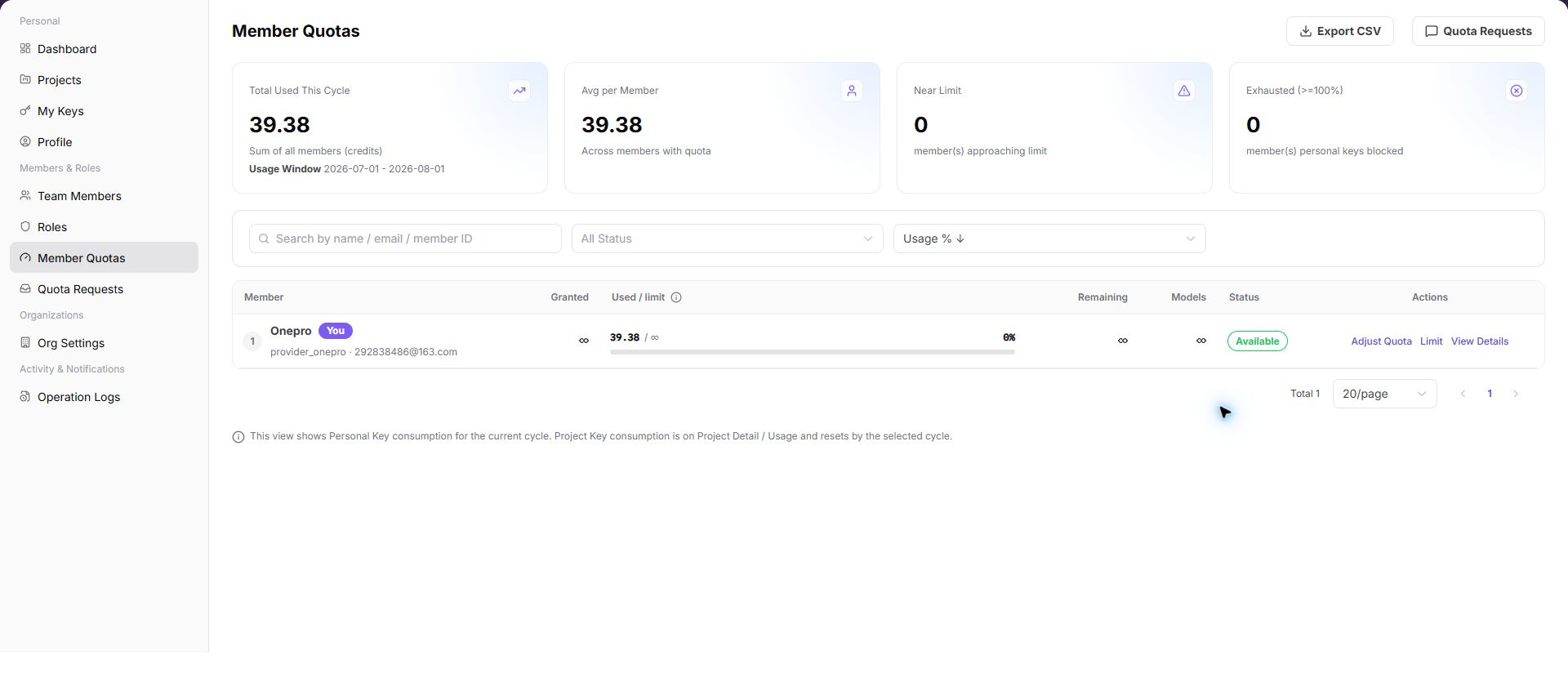
- Review authorized quota, used / limit, remaining quota, models, and status.
The following screenshot shows the Member Quotas list. Member identifiers are hidden.
- Select
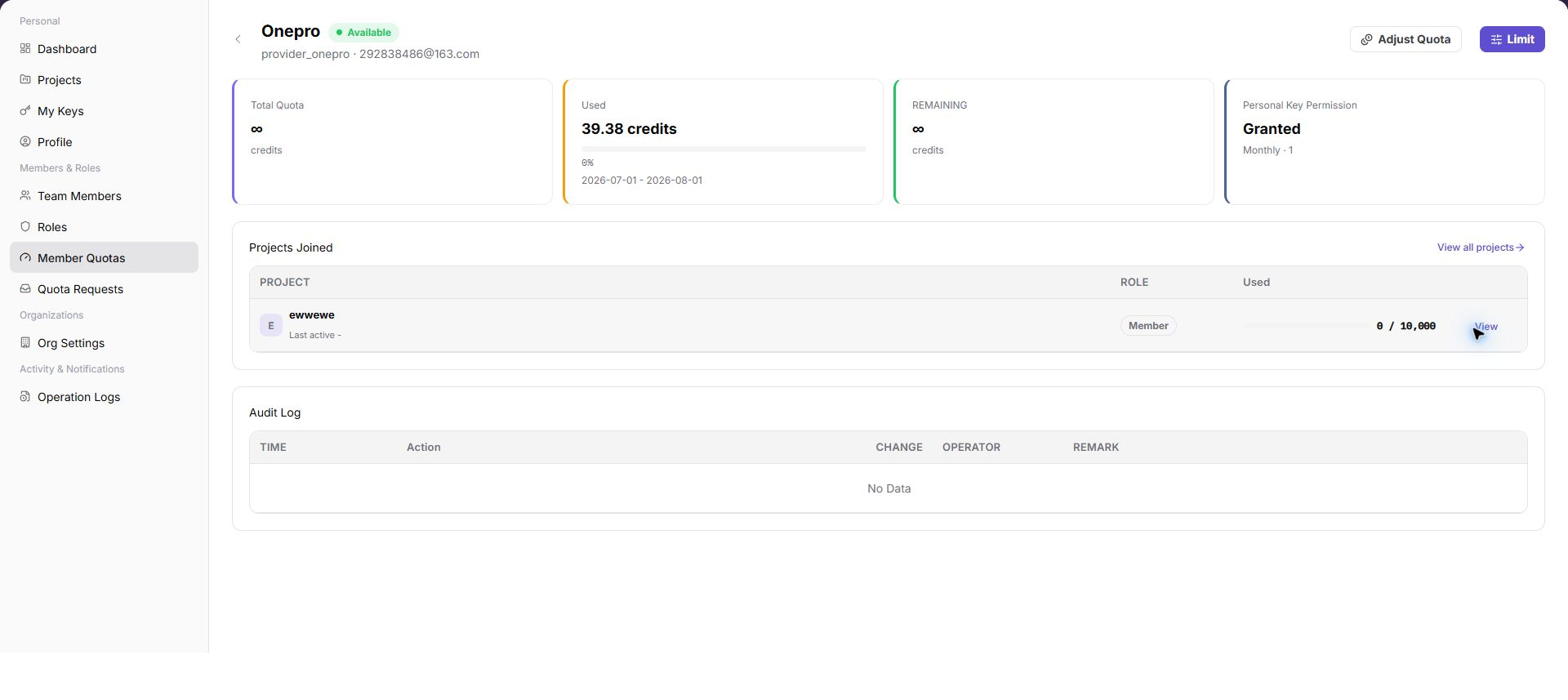
View Detailsto open member quota details. - Review total quota, used quota, remaining quota, Personal Key permissions, joined projects, and audit logs.
The following screenshot shows member quota details.
- Select
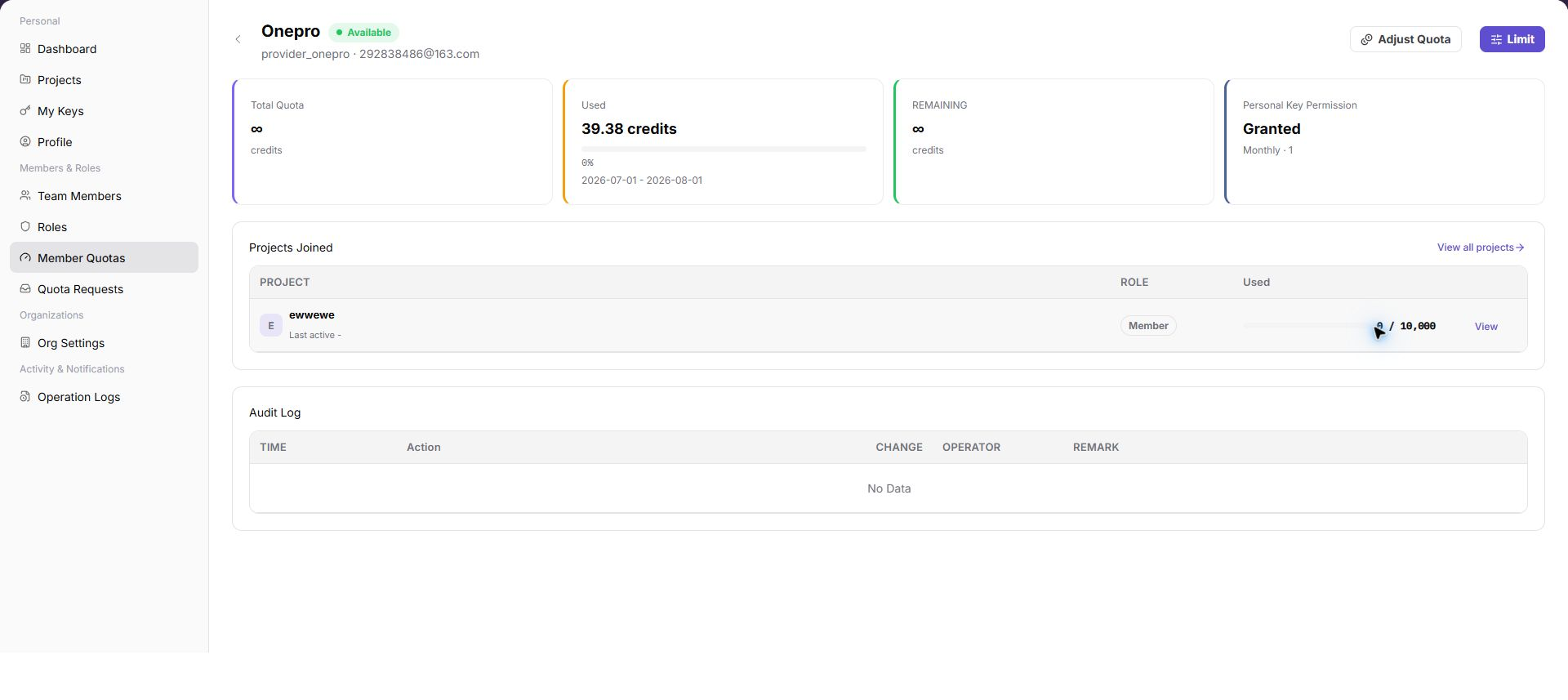
Adjust Quotato open the adjustment dialog. - Select Increase or Deduct, and enter the amount and reason.
- Confirm the impact before selecting
Confirm.
The following screenshot shows the member quota adjustment dialog.
- Select
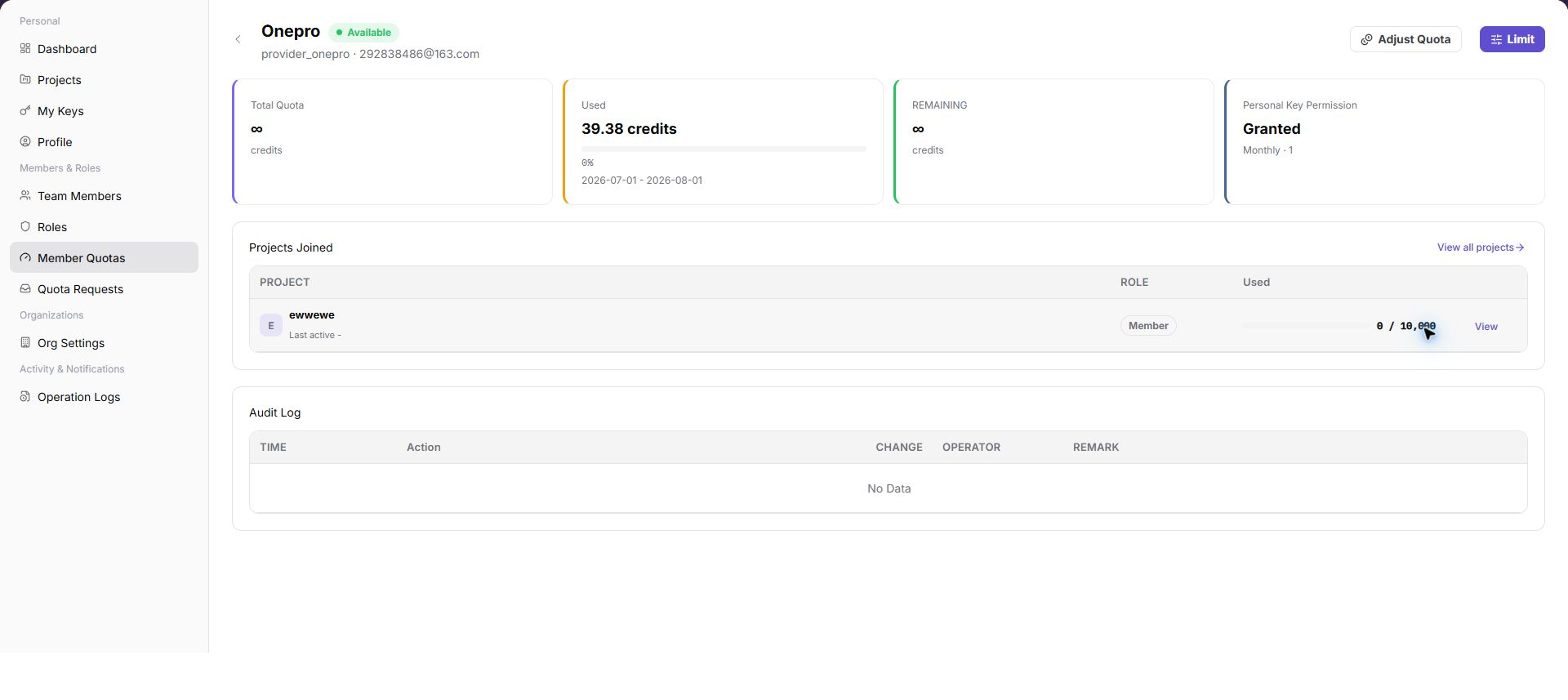
Limitto open the member limit dialog. - Configure the reset cycle, quota limit, and model allowlist.
- Confirm the configuration before saving it.
The following screenshot shows the member quota limit dialog.
Set Member Quota Limits
- Open
Settings > Members & Roles > Member Quotas. - Locate the target Member Quotas and click "Limit".
- Review or complete the required fields shown on the page, and confirm the target object, scope, and current status.
- For an action that changes data, permissions, status, or an external setting, confirm the impact and rollback path before clicking the final confirmation button.
- After the action, return to the list or details page and verify the status, update time, or result message.
Parameter Quick Reference
| Field Name | Required | Field Type | Example | Description |
|---|---|---|---|---|
| Member | No | Text | Example Member A | Locates the member whose quota is being reviewed. |
| Total quota | System-generated | Credits | 10,000 Credits | Maximum quota available to the member. |
| Used quota | System-generated | Credits | 3,000 Credits | Quota already consumed by the member. |
| Remaining quota | System-generated | Credits | 7,000 Credits | Quota still available to the member. |
| Status | System-generated | Enum | Normal | Indicates whether the quota can continue to be used. |
Pitfalls
- Do not change roles, members, login policies, Keys, or API rate-control rules without confirming the affected users and systems.
- UI entries can differ by role and tenant scope; verify the current account context before troubleshooting.
- Never copy complete Keys, AK/SK, tokens, or secrets into documentation, tickets, or screenshots.
Result Validation
| Check Item | Success Signal | If Abnormal |
|---|---|---|
| Quota updated | Authorized or remaining quota changes after adjustment. | Verify the member, quota type, and approval state. |
| Audit record | The member detail audit log records the quota adjustment. | Search Operation Logs by member and time. |
| Limit correct | Used / limit matches the configured member limit. | Open member quota details and verify the configuration. |
FAQ
Calls fail even though member quota is sufficient
Symptom:
The member has remaining quota, but calls are rejected.
Possible cause:
- The Key's own limit was reached.
- The project budget was reached.
- The target model is not in the allowlist.
Resolution:
- Check My Keys or the project Key limit.
- Review the project budget and model allowlist.
- Confirm the model scope in the member limit.
Why is a member missing from Member Quotas?
Symptom:
A member or the member's quota information is absent.
Possible cause:
The member has not joined the current tenant, the account is disabled, or the current account cannot view the member's quota.
Resolution:
Verify the member status on Members, then check member quota authorization. Ask a tenant administrator to allocate quota or restore the member when required.
Why is Adjust Quota unavailable?
Symptom:
Quota is visible, but Adjust Quota, Limit, or the adjustment entry cannot be selected.
Possible cause:
The current account lacks quota-administrator permission, the member status does not allow changes, or approval is required for that quota type.
Resolution:
Confirm the member status and quota-management permission. Submit the required quota request first, then return to Member Quotas after approval.
How should the Member Quotas page be exported or captured safely?
Symptom:
Page information is needed for troubleshooting, audit, or delivery.
Possible causes:
The page may contain accounts, email addresses, IP addresses, internal paths, tenant identifiers, Keys, or amounts.
Resolution:
Keep only the necessary fields and action context. Use opaque light-gray pixel mosaics for sensitive text and never share complete credentials or internal addresses.
What should I do when the Member Quotas page shows unexpected data?
Symptom:
A field, status, metric, or related object differs from the expectation.
Possible causes:
The page scope, time condition, role permission, or upstream setting does not match.
Resolution:
Record the redacted object, time, and result. Verify the entry and filters first, then check related pages and Operation Logs.
Notes
- Adjusting quota affects a member's calling ability. Confirm the member and amount first.
- Exported CSV files may contain member usage data. Handle them according to tenant data-management requirements.
Next Steps
- Review member requests on Quota Requests.
- Adjust default quota for new members in Tenant Settings.
- Verify quota adjustments in Operation Logs.