Online IDE
Feature Overview
| Item | Content |
|---|---|
| Applicable Role | Model Provider |
| Navigation Path | AI Infra(On-Prem) > Dev Resources > Online IDE |
| Page Route | /powerone/dev-training/dev-ide |
| Managed Object | Configuration, status, and relationships on Online IDE |
Beginner Explanation
You can understand Online IDE as a cloud development machine running in the resource pool. You do not need to install a GPU environment locally. Select an image and specification, and the platform creates an accessible development environment.
Terms
| Term | Description |
|---|---|
| Image | Container environment required to run a job, usually from platform image services or a custom image project. |
| Specification | Resource package that a job can request, such as CPU, memory, GPU model, and card count. |
| Quota | Resource upper limit available to a tenant. Common dimensions include GPU, CPU, memory, and specifications. |
Recommended Operation Order
Confirm prerequisites for Online development environments, single-node IDEs, cluster IDEs, images, specifications, and runtime status, follow Main Operations, run Result Validation, and continue to the next page.
First-Time User Notes
Confirm that the task involves Configuration, status, and relationships on Online IDE, and then follow the recommended order. If fields or state differ from expectations, check prerequisites before continuing downstream.
Prerequisites
- The current account has permission to create online IDEs.
- The target region has available specifications and quota.
- An available image exists and contains the required development tools.
- If data or code directories need to be mounted, related storage has been prepared.
Page Description
Use this page to manage online development environments, single-node and cluster IDEs, images, specifications, and runtime state.
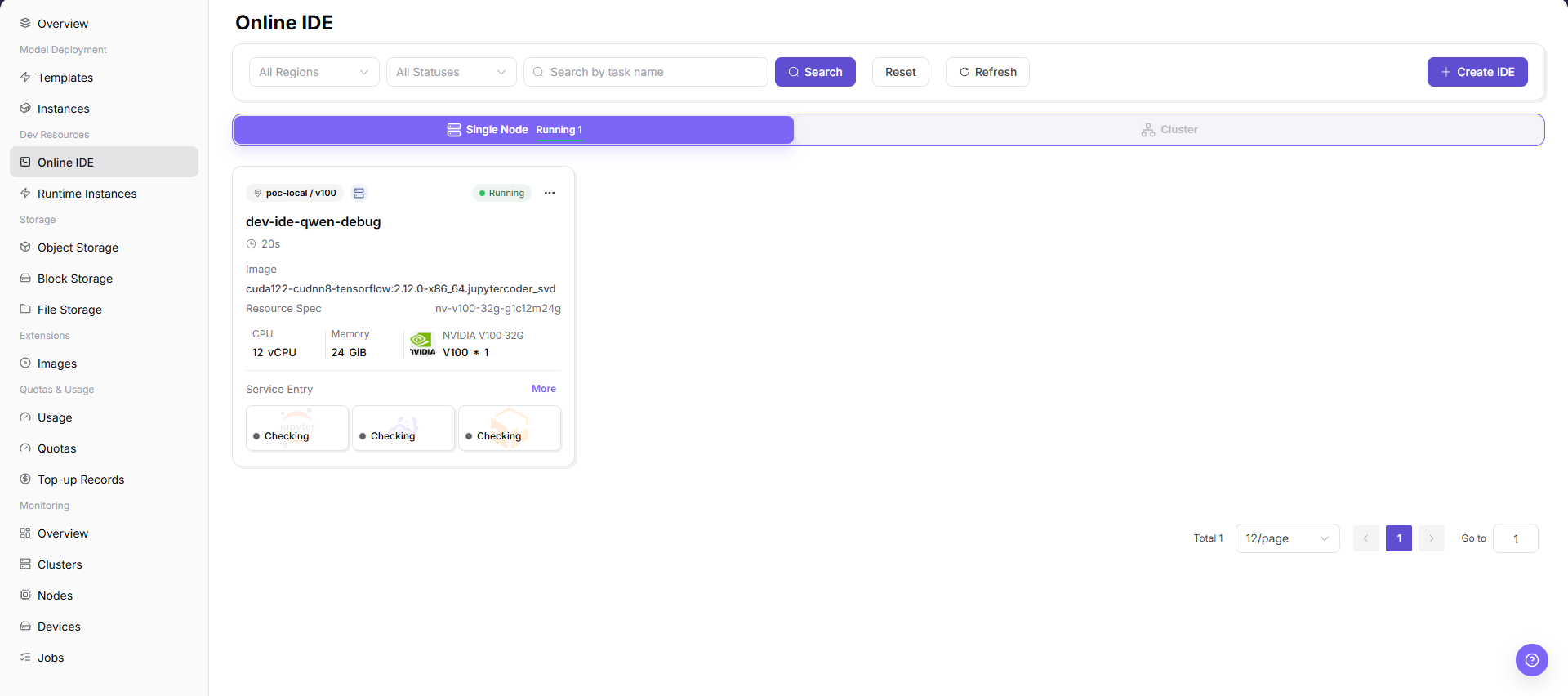
The list page supports filtering by region and status, and provides refresh and create entrypoints. In the screenshot, the current list is empty. After clicking "Create IDE", you enter the creation page and can select single-node or cluster deployment type.
Page Areas
| Field/Area | Description |
|---|---|
| Filter Area | Filters IDEs by region, status, and keyword. |
| Refresh | Refreshes list status. |
| Create IDE | Enters the online IDE creation flow. |
| Single Node / Cluster | Distinguishes single-node and cluster forms in the list or creation page. |
| Pagination Area | View by page when there are many IDEs. |
Main Operations
View Resource Instances
- Open the corresponding development-resource page and filter by name, project, status, flavor, or update time.
- Open details and check image, flavor, storage, network, runtime status, and creation time.
- If no record is returned, reset filters and check project and region. Redact internal addresses and credentials before sharing.
- For abnormal status, inspect events and quota before creating another instance.
Connect to or Manage Instance Status
- Open the target details and confirm the connection entry, runtime status, and attached storage.
- Before connecting, confirm access permission and network scope and use only the platform-provided secure entry.
- Before starting, stopping, restarting, or deleting, confirm that work and data are saved. Before these actions, confirm the resource, data, and impact, and execute them only after approval.
- After an approved action, check status and events. If abnormal, stop retrying and escalate with logs.
Create Online IDE
Applicable Scenario
Create an online IDE when an interactive development, debugging, or Notebook environment is needed.
Pre-Operation Check
- Target specification and quota are available.
- The image contains Python, CUDA, frameworks, or other development dependencies.
- The runtime cycle has been confirmed to avoid long idle resource consumption.
Procedure
- Go to
AI Infrastructure > On-Prem > Development Resources > Online IDE. - Click "Create IDE".
- On the deployment type page, select
Single NodeorCluster.
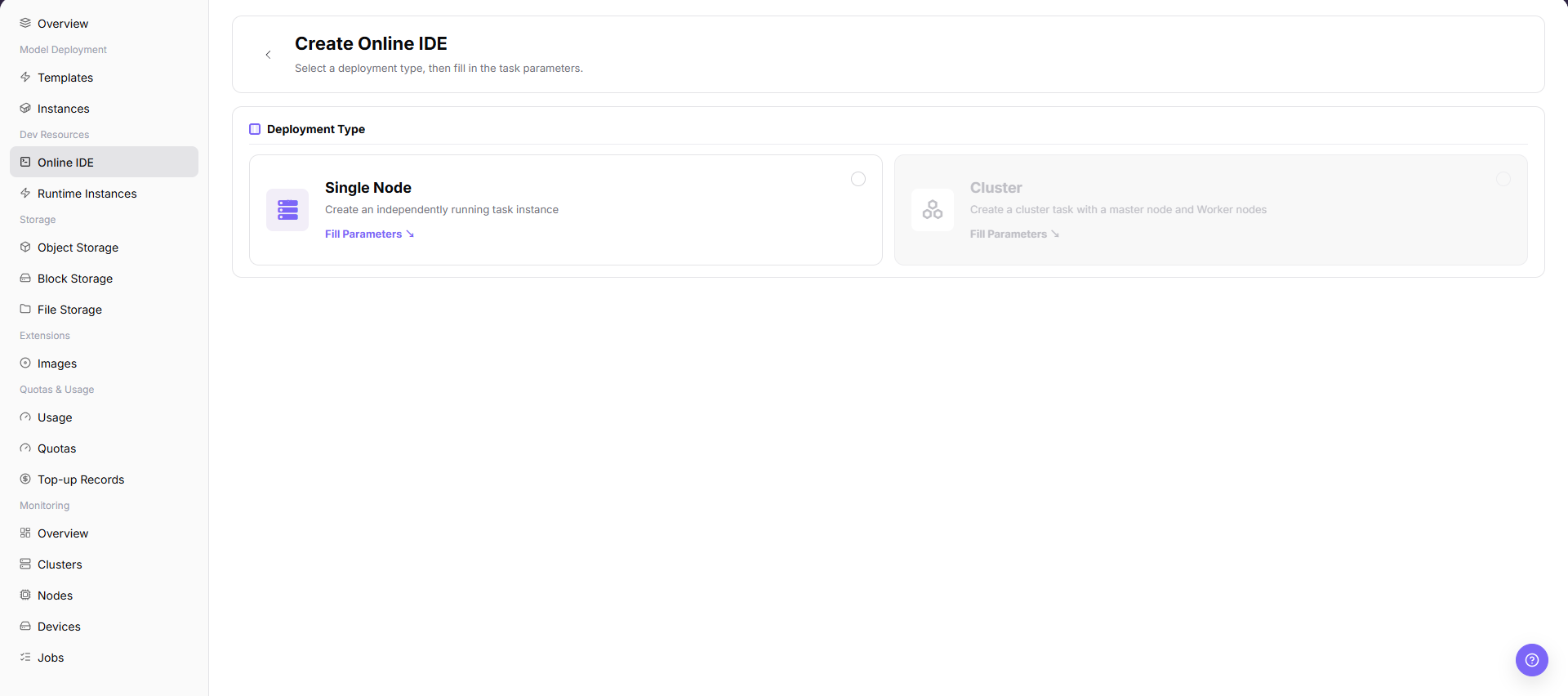
- Click "Fill Parameters" to open the online IDE creation configuration page.
- Review or fill in IDE name, region, image, specification, storage mount, startup command, and other fields as provided by the page.
- Confirm configuration items, resource specification, storage path, and runtime mode.
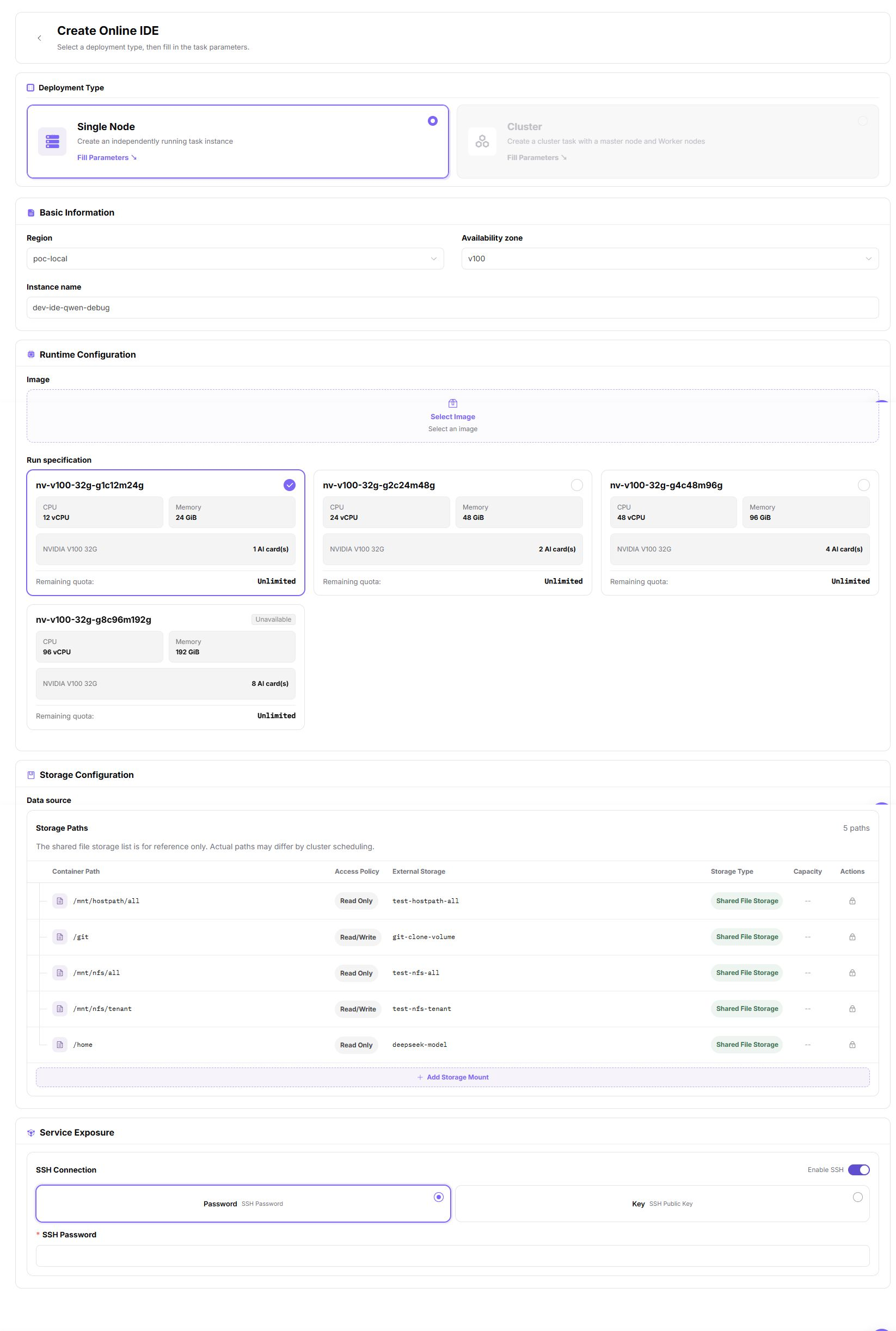
Parameter Quick Reference
| Field Name | Required | Field Type | Description |
|---|---|---|---|
| IDE Name | Yes | Text | Online IDE display name. |
| Deployment Type | Yes | Radio | Select single-node or cluster form. |
| Region | Yes | Drop-down | Select the target region for creating the online IDE. |
| Image | Yes | Drop-down | Select the development environment image. |
| Resource Specification | Yes | Drop-down | Select the compute specification used by the online IDE. |
| Storage Mount | No | Path | Configure the mount path for code, data, or output directories. |
| Startup Command | No | Text | Configure the online IDE startup or runtime command. |
Pitfalls
Cluster mode may require more quota. Use single-node first for regular debugging.
If the image lacks dependencies, the IDE may start but code may fail to run.
Submit,OK, andConfirmare final actions.Creating an online IDE occupies quota and cluster resources.
Do not write real tenant, region, image address, specification ID, storage path, token, password, endpoint, startup parameter, or test data.
Configuration Rules and Impact
- Online IDEs occupy quotas and cluster resources. The longer they run, the more they consume.
- Images, specifications, and storage are configured by operators. Model Consumers can only select visible items.
- Before stopping, deleting, or releasing an IDE, confirm that code and output have been saved to persistent directories.
Result Validation
| Check Item | Success Signal | If Abnormal |
|---|---|---|
| Page entry | Online IDE opens with the target operation entry | Check Operator permission and whether the menu is available |
| Object record | Configuration, status, and relationships on Online IDE is visible in the list or details | Reset filters and verify name, ownership, and creation result |
| State result | State after creation or change matches the page message | Check operation feedback, dependency state, and latest update time |
| Downstream use | A downstream page can select or associate the target | Return to prerequisites and check enabled state, ownership, and visibility |
FAQ
Target Is Missing from Online IDE
Symptom:
The page opens, but the expected Configuration, status, and relationships on Online IDE is missing.
Possible Causes:
- Filters remain active.
- the object belongs to another scope.
- a prerequisite is incomplete.
Solution:
- Reset filters
- verify region or tenant ownership
- confirm prerequisite state.
The Operation Entry on Online IDE Is Unavailable
Symptom:
The create, register, or maintain entry is hidden or disabled.
Possible Causes:
- Role permission is insufficient.
- the page is read-only.
- dependencies are not ready.
Solution:
- Check Operator permission
- read the page message
- complete dependency configuration first.
A Required Field on Online IDE Has No Options
Symptom:
The form opens, but a selection list is empty.
Possible Causes:
- Candidates are disabled.
- ownership differs.
- the current account cannot see them.
Solution:
- Check candidate state
- verify ownership
- confirm visibility and refresh the form.
Online IDE Has an Abnormal State After the Operation
Symptom:
A record exists after submission, but its state is unexpected.
Possible Causes:
- Connectivity or validation failed.
- a dependency is abnormal.
- processing is incomplete.
Solution:
- Check feedback and update time
- inspect related objects
- troubleshoot the processing stage.
A Downstream Page Cannot Use Online IDE
Symptom:
The current page is normal, but a downstream page cannot select or associate Configuration, status, and relationships on Online IDE.
Possible Causes:
- Visibility differs.
- the object is disabled.
- downstream cache is stale.
Solution:
- Check enabled state and ownership
- verify role visibility
- refresh and select again.
Notes
- Do not write account passwords, tokens, private keys, endpoints, startup parameters, or test data into Notebook, code repositories, or screenshots.
- Confirm storage mount paths before creation to avoid saving output only in temporary container directories.
Next Steps
- Enter the IDE to write and debug code.
- Save important code, data, and output to persistent storage.
- Stop or release the IDE when it is not in use.