Call Analytics
Feature Overview
| Item | Content |
|---|---|
| Applicable Roles | Model Provider |
| Navigation Path | Model Services > Customer Calls > Call Analytics |
| Page Route | /modelone/monitoring/monitor/list/user |
| Managed Objects | Customer list, model list, successful calls, failed calls, and rate-limit triggers |
Beginner Explanation
Customer Call Analytics works like operational details split by customer and model. Customers shows how many models each customer uses, while Models shows call performance by model.
Terminology
| Term | Description |
|---|---|
| Customers | Aggregates model count and call indicators by customer. |
| Models | Shows customer call analytics by model. |
| Models Used | The number of models called by a customer in the selected scope. |
| View Details | Opens additional analytics for a target customer or model. |
Recommended Operation Order
Locate the customer and review models used in Customers, switch to Models to compare model performance, and then open details for an abnormal object.
Beginner Checklist
| Scenario | Do First | Do Not Do Directly |
|---|---|---|
| A customer reports an issue | Locate the customer in Customers first | Review every model immediately |
| Model performance is abnormal | Compare indicators in Models | Review customer totals only |
| A query returns no result | Reset filters and expand the period | Add more filters |
| Preparing to share analytics | Redact customer names and business identifiers | Share raw lists externally |
Prerequisites
- The current account has access to the
Call Analyticspage. - The month, date range, model, customer, or model type to view has been clarified.
- The page shows only the customer names, model names, call volume, and usage fields that your account can access.
Page Description
The page uses Customers and Models to show success, failure, rate limits, and usage. Query criteria and details entries depend on the active tab.
Page screenshots:
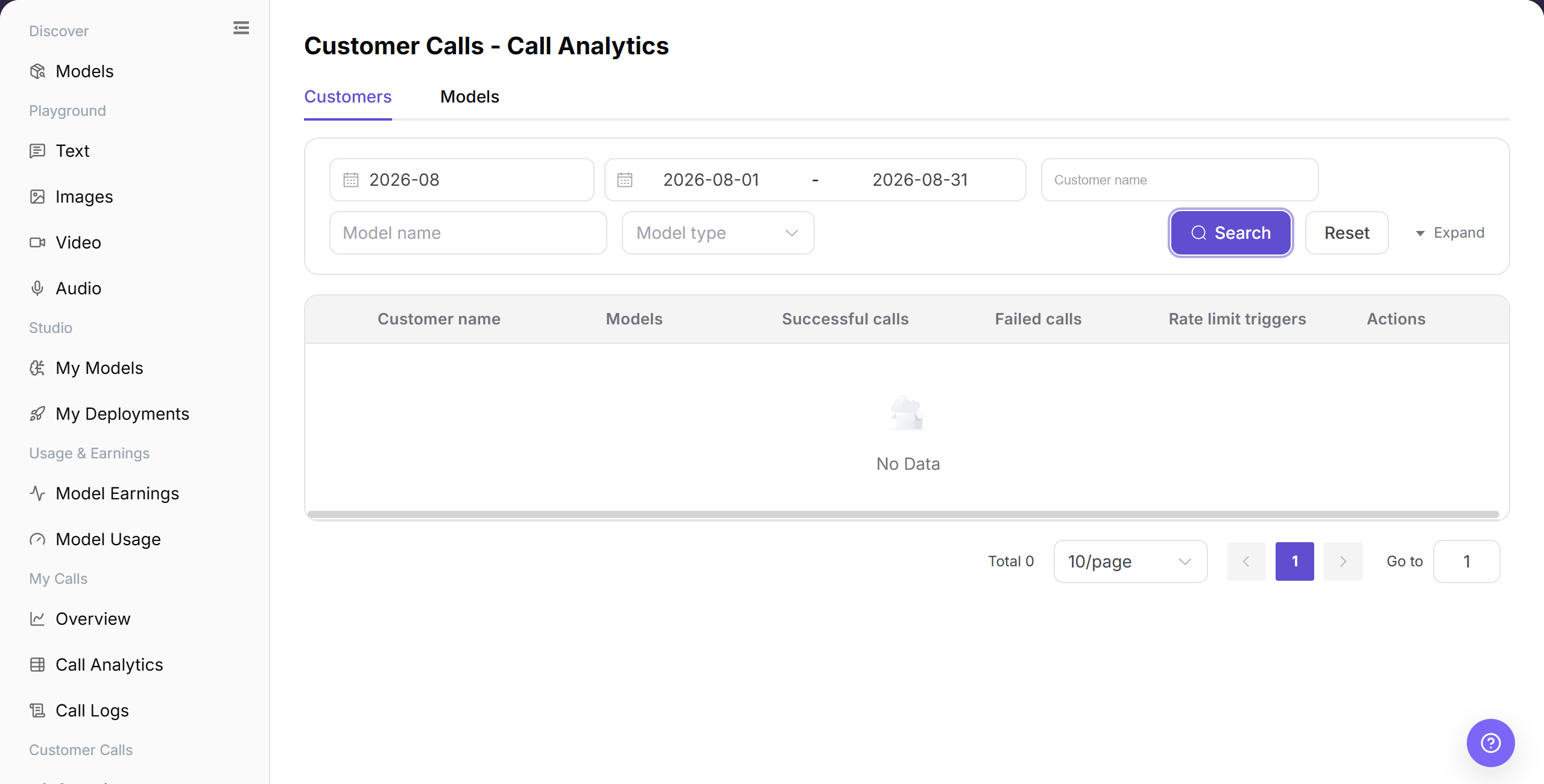
The "Customers" tab displays aggregated statistics for customers invoking models during the selected period, including model counts, success/failure/rate-limit metrics, and detail links.
Main Operations
View Customer Call List
- Go to
Model Services > Customer Calls > Call Analytics, which defaults to theCustomerstab. - Filter records by customer name or model name, and specify the accounting month or date range.
- Click "Search" to review the number of models used, successful calls, failed calls, and rate-limit triggers.
- Click "View Details" in the action column for a specific customer to inspect detailed usage; click "Reset" if filters need clearing.
View Model Call List
- Click the "Models" tab at the top of the Call Analytics page.
- Filter target models by model name or model type.
- Click "Search" to compare call volume, success rates, and rate-limiting across different models.
- Click inline "View Details" to analyze the customer breakdown for a specific model.
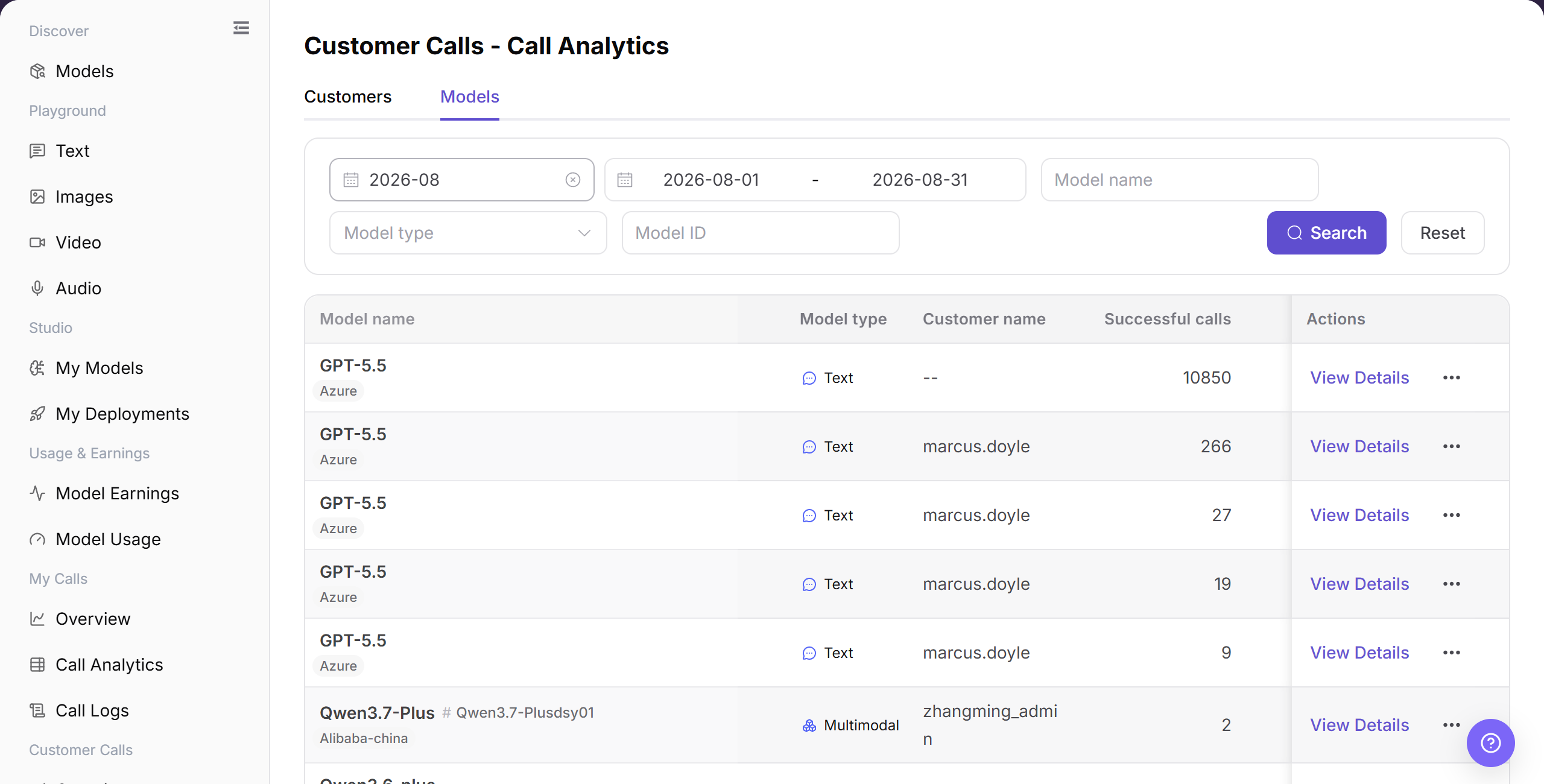
The "Models" tab displays total call volume, customer reach, and success rate trends for each model.
Parameter Reference
| Field Name | Required | Field Type | Example | Description |
|---|---|---|---|---|
| Month | Yes | Month selector | 2026-07 | Controls the statistical month for call analytics. |
| Date Range | Yes | Date range | 2026-07-01 to 2026-07-17 | Controls the query time range for list data. |
| Analytics Tab | Yes | Tab | Models / Customers | Switches between the model list and customer list. |
| Model Name | No | Input | Example Model | Filters the model list or customer list by model name. |
| Model Type | No | Selector | Text / Image | Filters statistics by model capability type. |
| Model ID | No | Input | <MODEL_ID> | Filters by model ID on the Models tab. |
| Customer Name | No | Input / text | Example Customer | Filters statistics by customer name on the Customers tab. |
| Models | System-generated | Number | 2 | Shows the number of models used by a customer on the Customers tab. |
| Successful Calls | System-generated | Number | 40 | Number of successful calls within the selected range. |
| Failed Calls | System-generated | Number | 2 | Number of failed calls within the selected range. |
| Rate Limit Triggers | System-generated | Number | 1 | Number of rate-limit triggers within the selected range. |
| Usage | System-generated | Text / tag | 1,280 Tokens | Shows token, quota, or other call usage information. |
| Actions | No | Action entry | View Details / View Log | Opens analytics details or jumps to call logs. |
Pitfalls
- Call analytics is for trends and distributions. It does not replace per-request error details in call logs.
- When switching customer, model, or time granularity, chart scope changes. Keep filters visible in screenshots.
- Peaks, failure rate, and average latency should be checked together with model version and Endpoint status.
Result Validation
| Check Item | Success Signal | If Abnormal |
|---|---|---|
| Page is accessible | The Customer Calls - Call Analytics page opens, and Customer Calls > Call Analytics is highlighted in the sidebar. | Check account permissions, navigation path, and page loading status. |
| Model list displays | The Models tab shows model name, model type, customer name, successful calls, failed calls, rate limit triggers, and action entries. | Adjust the month, date range, or model filters and retry. |
| Customer list displays | The Customers tab shows customer name, models, successful calls, failed calls, rate limit triggers, and action entries. | Adjust the date range, customer name, or model name and retry. |
| Filter controls can be selected | After switching month, date range, model, customer, or model type, list data changes accordingly. | Check whether filters are too narrow, and click "Reset" if needed. |
| Search / Reset works | Search displays matching data, and Reset clears filters. | Check network status, page API responses, and account permissions. |
| List data is consistent | Successful calls, failed calls, rate limit triggers, and usage in the list are consistent with details or logs. | Open View Details or View Log for cross-checking. |
FAQ
Customer List Is Empty
Symptom:
The Customers tab shows an empty state and no customer row.
Possible Causes:
- The date range contains no customer call.
- The customer-name or another filter is too narrow.
Resolution:
- Click "Reset" to clear the filters.
- Select a date range that contains a known call and search again.
- Search Customer Call Logs with the same range. Contact the administrator if the log exists but the list remains empty.
Model List Is Empty
Symptom:
The Models tab shows an empty state and no model row.
Possible Causes:
- The date range contains no customer call to the target model.
- The model name, model type, or Model ID filter is too narrow.
Resolution:
- Clear model filters and expand the date range.
- Search again by Model ID.
- Confirm the record in Customer Call Logs. If the list remains empty, send the administrator the redacted filters.
Customer and Model Totals Differ
Symptom:
The tabs show different totals or row counts.
Possible Causes:
- One customer calls several models, or several customers call one model.
- The tabs use different filters.
Resolution:
- Use the same date, model type, and other filters.
- Compare call totals. Do not compare customer-row and model-row counts directly.
- If call totals still differ, send the filters and a redacted screenshot to the administrator.
Results Do Not Match the Filters
Symptom:
The list contains a record outside the target date, customer, or model.
Possible Causes:
- The filters were not submitted or an old filter remains active.
- The Customers and Models tabs use different filters.
Resolution:
- Click "Reset".
- Set the date and target filters one at a time, and click "Search".
- If a mismatched record remains, record the tab and filters and contact the administrator.
Analytics Details Does Not Open
Symptom:
Nothing opens after you click "View Details" for a customer or model.
Possible Causes:
- The current account lacks detail permission.
- The target record is outside the current filters.
Resolution:
- Clear the filters and locate the row again.
- Refresh the page and open the details again.
- If it still fails, ask the administrator to verify Model Provider permissions and provide the page route.
Notes
- Customer names, model names, call volume, costs, Keys, request content, and business identifiers are sensitive operational information.
- Before external communication or screenshots, redact customer names, Keys, request content, cost details, and internal test parameters.
- Call analytics is aggregated data. Use call logs when troubleshooting a single request.
Next Steps
- Click "View Details" to view statistics for the target model or customer.
- Click "View Log" or go to
Customer Calls > Call Logsto locate a single request. - Return to
Customer Calls > Overviewto view trends, consumption statistics, and TOP rankings.