Runtime Instances
Feature Overview
| Item | Content |
|---|---|
| Applicable Role | Model Provider |
| Navigation Path | AI Infra(On-Prem) > Dev Resources > Runtime Instances |
| Page Route | /powerone/inference/online-inference |
| Managed Object | Configuration, status, and relationships on Runtime Instances |
Beginner Explanation
A runtime instance is like an on-demand task machine: you prepare the image, code, data, and startup command, and the platform starts the instance according to the selected specification. It is more task-execution oriented than Online IDE and more flexible than model instances.
Terms
| Term | Description |
|---|---|
| Image | Instance runtime environment. |
| Startup Command | Command or script executed after container startup. |
| Batch Processing | One-time or periodic task that processes data, converts files, or generates results, usually exiting after completion. |
Recommended Operation Order
Confirm prerequisites for Runtime instances, single-node tasks, cluster tasks, images, specifications, startup commands, and runtime status, follow Main Operations, run Result Validation, and continue to the next page.
First-Time User Notes
Confirm that the task involves Configuration, status, and relationships on Runtime Instances, and then follow the recommended order. If fields or state differ from expectations, check prerequisites before continuing downstream.
Prerequisites
- The current account has permission to create runtime instances.
- Available images and specifications exist.
- Training scripts, model files, or input data have been prepared.
- Output directories have been planned to object storage, file storage, or shared directories.
- Startup commands do not contain real keys, passwords, tokens, or AK/SK.
Page Description
Use this page to manage runtime instances, single-node and cluster tasks, images, specifications, startup commands, and runtime state.
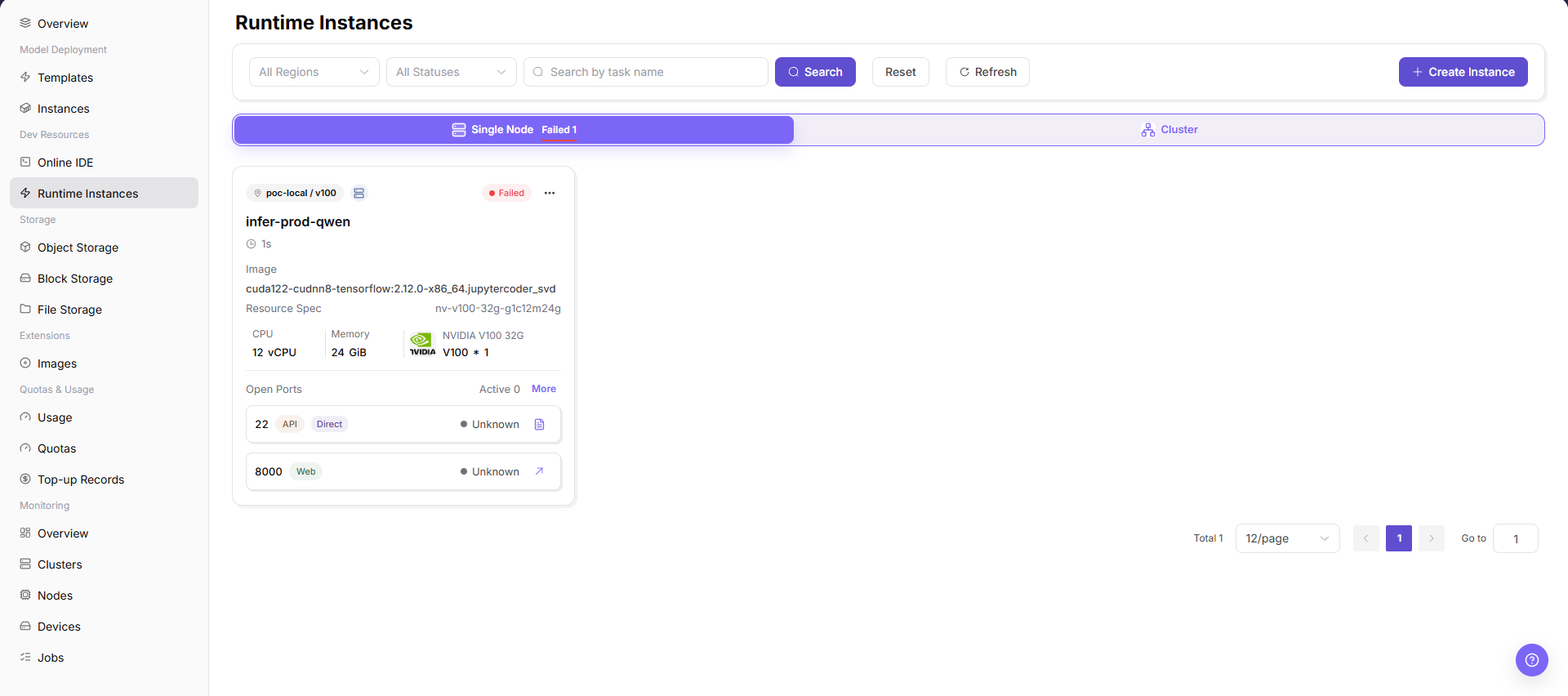
The list page supports filtering by region and status, and provides refresh and create entrypoints. The creation page first selects single-node or cluster deployment type.
Main Operations
View Resource Instances
- Open the corresponding development-resource page and filter by name, project, status, flavor, or update time.
- Open details and check image, flavor, storage, network, runtime status, and creation time.
- If no record is returned, reset filters and check project and region. Redact internal addresses and credentials before sharing.
- For abnormal status, inspect events and quota before creating another instance.
Connect to or Manage Instance Status
- Open the target details and confirm the connection entry, runtime status, and attached storage.
- Before connecting, confirm access permission and network scope and use only the platform-provided secure entry.
- Before starting, stopping, restarting, or deleting, confirm that work and data are saved. Before these actions, confirm the resource, data, and impact, and execute them only after approval.
- After an approved action, check status and events. If abnormal, stop retrying and escalate with logs.
Create Runtime Instance
Procedure
- Go to
AI Infrastructure > On-Prem > Development Resources > Runtime Instances. - Click "Create Instance".
- On the deployment type page, select
Single NodeorCluster.
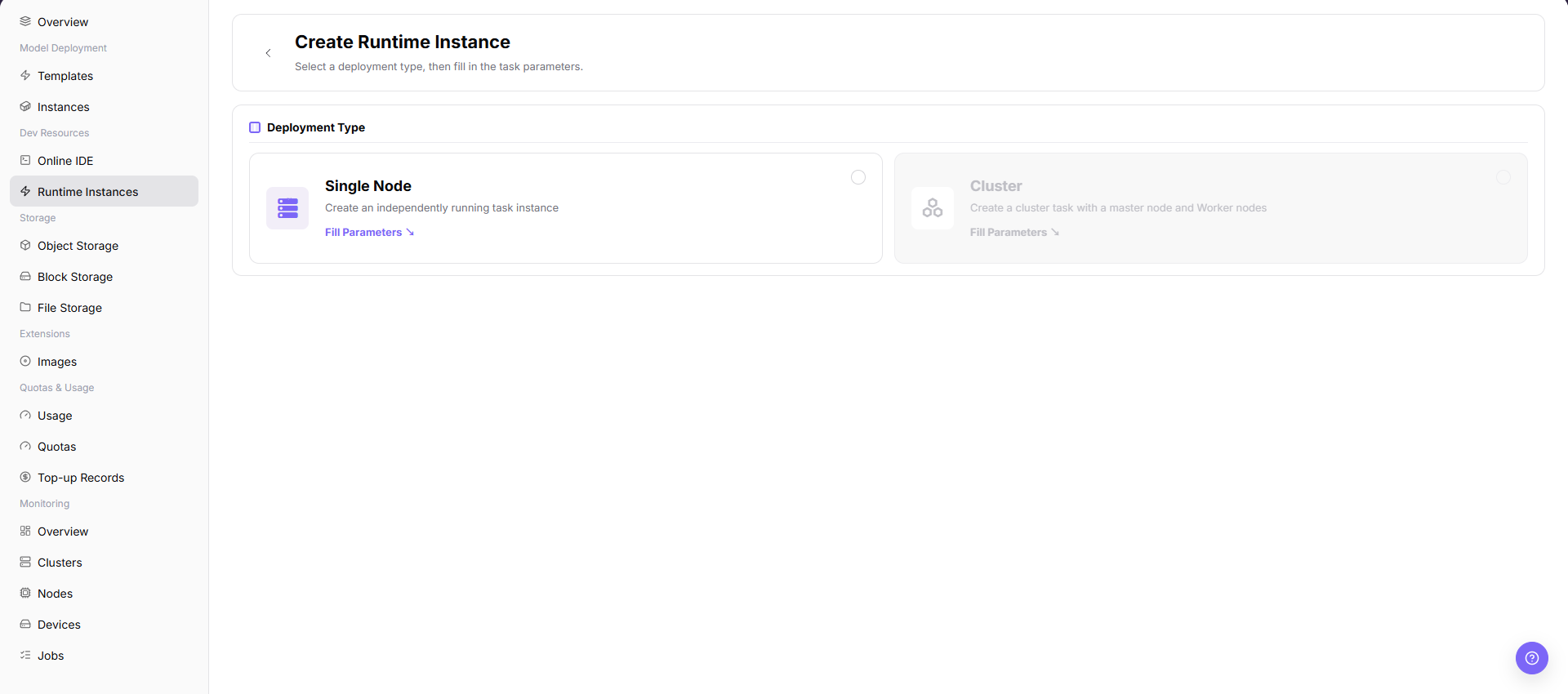
- Click "Fill Parameters" to open the runtime instance creation configuration page.
- Review or fill in instance name, region, image, resource specification, startup command, parameters, environment variables, storage mounts, and other fields as provided by the page.
- Confirm deployment type, image, specification, startup command, parameter passing method, and storage path.
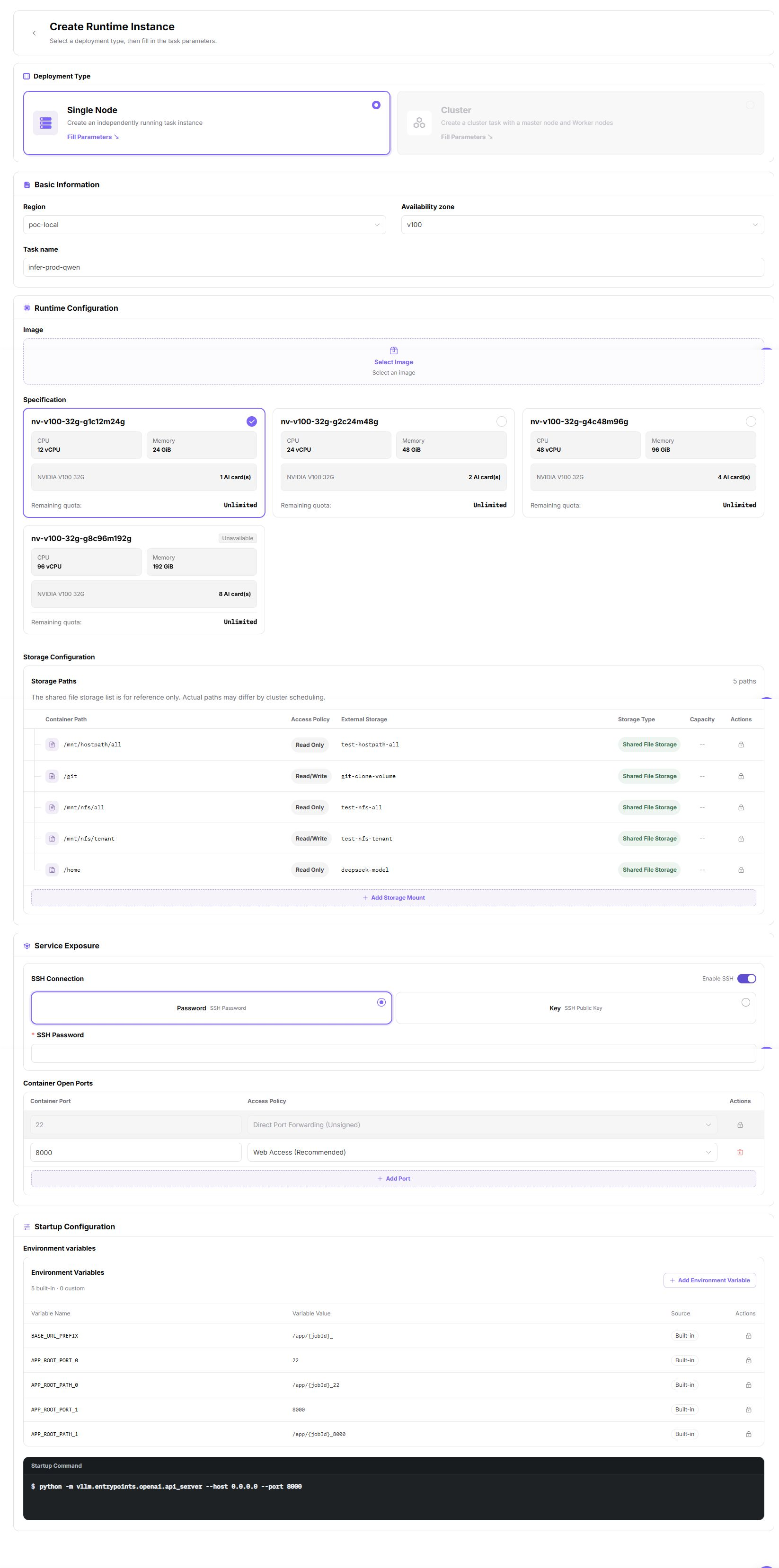
Startup Command Guidance
Python Training Script
Used to start a training entry script. The document only describes that the entry script, data source, output location, and parameter passing method must be checked, without recording real paths or test parameters.
Shell Script
Used to execute batch processing, data preparation, or multi-step tasks. Before creation, confirm that the script exists in the image or mounted directory, and that output is written to a persistent path.
Custom Service
Used to start a long-running service process. Before creation, confirm the service entrypoint, listening method, health status, and resource release method.
Parameter Passing Methods
| Method | Applicable Scenario | Description |
|---|---|---|
| Command-line parameters | The script supports command-line parameters. | Pass parameters through page fields. Do not record real parameters in the document. |
| Environment variables | The framework reads environment variables to control behavior. | Describe field usage only. Do not record real tokens, passwords, or endpoints. |
| Configuration file | Many parameters or reusable configuration is needed. | Confirm that the configuration file comes from a mounted directory or an image built-in path. |
| Mount path | Input data, model files, or output results. | Confirm that input and output directories use persistent storage. |
Parameter Quick Reference
| Field Name | Required | Field Type | Description |
|---|---|---|---|
| Instance Name | Yes | Text | Runtime instance display name. |
| Deployment Type | Yes | Radio | Select single-node or cluster form. |
| Region | Yes | Drop-down | Select the target region for creating the runtime instance. |
| Image | Yes | Drop-down | Select the image used by the runtime instance. |
| Resource Specification | Yes | Drop-down | Select the compute specification used by the runtime instance. |
| Startup Command | Yes | Text | Configure the command or script executed after container startup. |
| Parameters | No | Text | Configure parameters passed to the script or service. |
| Environment Variables | No | Key-value configuration | Configure environment variables read by the container process. |
| Storage Mount | No | Path | Configure mount paths for input data, code, model files, or output directories. |
| Output Path | No | Text | Configure the persistent location for training, batch processing, or service output. |
Pitfalls
Runtime instance status changes may affect downstream flows. Confirm impact before submission.
Sanitize credentials, addresses, customer information, or business identifiers first.
If the list is empty, check filters, region, and permissions first.
Submit,OK, andConfirmare final actions.Creating a runtime instance occupies quota, scheduling resources, and storage resources.
Incorrect startup command, environment variable, or mount path configuration may cause instance startup failure or output loss.
Do not write real tenant, region, image address, resource specification ID, data path, output path, token, password, endpoint, startup parameter, log, or test data.
Result Validation
| Check Item | Success Signal | If Abnormal |
|---|---|---|
| Page entry | Runtime Instances opens with the target operation entry | Check Operator permission and whether the menu is available |
| Object record | Configuration, status, and relationships on Runtime Instances is visible in the list or details | Reset filters and verify name, ownership, and creation result |
| State result | State after creation or change matches the page message | Check operation feedback, dependency state, and latest update time |
| Downstream use | A downstream page can select or associate the target | Return to prerequisites and check enabled state, ownership, and visibility |
FAQ
Target Is Missing from Runtime Instances
Symptom:
The page opens, but the expected Configuration, status, and relationships on Runtime Instances is missing.
Possible Causes:
- Filters remain active.
- the object belongs to another scope.
- a prerequisite is incomplete.
Solution:
- Reset filters
- verify region or tenant ownership
- confirm prerequisite state.
The Operation Entry on Runtime Instances Is Unavailable
Symptom:
The create, register, or maintain entry is hidden or disabled.
Possible Causes:
- Role permission is insufficient.
- the page is read-only.
- dependencies are not ready.
Solution:
- Check Operator permission
- read the page message
- complete dependency configuration first.
A Required Field on Runtime Instances Has No Options
Symptom:
The form opens, but a selection list is empty.
Possible Causes:
- Candidates are disabled.
- ownership differs.
- the current account cannot see them.
Solution:
- Check candidate state
- verify ownership
- confirm visibility and refresh the form.
Runtime Instances Has an Abnormal State After the Operation
Symptom:
A record exists after submission, but its state is unexpected.
Possible Causes:
- Connectivity or validation failed.
- a dependency is abnormal.
- processing is incomplete.
Solution:
- Check feedback and update time
- inspect related objects
- troubleshoot the processing stage.
A Downstream Page Cannot Use Runtime Instances
Symptom:
The current page is normal, but a downstream page cannot select or associate Configuration, status, and relationships on Runtime Instances.
Possible Causes:
- Visibility differs.
- the object is disabled.
- downstream cache is stale.
Solution:
- Check enabled state and ownership
- verify role visibility
- refresh and select again.
Notes
Do not write keys directly in startup commands, environment variables, or screenshots.
Output data should be written to persistent storage to avoid loss after instance release.
Do not write real tenant, region, image address, resource specification ID, data path, output path, token, password, endpoint, startup parameter, log, or test data.
Next Steps
- Enter instance details to view logs and output.
- Evaluate resource consumption from the usage page.
- Stop or release the instance after task completion.
- Accumulate stable commands into team scripts or inference template parameters.