Model Sources
Document Information
Version: v1.0 Updated: 2026-09-07
Feature Overview
| Item | Content |
|---|---|
| Applicable role | Operator Admin |
| Navigation path | Model Services > Settings > Model Sources |
| Page route | /modelone/settings/vendor |
| Managed objects | Model Source names, identifiers, Regions, Base URLs, Request headers, and authentication settings |
Beginner Explanation
A Model Source stores the address and authentication settings for an upstream model service. A Meta-model describes what a model can do. A Model Source describes where the platform calls the service and how the platform authenticates.
Glossary
| Term | Description |
|---|---|
| Model Source | A record that stores an upstream service address and Request header settings. |
| Region | A service location with its own Base URL. |
| Base URL | The root address used before an API Endpoint path. |
| Endpoint | The path for one API operation. It is usually added after the Base URL. |
| API Key endpoint | The address used to obtain or manage API Keys. It is not the model call Endpoint. |
| Request header | An authentication or custom header that the platform sends to the upstream service. |
Beginner Quick Choice
| Case | Do First | Avoid |
|---|---|---|
| First connection to an upstream service | Add the Model Source. Enter the approved upstream address. | Creating a model template first |
| A template requires a Region | Enter the Region identifier, Region name, and Base URL. | Entering only the Model Source name |
| The upstream service requires authentication | Check the default header. Enter the approved value. | Putting API Keys in docs or tickets |
| Template or published-model references are unclear | Open "Details" and confirm known references | Deleting the Model Source |
Prerequisites
- Confirm that the current account has permission to maintain Model Sources.
- Get the Region, address, and Request header requirements from the upstream service owner.
- Confirm network, certificate, and allowlist requirements with the responsible teams.
- Prepare an approved method to enter or reference credentials.
- Before an edit or deletion, identify the templates and published models that use the Model Source.
Page Description
Use this page to manage the complete lifecycle of an upstream Model Source. Each page state has a different responsibility:
| Page State | Responsibility | Leave the State After |
|---|---|---|
| List | Locate a source and review its name, identifier, Region, Base URL, creation time, and available actions. | The target row and intended operation are confirmed. |
| Add form | Create the source, Region, address, and Request header configuration. | Required values have been compared with the approved upstream configuration. |
| Details | Read the saved basic information, Region information, and Headers Preview. | The saved values and target record are confirmed. |
| Edit form | Maintain approved values while keeping the source identifier unchanged. | The changed fields and impact scope have been rechecked. |
| Delete dialog | Confirm a high-risk removal after downstream references are checked. | The target and approval are confirmed, or the operation is cancelled. |
Page screenshot:
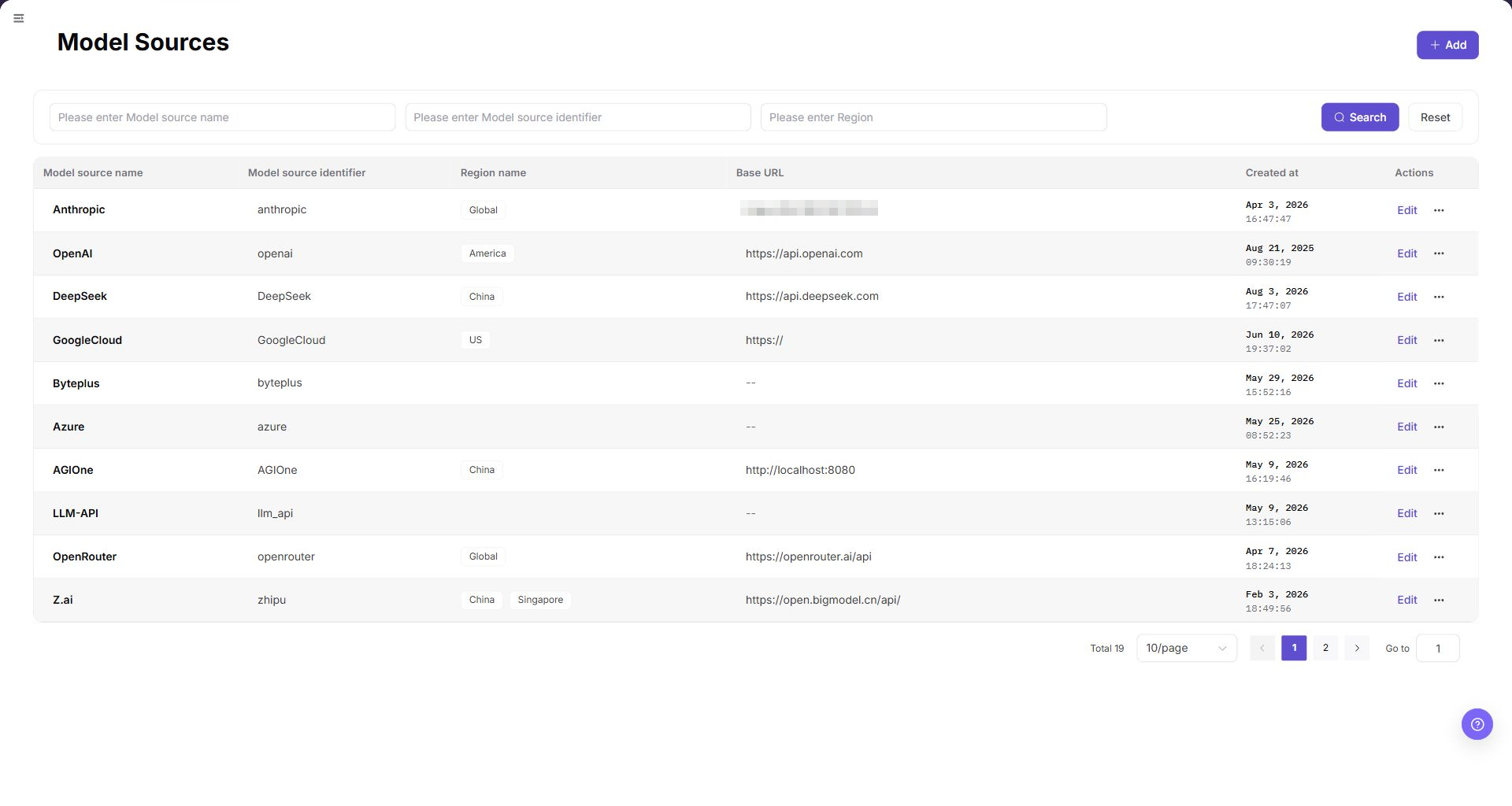
The row-end "..." opens "Details" and "Delete". Use the list and details page together to confirm the target before editing or deleting it. Do not include real credentials in documentation screenshots.
Main Operations
Follow the object lifecycle: add the source, verify its saved details, perform approved maintenance when required, and delete it only after checking downstream references.
Add a Model Source
- Go to Model Services > Settings > Model Sources.
- Click "Add".
- In "English", enter the required
Name. - In "Chinese", enter
Nameonly when users need a Chinese display name. - Enter a unique value in
Model source identifier. - When a template requires a Region, click "Add Region".
- Enter the approved
Region identifier,Region name, andBase URLas one complete set. - Enter
API Key endpointandAPI documentation URLonly when these links apply. - When the upstream service requires an additional Request header, click "Add request header".
- Enter the approved
Auth field nameandAuth value. - Enter real credentials only through the approved secret-entry method.
- Compare all values with the approved upstream configuration.
- Click "Confirm" to submit the form.
- Return to the list and search for the new identifier.
- To close the form without submission, click "Cancel".
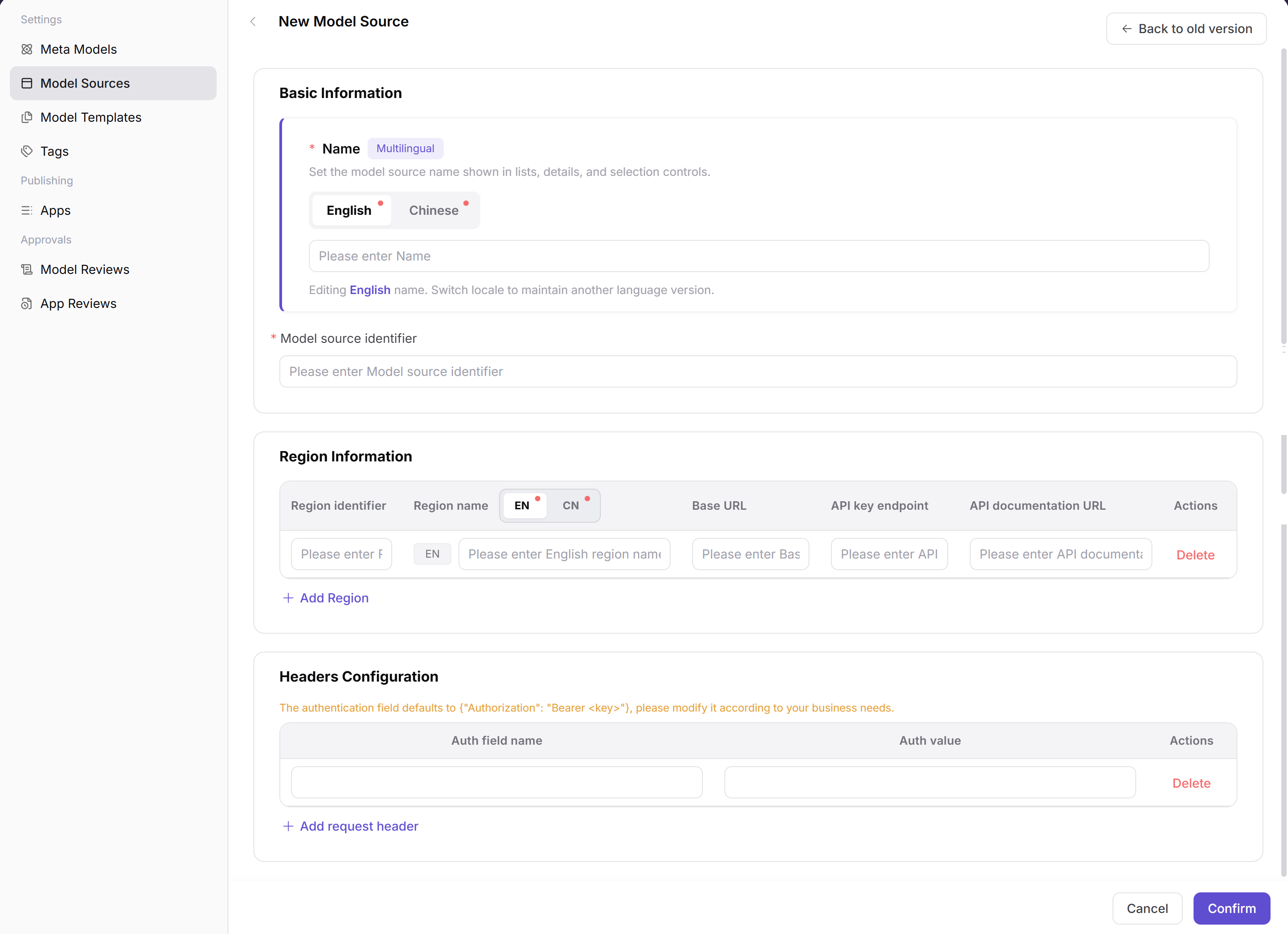
The screenshot shows the localized name tabs, Region fields, and Request header fields. The page requires the English Name and Model source identifier. Use the table below for all other field conditions.
View Model Source Details
- Go to Model Services > Settings > Model Sources.
- Locate the target Model Source.
- Click "..." at the end of the target row.
- Click "Details".
- Check
Name,Model source identifier, and the creation time. - Check
Region identifier,Region name,Base URL,API Key endpoint, andAPI documentation URL. - Check the field names and value format in
Headers ConfigurationandHeaders Preview. - Do not expose or copy a real authentication value into tickets or documentation.
- If the values do not match the approved configuration, return to the list and verify the target row.
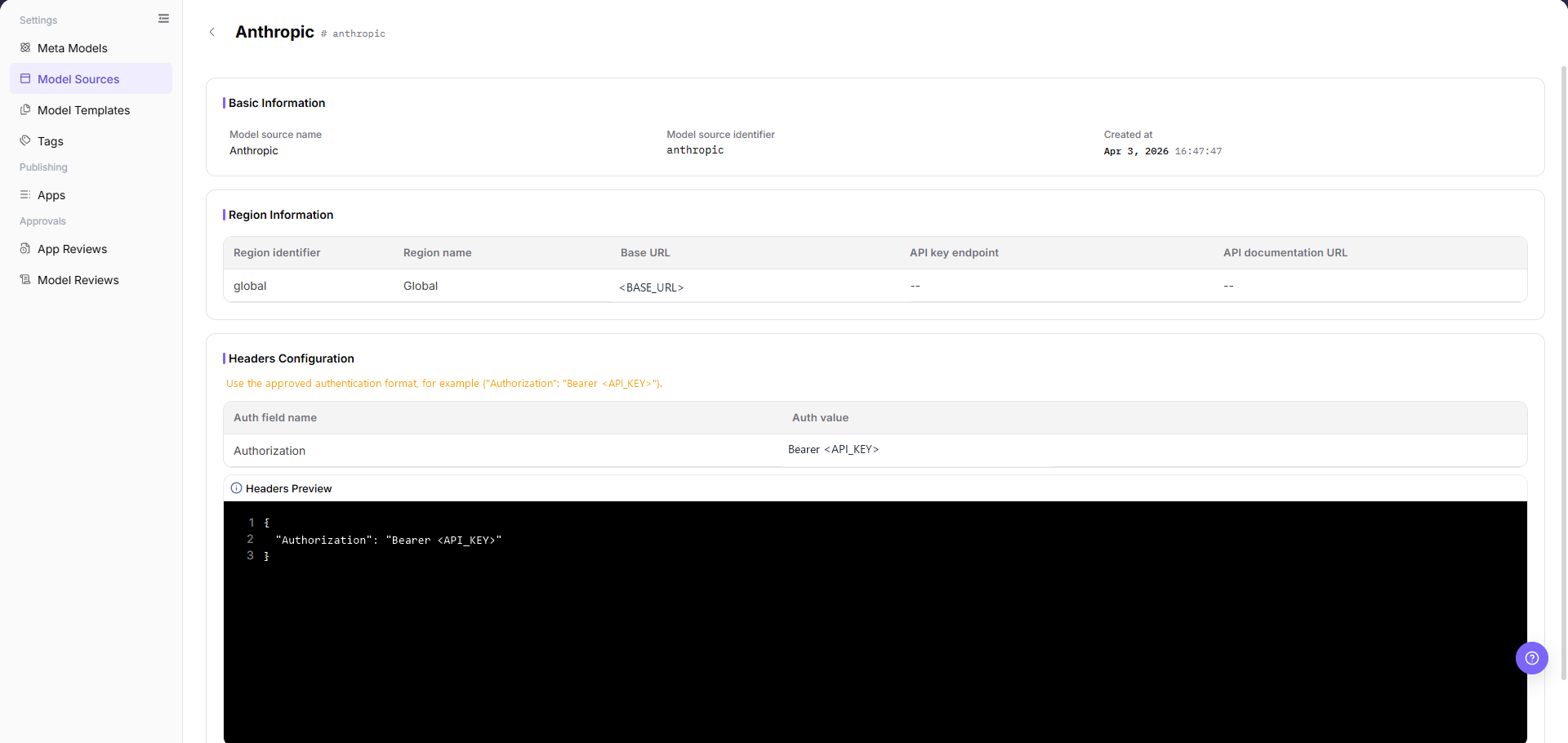
The details page groups the fields into Basic Information, Region Information, and Headers Configuration.
Edit a Model Source
- Go to Model Services > Settings > Model Sources.
- Locate the target Model Source.
- Click "Edit" in the target row.
- Verify that the page shows the expected record.
- Keep
Model source identifierunchanged because it is read-only on the edit page. - Change only the approved name, Region, address, or Request header fields.
- Click "Confirm" to submit the change.
- Open "Details" again.
- Confirm that the displayed values match the approved configuration.
- If the update is not visible, check the page message, required fields, URL values, and account permission.
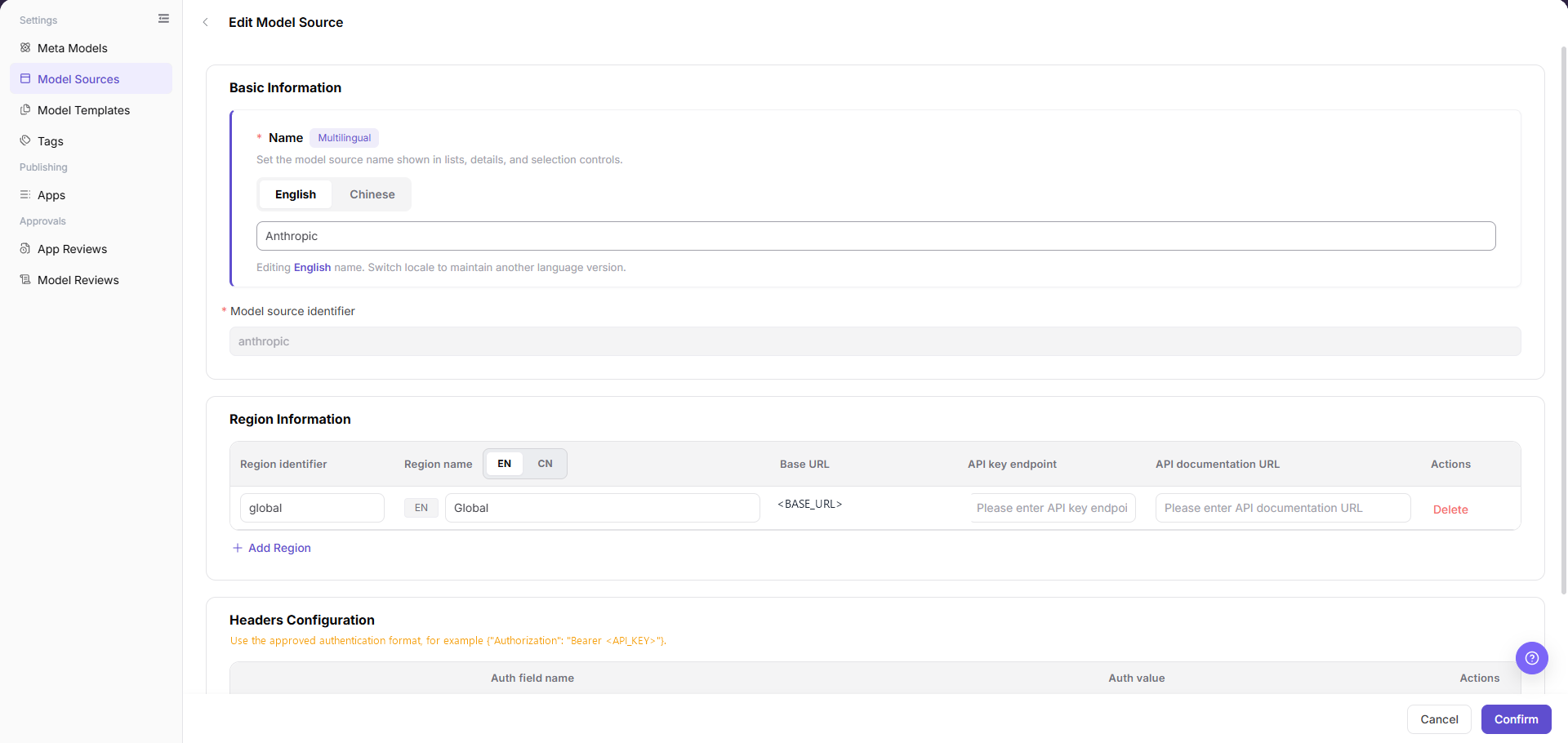
The edit page shows the multilingual name, read-only identifier, Region fields, and Request header fields. Review these values before you click "Confirm".
Delete a Model Source
- Open "Details" for the target Model Source and verify its name, identifier, Region, and Base URL.
- Check the approved configuration inventory for known template and published-model use.
- Stop and confirm with the responsible owner when the use scope is unclear.
- Return to Model Services > Settings > Model Sources and click "..." on the verified row.
- Select "Delete" and read the confirmation message.
- The dialog does not show the target name. Return to the list and verify the row again when needed.
- Confirm the target and approval. Click "OK" in the dialog.
- Refresh the list and search for the identifier.
- Confirm that the identifier no longer appears. Record any visible error or remaining row.
Recovery: To recover an accidental deletion, use an approved record or backup. Recreate the record. Repeat details and downstream checks.
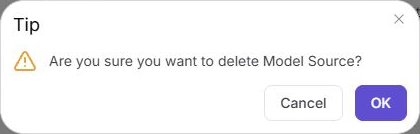
The screenshot shows the delete confirmation dialog, not the "..." menu. The dialog has "Cancel" and "OK". It does not identify the target row.
Parameter Quick Reference
The table separates form requirements from downstream requirements. A field can be optional in this form but required by a template or upstream service.
| Field name | Form requirement | Downstream requirement | Field type | Example | Description |
|---|---|---|---|---|---|
| English Name | Required | Required for every Model Source | Multilingual text | Example Source | Lists and selectors show this English name. |
| Chinese Name | Optional | Chinese UI display | Multilingual text | Example Source | The Chinese interface shows this name. |
| Model source identifier | Required | All Model Sources | Text | example-source | Enter a unique value. Read-only on edit. |
| Region identifier | Optional | Templates with a Region | Text | example-region | Enter with Region name and Base URL. |
| Region name | Optional | Required when the template uses a Region | Multilingual text | Example Region | The Region selector shows this name. |
| Base URL | Optional | Region call to upstream | URL | https://api.example.com | Root address. Add operation paths downstream. |
| API Key endpoint | Optional | API Key management | URL | https://api.example.com/keys | Key link. Not a model call Endpoint. |
| API documentation URL | Optional | Documentation link | URL | https://api.example.com/docs | Upstream documentation address. |
| Auth field name | Optional | Upstream Request header auth | Text | Authorization | Default field: Authorization. |
| Auth value | Optional | Upstream authentication | Text | Bearer <API_KEY> | Default format: Bearer <key>. Use the approved secret method. |
| Headers Preview | System-generated | Configured Request headers | JSON preview | {"Authorization":"Bearer <API_KEY>"} | Generated from configured headers. Compare with the upstream specification. |
Pitfalls
- Do not enter an operation Endpoint in
Base URLunless the upstream specification requires it. - When a template requires a Region, enter the Region identifier, Region name, and Base URL as one complete set.
- Match the Request header field name, prefix, and value format to the upstream specification.
- After an address or header change, reopen "Details" and compare the displayed values with the approved configuration.
- Before deletion, confirm known template and published-model references. The confirmation dialog does not show dependency details.
Result Validation
| Check item | Observable result | If the result is absent |
|---|---|---|
| New Model Source | List shows the expected name and identifier. | Clear filters. Refresh. Check the message after "Confirm". |
| Details | The details page shows the expected fields. | Verify the identifier. Reopen "Details". |
| Headers Preview | The preview shows the expected names and values. | Compare the headers with the upstream specification. |
| Edit | The list or details page shows the new values. | Check the message. Submit the approved change again. |
| Template provider selection | Select Provider shows the target source. | Reopen the selector. Check the name, identifier, and Operator Admin permission. |
| Template Region selection | Select Region shows the configured Region. | Stop the flow. Complete Region fields in Model Sources. |
| Delete dialog | The dialog shows "Cancel" and "OK". | Close the dialog. Verify the target row. |
| Deleted Model Source | Search does not show the identifier. | Record errors or a remaining row. Do not assume completion. |
FAQ
Cannot Find the Model Source After Adding It
Symptom:
The list does not show the new name or identifier.
Possible causes:
- Search fields hide the record.
- The form shows a validation message.
- The submission did not complete.
Handling:
- Clear the search fields and refresh the list.
- Search for the exact
Model source identifier. - Check the message shown after "Confirm".
Details Do Not Match the Approved Configuration
Symptom:
The details page shows an unexpected Region, address, or Request header structure.
Possible causes:
- You opened a different row.
- An edit was not submitted.
- You entered the approved value in a different field.
Handling:
- Return to the list and verify the identifier.
- Open "Details" again.
- Compare each visible field with the approved configuration.
Headers Preview Does Not Match the Upstream Specification
Symptom:
Headers Preview shows an unexpected field name, prefix, or value format.
Possible causes:
Auth field nameis incorrect.Auth valuehas an incorrect prefix or placeholder format.- Multiple Request headers use an incorrect combination.
Handling:
- Compare the fields with the upstream API specification.
- Edit only the approved Request header values.
- Reopen "Details" and check
Headers Preview.
Model Templates Do Not Show the Model Source
Symptom:
Select Provider does not show the target Model Source.
Possible causes:
- The selector search does not match the source name.
- The Region fields are incomplete for a template that requires a Region.
- The current Operator Admin account cannot use the required record.
Handling:
- Go to Model Services > Settings > Model Templates.
- Select the target source in the
Model Sourcelist. - Click "Add".
- In
Provider Information, reopenSelect Provider. - If "Select Region" requires a value, complete the Region fields.
Downstream Call Fails
Symptom:
The template can select the Model Source, but a downstream validation call fails.
Possible causes:
- Base URL or Endpoint is incorrect.
- Request header authentication is incomplete or invalid.
- Network, certificate, rate limit, or upstream service policy blocks the call.
Handling:
- Model Source setup ends when you select the source in the template or publishing flow.
- Use the error shown in the downstream call flow to continue troubleshooting.
- See Publish and Call a Model for the call procedure.
Deletion Does Not Complete
Symptom:
The confirmation dialog remains open, an error appears, or the refreshed list still shows the Model Source.
Possible causes:
- The deletion request did not complete.
- The current account does not have the required permission.
- The service rejected the deletion for a reason that is not shown before confirmation.
Handling:
- Record the visible error message.
- Search for the identifier after a refresh.
- Confirm known template and published-model use with the responsible owner.
- Do not repeat the deletion until the cause is understood.
Notes
- A Model Source visible in the list is not proof that the upstream service is callable.
- Keep real authentication values in the approved secret-entry system.
Next Steps
Use the Model Templates manual for the next page.
When the Model Source has a Region
- As an Operator Admin, go to Model Services > Settings > Model Templates.
- Select the target source in the
Model Sourcelist. - Click "Add".
- In
Provider Information, select the source from "Select Provider". - Select the configured Region from "Select Region".
- Continue only after both selectors show the expected values.
When the Model Source has no Region
- Open
Provider Informationand check "Select Provider". - If the source appears, check the state of "Select Region".
- If the page requires "Select Region" or shows no option, stop the template flow.
- Continue without a Region only after the template owner confirms that this flow supports it.
- If the flow is not approved, return to Model Sources and add a complete Region configuration.
After the template and publishing steps, follow Publish and Call a Model for call validation. Call validation is outside the Model Sources page. Use the response or error shown by that flow.