Templates
Feature Overview
| Item | Content |
|---|---|
| Applicable Role | Model Provider |
| Navigation Path | AI Infra(On-Prem) > Model Deployment > Templates |
| Page Route | /powerone/quickstart/inference-template |
| Managed Object | Configuration, status, and relationships on Templates |
Beginner Explanation
Templates can be understood as an ordering page for model services. The user first selects a model, then checks the available accelerator and recommended specification, fills in deployment settings when needed, and finally reviews the preview before creating a model instance.
Terms
| Term | Description |
|---|---|
| Template | A deployable solution maintained by operators that combines model, framework, image, specification, startup parameters, and visibility rules. |
| Model Library | Area that displays models available to the current user or tenant. |
| Accelerator | Hardware option, such as GPU or NPU, that can run the selected model. |
Recommended Operation Order
Confirm prerequisites for Model library, accelerators, business parameters, recommended specifications, deployment settings, and preview information, follow Main Operations, run Result Validation, and continue to the next page.
First-Time User Notes
Confirm that the task involves Configuration, status, and relationships on Templates, and then follow the recommended order. If fields or state differ from expectations, check prerequisites before continuing downstream.
Prerequisites
- The operator has published at least one template visible to the current tenant.
- The current tenant has available quota in the target region.
- Images, accelerators, specifications, and framework parameters required by the template have been configured by the operator.
- If the deployment will expose a service, confirm the access scope and security policy before creating an instance.
Page Description
Use this page to select a model, accelerator, business parameters, recommended specification, deployment settings, and preview information.
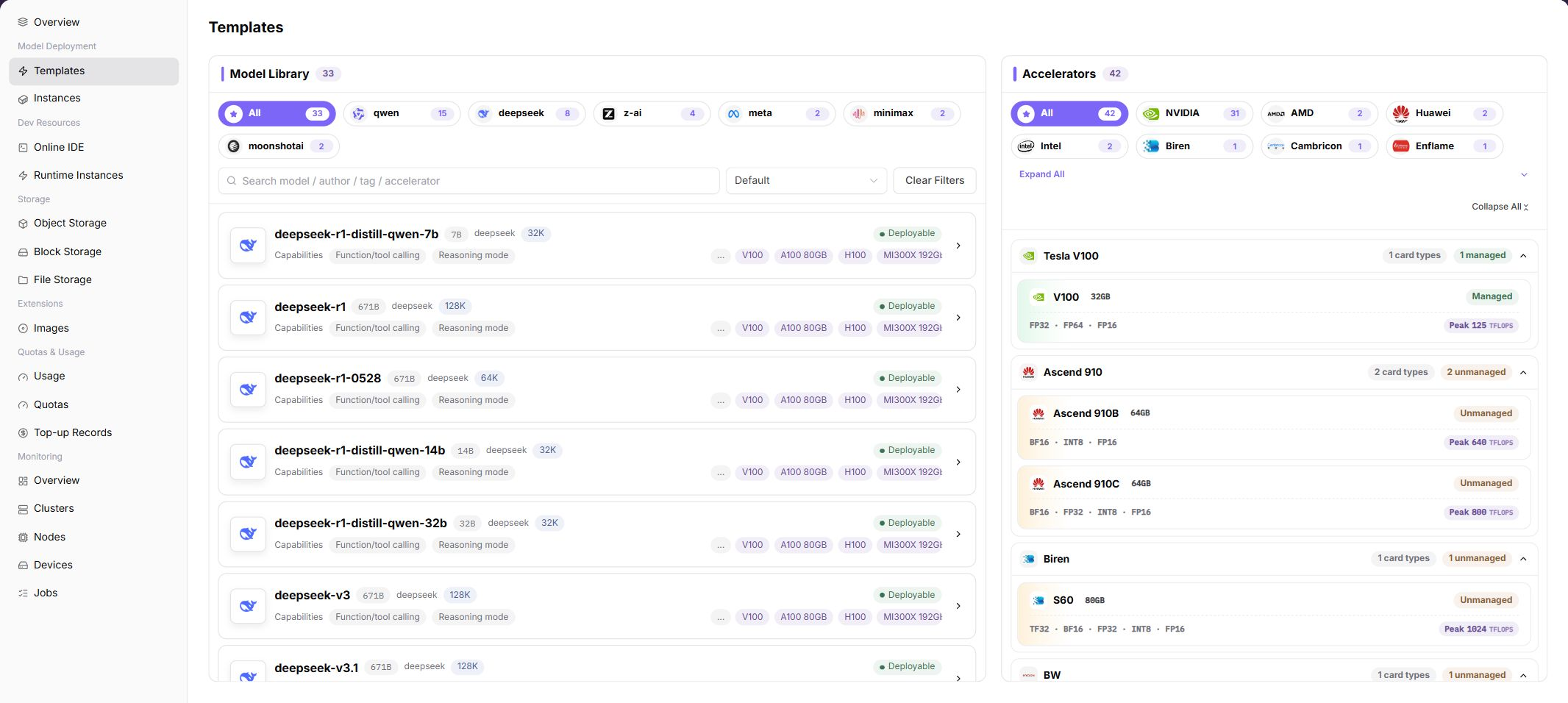
The page displays model library, accelerators, business parameters, recommended specifications, deployment settings, and preview information in a wizard. The screenshot shows the templates list area.
Page Areas
| Field/Area | Description |
|---|---|
| Model Library | Displays deployable models by vendor and model name. |
| Accelerators | Displays accelerator vendor, model, VRAM, adaptation status, and peak capability. |
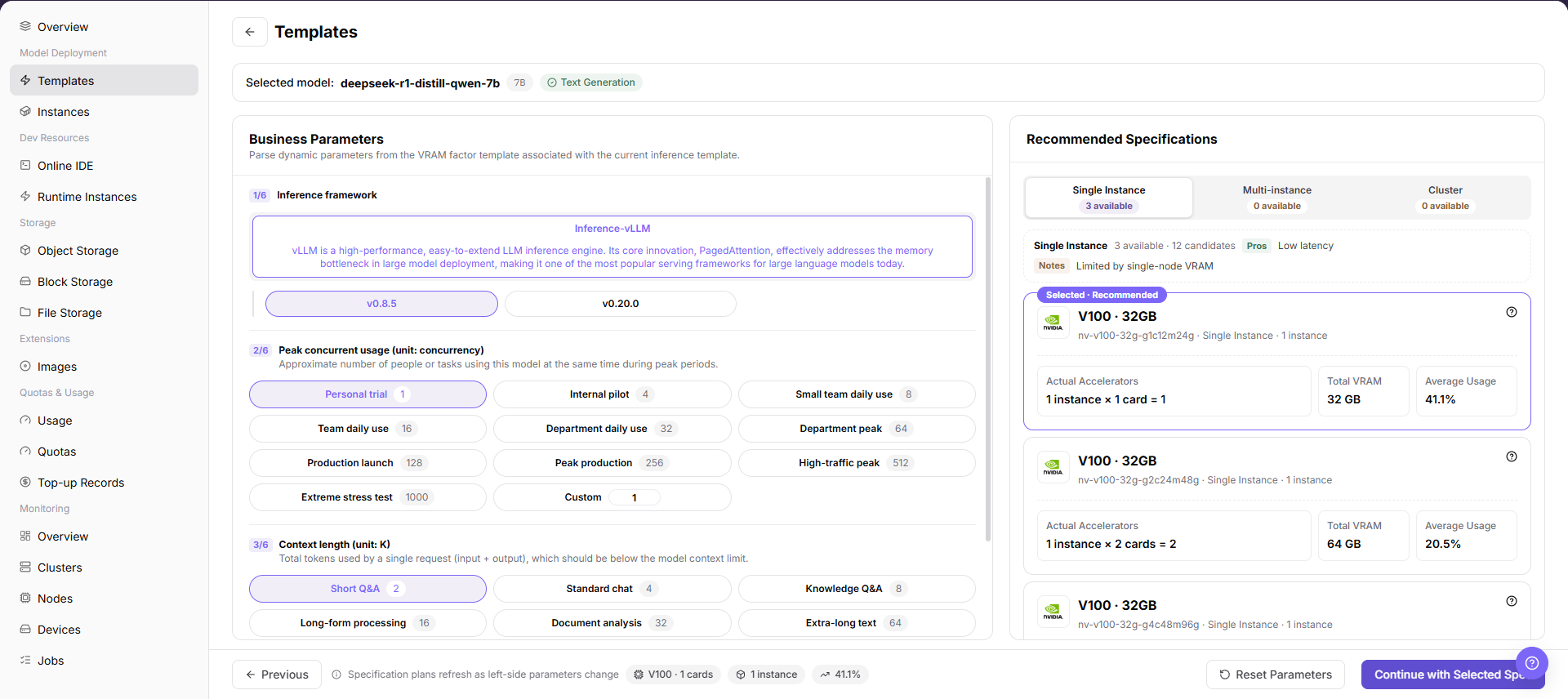
| Business Parameters | Displays model capability, context, startup, or runtime parameters that need confirmation. |
| Recommended Specifications | Displays selectable instance forms and recommended resource specifications. |
| Deployment Settings | Used to enter instance name, region, specification, startup parameters, and other deployment information. |
| Preview | Summarizes the selected configuration before submission. |
Main Operations
View Deployment Templates
- Go to
Model Deployment > Deployment Templates. - Filter by template name, model, framework, status, or update time.
- Open details and check model version, image, resource flavor, ports, storage, and replica configuration.
- If no record is returned, reset filters. For an unavailable template, check dependent assets and quota.
Review Deployment Parameters and Cost
- After selecting a template, review region, cluster, flavor, replicas, and estimated resource usage.
- Compare capacity, availability, and quota with business requirements.
- If parameters are incompatible, correct them according to the page message without bypassing limits.
- Before the final deployment action, confirm resource and cost impact and execute the deployment only after approval.
Deploy Template
Pre-Operation Check
- Confirm that the current account has access to
AI Infra > On-Prem > Model Deployment > Templates. - Confirm that the target tenant and region have been selected correctly if the page provides global selectors.
Procedure
- Go to
AI Infrastructure > On-Prem > Model Deployment > Templates. - View deployable models in
Model Library. - Select the target model and review
Accelerators,Business Parameters, andRecommended Specifications. - Review model capability, context, startup, or runtime parameters in
Business Parameters.
- Enter
Deployment Settingsand review instance name, region, specification, and startup parameters.
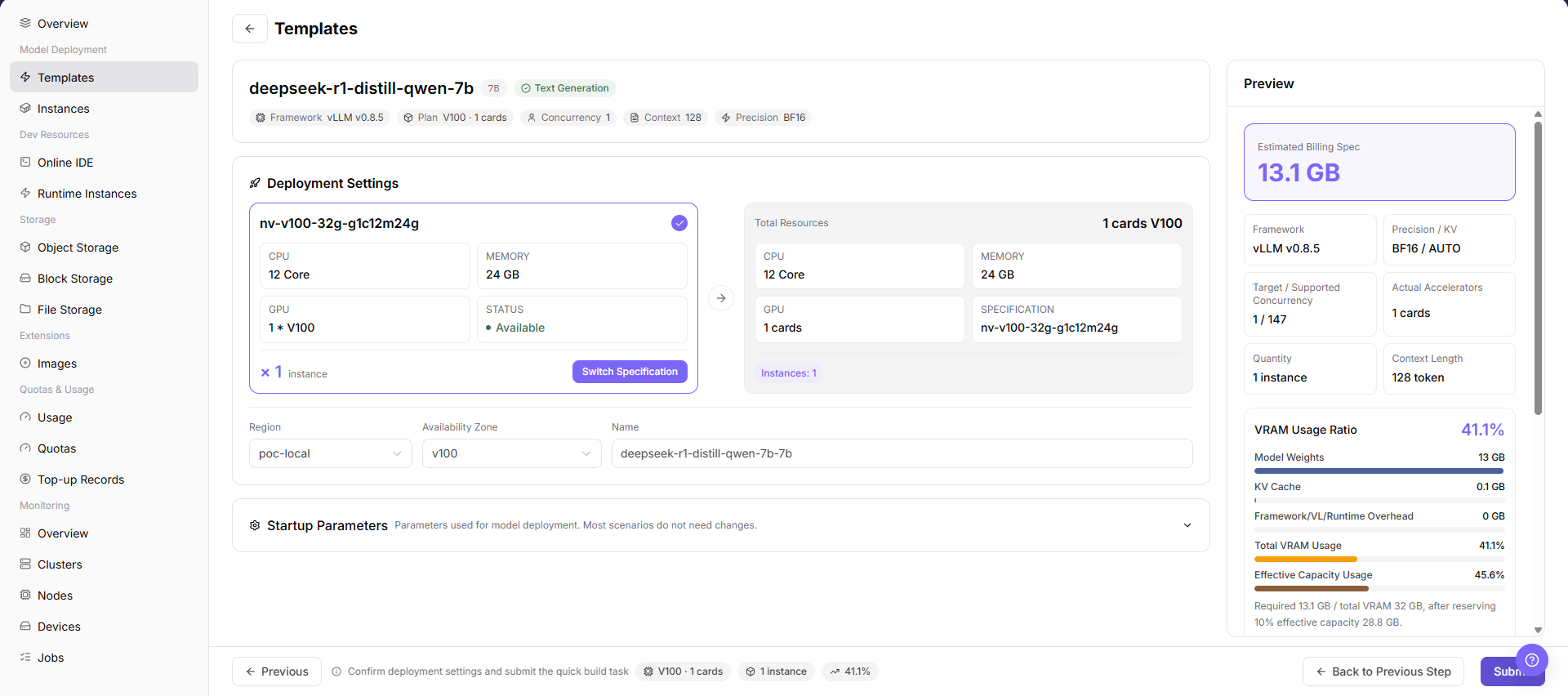
- Review final configuration in
Preview.
Parameter Quick Reference
| Field Name | Required | Field Type | Description |
|---|---|---|---|
| Template Name | System-generated | Text | Name of the deployable template shown by the platform. |
| Model | Required | Selection | Model selected from the model library. |
| Accelerator | Required | Selection | Accelerator vendor and model used for this deployment. |
| Business Parameters | Depends on template | Form fields | Model capability, context, startup, or runtime parameters maintained by the template. |
| Recommended Specification | Required | Selection | Resource specification recommended or allowed by the template. |
| Region | Required when deploying | Selection | Region or resource pool where the model instance will be created. |
| Instance Name | Required when deploying | Text | Name of the model instance to be created. Do not use real customer or sensitive names in documentation. |
| Startup Parameters | Depends on template | Text or form fields | Startup parameters inherited from the template or adjusted for a clear business need. |
| Status | System-generated | Enum | Whether the template or selected option can be used to create an instance. |
Pitfalls
- If an accelerator shows
UnadaptedorUnmanaged, it may not be directly deployable. - When recommended specifications are empty, first check accelerator adaptation, resource specifications, quota, and region.
- Template parameters are maintained by operators. Do not modify startup parameters casually, because incorrect parameters may cause model service startup failure.
Submit,OK, andConfirmare high-risk final actions.- Deploying through a template may create real model instances, occupy resources, and generate usage.
- Do not write real tenant names, region names, model IDs, resource IDs, internal image addresses, endpoints, startup parameters, logs, or test data in the document.
Result Validation
| Check Item | Success Signal | If Abnormal |
|---|---|---|
| Page entry | Templates opens with the target operation entry | Check Operator permission and whether the menu is available |
| Object record | Configuration, status, and relationships on Templates is visible in the list or details | Reset filters and verify name, ownership, and creation result |
| State result | State after creation or change matches the page message | Check operation feedback, dependency state, and latest update time |
| Downstream use | A downstream page can select or associate the target | Return to prerequisites and check enabled state, ownership, and visibility |
FAQ
Target Is Missing from Templates
Symptom:
The page opens, but the expected Configuration, status, and relationships on Templates is missing.
Possible Causes:
- Filters remain active.
- the object belongs to another scope.
- a prerequisite is incomplete.
Solution:
- Reset filters
- verify region or tenant ownership
- confirm prerequisite state.
The Operation Entry on Templates Is Unavailable
Symptom:
The create, register, or maintain entry is hidden or disabled.
Possible Causes:
- Role permission is insufficient.
- the page is read-only.
- dependencies are not ready.
Solution:
- Check Operator permission
- read the page message
- complete dependency configuration first.
A Required Field on Templates Has No Options
Symptom:
The form opens, but a selection list is empty.
Possible Causes:
- Candidates are disabled.
- ownership differs.
- the current account cannot see them.
Solution:
- Check candidate state
- verify ownership
- confirm visibility and refresh the form.
Templates Has an Abnormal State After the Operation
Symptom:
A record exists after submission, but its state is unexpected.
Possible Causes:
- Connectivity or validation failed.
- a dependency is abnormal.
- processing is incomplete.
Solution:
- Check feedback and update time
- inspect related objects
- troubleshoot the processing stage.
A Downstream Page Cannot Use Templates
Symptom:
The current page is normal, but a downstream page cannot select or associate Configuration, status, and relationships on Templates.
Possible Causes:
- Visibility differs.
- the object is disabled.
- downstream cache is stale.
Solution:
- Check enabled state and ownership
- verify role visibility
- refresh and select again.
Notes
- Deploying through a template may create real model instances, occupy resources, and generate usage. Confirm instance name, region, specification, and runtime cycle before submission.
- Screenshots or tickets must not contain internal service addresses, access keys, endpoints, sensitive startup parameters, logs, or customer information.
- Templates, specifications, and accelerators are maintained by operators. If the user side cannot select a target option, check publishing scope, tenant visibility, quota, and resource pool status with the operator.
Next Steps
- Go to Instances to view model instance status.
- Go to Usage or Quotas to review quota and usage changes.
- Go to Monitoring Overview to monitor runtime status after deployment.